Cancelling a Job
The printing of a file stored in the Hold Queue can be cancelled from the Print Job List and Status Monitor/Cancel screen.
Cancelling a Job from the Print Job List
1.
Press  → [Hold].
→ [Hold].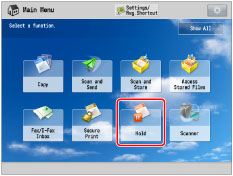
2.
Select the job that you want to cancel from the Print Job List → press [Cancel].
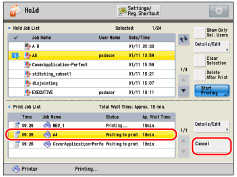
The job is cancelled.
Using the Status Monitor/Cancel Screen
1.
Press  .
.
.2.
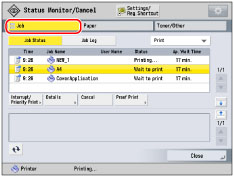
Press [Job].
3.
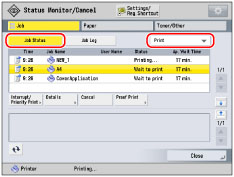
Press [Job Status] → select [Print] from the drop-down list.
|
IMPORTANT
|
|
You cannot select multiple jobs and cancel them all at once. Select and cancel one job at a time.
|
4.
Select the job that you want to cancel → press [Cancel].
If you select [Print Current Copy Completely], you can cancel printing jobs after the current printing job is complete.
5.
Press [Yes].
The job is cancelled.
|
NOTE
|
|
The cancelled job appears as <NG> (No Good) on the Log screen.
|
6.
Press [OK].
The display returns to the Print Job List screen.