
Using the Display
The display is a touch panel. You can operate it by touching it directly in the same manner as a smartphone or tablet.
|
|
Avoid operating the display in the following waysMay cause misoperation or damage the display.
Pressing forcefully
Pressing with a pointed object (fingernails, ballpoint pen, pencil, etc.)
Operating with wet or soiled hands
Operating the display while an object is on it
|
Tap
Touch the display lightly and quickly. Use for selecting or finalizing items.
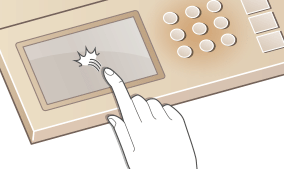
Long touch
Keep finger lightly held on the display. Can be used such as with numerical values to increase/decrease them continuously.
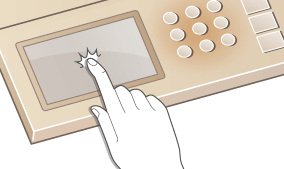
Drag
Slide your finger on the display. The range displayed on the screen changes according to the movement of your finger.
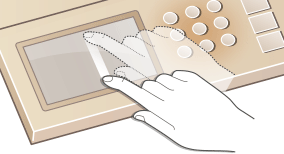
Flick
Flick with the finger on the display. Depending on the displayed screen, scrolling occurs by different amounts.
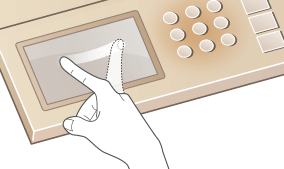
Selecting Items
Tap an item name or button to make a selection.
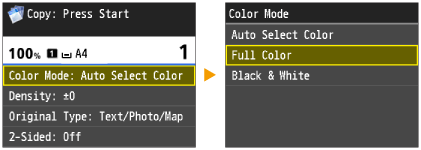
 |
If an item is mistakenly touchedSlide your finger away on the display then release it from the display to cancel the selection.
 To return to the previous screenPress
 to return to the previous screen. to return to the previous screen. |
Scrolling the Screen
|
|
Scroll Bar DisplayWhen you drag or flick the display up/down, a scroll bar may appear for scrolling the screen. A scroll bar does not appear when you can drag or flick left/right to change the display such as with the Home Screen or Address Book tabs.
|
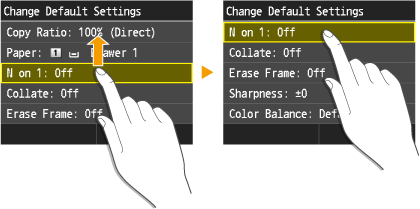
Scrolling by Dragging
By dragging on the display, the screen scrolls with the movement of your finger. Drag repeatedly until desired information is displayed.
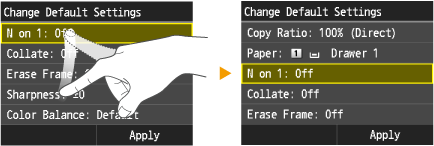
Scrolling by Flicking
By flicking on the display, the screen scrolls in the direction flicked in. The result of flicking depends on the screen. For example, flicking the Home Screen changes the screen by one page, and flicking in the copy screen scrolls the screen by an amount that matches the flick movement.
Changing Numerical Values and Settings
Changing Values
Numerical values increase/decrease each time you tap  /
/ . By holding /, the value increases/decreases as long as held. When
  is displayed at the upper left of the screen, you can enter values directly from the numeric keys.
/. By holding /, the value increases/decreases as long as held. When is displayed at the upper left of the screen, you can enter values directly from the numeric keys.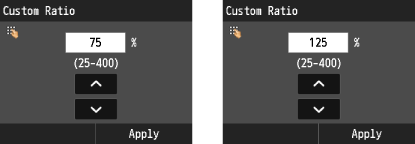
|
|
To move the cursorWhen
 / / is displayed, tap to move the cursor. is displayed, tap to move the cursor.Value rangeValues in ( ) displayed below the entry box are the enterable value range.
|
Changing setting values
In addition to tapping / to adjust the scale position, you can also move the slider by dragging it. Flicking left/right also moves the slider by one notch in the flicked direction.
/ to adjust the scale position, you can also move the slider by dragging it. Flicking left/right also moves the slider by one notch in the flicked direction.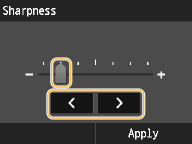
 |
|
You can change a variety of display-related settings, such as the scrolling speed or display language:
Auto Reset Time To change the screen that is automatically displayed when the machine remains idle for a specified length of time:
Function After Auto Reset |