Uninstalling the Software
Follow the steps in the procedure below to uninstall the printer driver, fax driver, scanner driver, or MF Toolbox if you do not need them installed on your computer.
Note that uninstallation procedures vary depending on how you installed the Laser MFP Drivers.
When the Laser MFP Drivers are installed from the CD-ROM's setup screen

When the Laser MFP Drivers are installed using the WSD port
 |
If you are a Macintosh user, see the Starter Guide or Driver Guide to view how to uninstall the software (Printer Driver, Fax Driver, or Scanner Driver).
To view how to display the Driver Guide, see "For Macintosh Users."
|
|
IMPORTANT
|
|
Be aware of the following before uninstalling the software.
Log on to your computer with administrator privileges.
Have the installation software ready in case you want to re-install the drivers.
Quit all running applications on your computer.
|
Uninstalling Using the Uninstaller
To uninstall the printer/fax/scanner driver
1
Open [Programs and Features].
For Windows XP
From the [Start] menu, select [Control Panel], and then double-click [Add or Remove Programs].
For Windows Vista/7/Server 2003/Server 2008
|
1.
|
From the [Start] menu, select [Control Panel].
|
|
2.
|
Click [Uninstall a Program] or double-click [Programs and Features].
|
For Windows 8/Server 2012
Right-click the lower-left corner of the screen and select [Programs and Features].
2
Select [Canon LC600 Series], and then click [Uninstall/Change].
3
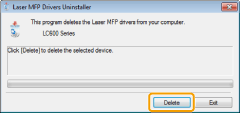
Click [Delete].
4
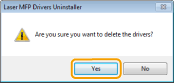
Click [Yes] to confirm the uninstallation.
5
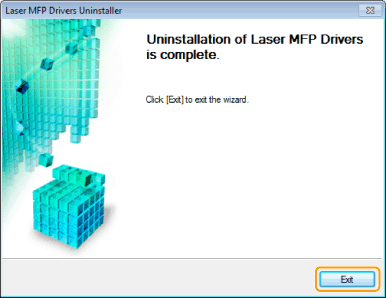
Click [Exit] (or [Restart]).
To uninstall the MF Toolbox
1
Open [Programs and Features].
For Windows XP
From the [Start] menu, select [Control Panel], and then double-click [Add or Remove Programs].
For Windows Vista/7/Server 2003/Server 2008
|
1.
|
From the [Start] menu, select [Control Panel].
|
|
2.
|
Click [Uninstall a Program] or double-click [Programs and Features].
|
For Windows 8/Server 2012
Right-click the lower-left corner of the screen and select [Programs and Features].
2
Select [Canon MF Toolbox 4.9], and then click [Uninstall].
3
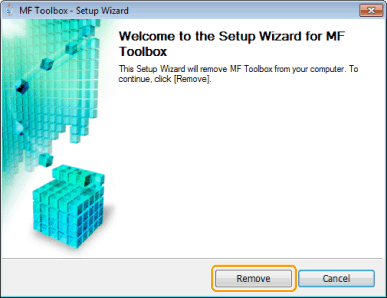
Click [Remove].
4
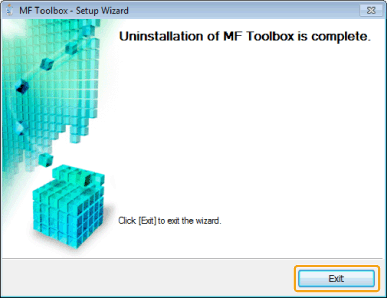
Click [Exit].
Uninstalling the WSD Device
1
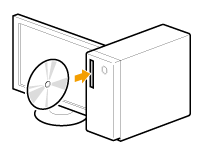
Insert the User Software CD-ROM into the slot on your computer.
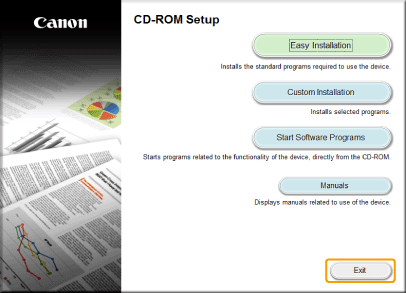
When the following screen appears, click [Exit].
 If [AutoPlay] is displayed If [AutoPlay] is displayed |
|
Click [
 ] to close the dialog box. ] to close the dialog box. |
2
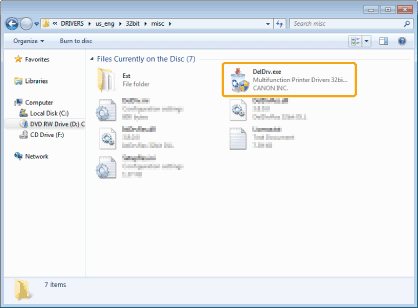
Open the folder that contains the uninstaller on the CD-ROM.
For 32-bit:
\DRIVERS\us_eng\32bit\misc\
For 64-bit:
\DRIVERS\us_eng\x64\misc\
3
Double-click [DelDrv.exe].
 When [User Account Control] appears When [User Account Control] appears |
|
Click [Yes] or [Continue].
|
4
Click [Delete].
5
Click [Yes].
6
Click [Exit].
|
|
Eject the CD-ROM from the CD-ROM drive when the following screen appears.
|
7
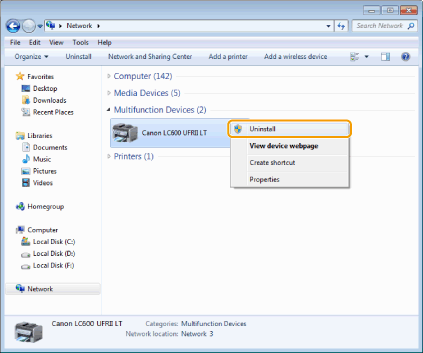
Open the Explorer, and click [Network].
8
Right-click the machine icon and select [Uninstall] from the pop-up menu.
|
When [User Account Control] appears |
|
Click [Yes] or [Continue].
|
→ The machine icon is deleted from the printer folder. Uninstallation is complete.