IPv6 Settings
 |
Specify the IPv6 settings after specifying the IPv4 settings.
|
|
|
For details on the procedure before selecting the settings (the procedure before Step 1), see "Configuring the Protocol Settings."
|
1
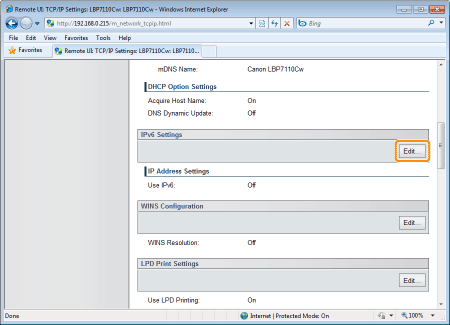
Click [Edit] in [IPv6 Settings].
2
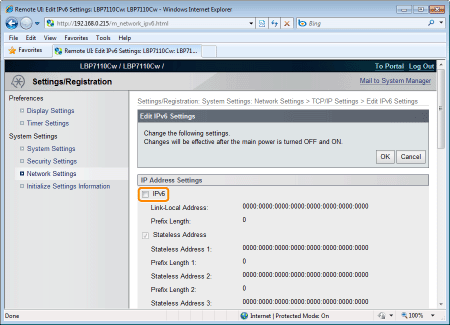
Select the [IPv6] check box.
3
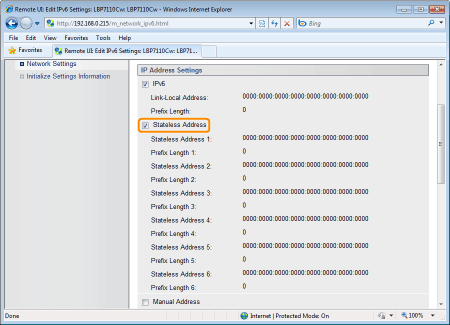
Specify the stateless address.
Proceed to Step 4 when not using a stateless address.
|
[Stateless Address]
|
To use a stateless address, select the check box.
|
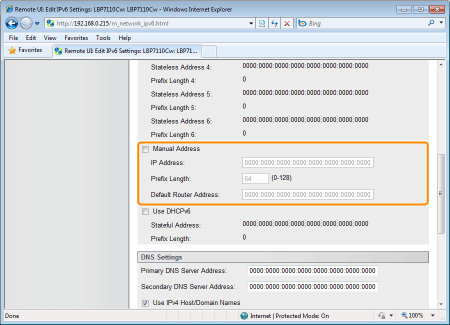
Specify the manual address.
Proceed to Step 5 when not using a manual address.
|
[Manual Address]
|
To use a manual address, select the check box.
|
|
[IP Address]
|
Enter the IP address of the printer.
|
|
[Prefix Length]
|
Enter the prefix length.
|
|
[Default Router Address]
|
Enter the default router address as needed.
|
|
IMPORTANT
|
Addresses that cannot be entered in [IP Address] and [Default Router Address]Addresses that begin with "ff" (multicast address)
"::1" (loopback address)
|
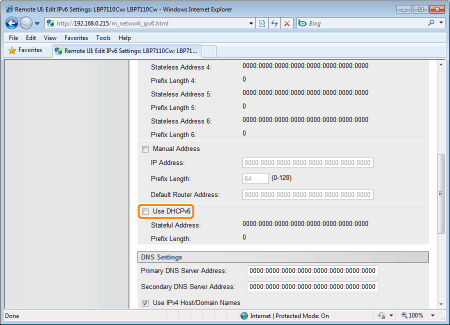
Specify DHCPv6.
Proceed to Step 6 when not using DHCPv6.
|
[Use DHCPv6]
|
To use DHCPv6, select the check box.
|
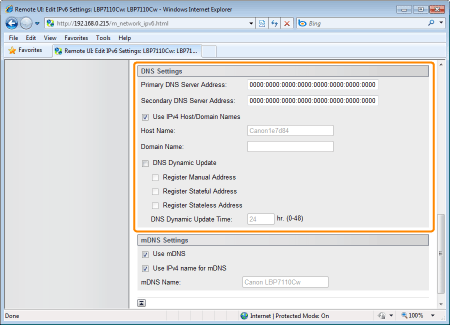
Specify the DNS.
Proceed to Step 7 when not using DNS.
|
[Primary DNS Server Address]
|
Enter the IP address of the primary DNS server.
|
|
[Secondary DNS Server Address]
|
Enter the IP address of the secondary DNS server.
|
|
[Use IPv4 Host/Domain Names]
|
To use the same name as IPv4, select the check box.
|
|
[Host Name]
|
Enter the host name to be added to the DNS server. You can enter up to 47 single-byte alphanumeric characters.
|
|
[Domain Name]
|
Enter the name of the domain to which the printer belongs. You can enter up to 47 single-byte alphanumeric characters.
Input Example: "example.com"
|
|
[DNS Dynamic Update]
|
To use the DNS Dynamic Update function, select the check box.
|
|
[Register Manual Address]
|
To register a manual address to the DNS server, select the check box.
|
|
[Register Stateful Address]
|
To register a stateful address to the DNS server, select the check box.
|
|
[Register Stateless Address]
|
To register a stateless address to the DNS server, select the check box.
|
|
[DNS Dynamic Update Time]
|
Specify the interval at which to perform the dynamic update.
|
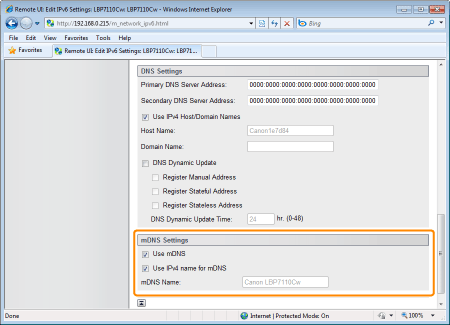
Specify the mDNS.
Proceed to Step 8 when not using mDNS.
|
[Use mDNS]
|
To use mDNS settings, select the check box.
|
|
[Use IPv4 name for mDNS]
|
To use the same name as IPv4, select the check box.
|
|
[mDNS Name]
|
Enter the mDNS name when not selecting the [Use IPv4 name for mDNS] check box.
|
Click [OK].
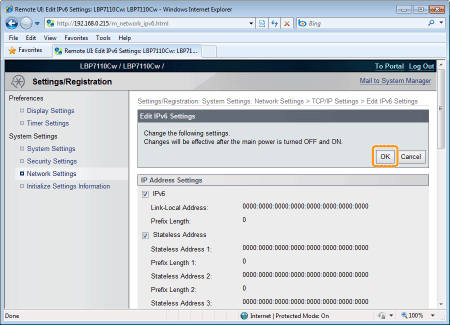
9
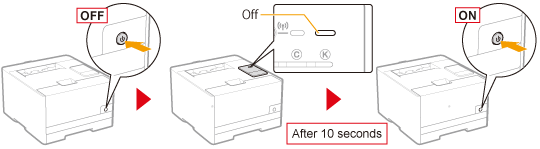
Restart the printer.
Turn the printer OFF, make sure that the Main Power indicator is off, wait for 10 seconds or longer, and then turn it ON again.
|
→
|
After the printer is restarted, the settings become effective.
|