Specifying the Wired LAN Communication Mode and Transmission Speed
Specify the communication mode and transmission speed (Ethernet type) settings of wired LAN.
1
Start the Remote UI, and then log in as Management Mode.
2
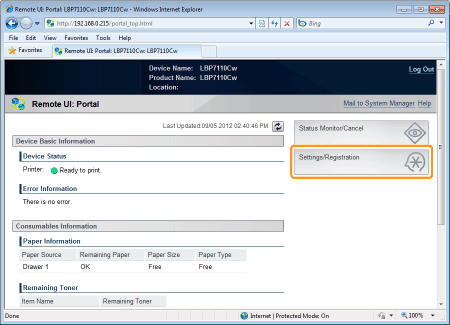
Click [Settings/Registration].
3
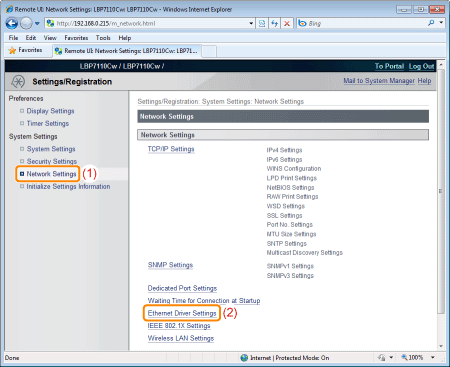
Display the [Ethernet Driver Settings] page.
|
(1)
|
Select [Network Settings].
|
|
(2)
|
Click [Ethernet Driver Settings].
|
4
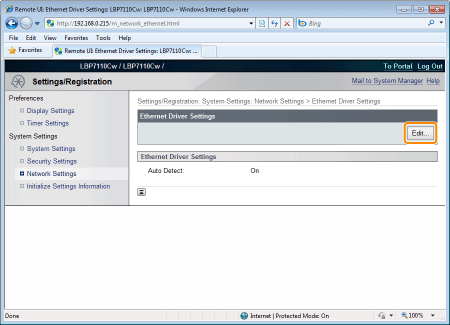
Click [Edit].
5
Specify the communication mode and transmission speed (Ethernet type) of wired LAN.
|
(1)
|
Specify the Ethernet driver settings.
|
|
(2)
|
Click [OK].
|
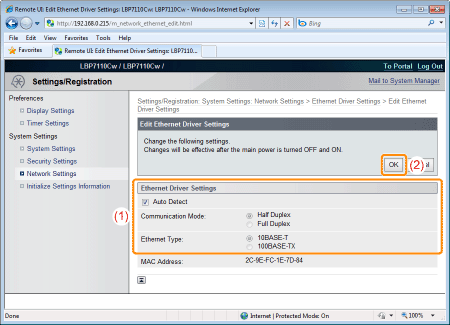
When the communication mode and transmission speed are obtained automatically
|
[Auto Detect]
|
Select the check box.
|
When the communication mode and transmission speed are obtained manually
|
[Auto Detect]
|
Clear the check box.
|
|
[Communication Mode]
|
Select the communication mode that corresponds to your network environment.
[Half Duplex]
Sending and receiving are alternated and are not performed at the same time.
[Full Duplex]
Sending and receiving are performed at the same time.
|
|
[Ethernet Type]
|
Select the transmission speed that corresponds to your network environment.
[10BASE-T]
Set to 10BASE-T network connection.
[100BASE-TX]
Set to 100BASE-TX network connection.
|
6
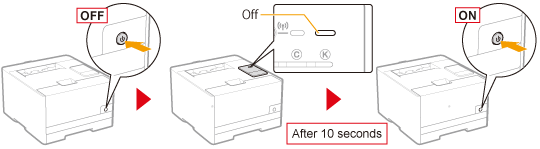
Restart the printer.
Turn the printer OFF, make sure that the Main Power indicator is off, wait for 10 seconds or longer, and then turn it ON again.
|
→
|
After the printer is restarted, the settings become effective.
|