Other Useful Functions
This section describes other useful functions of the machine.
Auto Drawer Switching
If a paper drawer runs out of paper while printing, the machine automatically locates another paper drawer loaded with the same size paper, and begins feeding paper from that paper drawer.
|
NOTE
|
|
You can set whether a paper drawer is subject to automatic paper drawer switching for each function. The default setting is 'Off' for the multi-purpose tray, and 'On' for the other paper drawers. (See "Enabling Paper Drawer Auto Selection.")
|
Auto Reset
If the machine is not used for a specified period of time after the last print job or key operation is performed, the job settings are cancelled and touch panel display automatically returns to the screen set in [Default Screen after Startup/Restoration].
|
NOTE
|
|
You can set the Auto Reset Time from 0 to 50 seconds in 10 second increments and 1 to 9 minutes in one minute increments. The default setting is '2' minutes. (See "Auto Reset Time.")
|
Number of Copies/Job Duration Status Display
If you set [No. of Copies/Job Duration Status] to 'On' in [Preferences] (Settings/Registration), the number of copies specified and the approximate time before the current job completes are displayed on the bottom line of the touch panel display.
|
NOTE
|
|
The approximate time does not appear when the wait time is less than one minute. (See "Number of Copies/Wait Time Status Display.")
|
Paper Supply Indicator
The paper supply indicator shows the remaining amount of paper in each paper drawer on the Paper Select screen, and on the screen that appears when paper in a paper drawer has run out while printing.
The Paper Select Screen

*Paper Supply Indicator
Display When Paper Has Run Out

*Paper Supply Indicator
There are four different paper supply indicators, as shown below:
|
Display
|
Remaining Paper
|
 |
Paper drawer is approximately 50% to 100% full.
|
 |
Paper drawer is approximately 10% to 50% full.
|
 |
Paper drawer is less than 10% full.
|
 |
Paper drawer is empty.
|
Auto Orientation
Setting this mode enables the machine to use information such as the size of the original and the zoom ratio to determine the most suitable orientation for the specified paper size. The machine then automatically rotates the image if necessary.
If the image does not fit onto the paper after it is rotated, the machine will not rotate the image, and will print it as is, with part of the image cut off.
Destination/Forwarding Settings
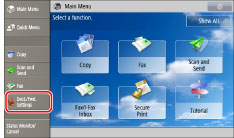
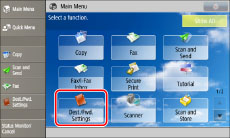
You can register/edit destinations and specify forwarding settings from [Dest./Fwd. Settings] displayed on the main menu screen or from a shortcut button. (See "Setting Shortcut Buttons.")
 |
 |
|
Shortcut Button
|
Main Menu Screen
|
For details on the procedure for setting destinations/forwarding, see the following.
Register Destinations (See "Register Destinations.")
Register One-Touch (See "Registering One-Touch Buttons.")
Forwarding Settings (See "Storing Forwarding Settings.")