Using the AirPrint Portal Page
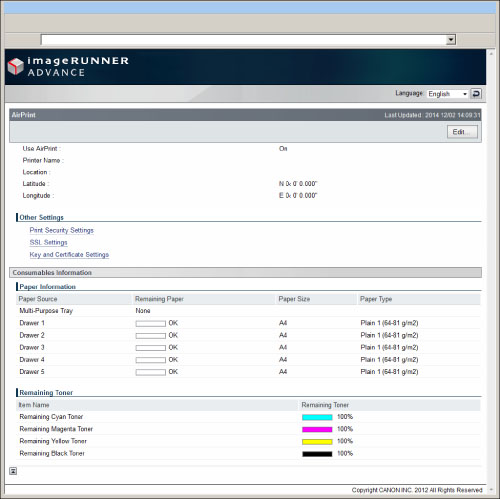
You can access the AirPrint portal page from a Macintosh. The AirPrint portal page enables you to specify settings for printing using SSL and authentication. It also enables you to check the status of the consumables.
Accessing the Portal Page from a Macintosh
1.
Click [System Preferences] in the Dock on the desktop → [Printers & Scanners].
2.
Select the machine → click [Options & Supplies].
3.
Click [Show Printer Webpage].
4.
Log in to the Remote UI.
Settings on the AirPrint Portal Page
If you log in with administrator privileges, you can also change the AirPrint settings from the AirPrint portal page.
|
[AirPrint]:
|
Enables you to check the values entered in the AirPrint settings, such as the name and location of the machine. You can click [Edit...] to change the settings.
|
|
[Print Security Settings]:
|
Specify the settings required to print using SSL and authentication. (See "Configuring the Settings for Printing Using SSL and Authentication.")
|
|
[SSL Settings]:
|
Enables you to change the key and certificate used for SSL. (See "Configuring the Settings for Printing Using SSL and Authentication.")
|
|
[Key and Certificate Settings]:
|
Enables you to generate and install a key and certificate, or request a certificate to be issued. (See "Requesting Certificate Signing.")
|
Checking Consumables
You can check information regarding the paper sources of the machine and the amount of toner remaining for each colour.