on the operation panel. Use this screen to specify settings for and register functions.
Display
The <Home> Screen or settings screen appears on the display, allowing you to initiate functions such as copying or scanning. You can also use the display to check information such as error messages and the machine's operation status. The screen is also a touch panel, so you can perform operations by touching the screen directly.
<Home> Screen
The <Home> Screen is displayed when the power is turned ON or by pressing on the operation panel. Use this screen to specify settings for and register functions.
on the operation panel. Use this screen to specify settings for and register functions.
 |
|
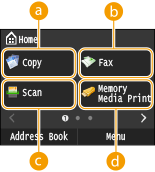
 <Copy> <Copy>Use this button to start copying. Copying
 <Fax> (MF729Cdw / MF726Cdw / MF628Cw) <Fax> (MF729Cdw / MF726Cdw / MF628Cw)Use this button to send a fax from the machine. Faxing
 <Scan> <Scan>Scans a document and converts it into an electronic file. You can save scanned files on your computer or send them via e-mail. Using the Machine as a Scanner
 <Memory Media Print> <Memory Media Print>Prints files stored in a USB memory media. Printing from USB Memory (USB Print)
|
 |
|
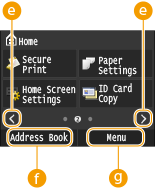
 Change page button Change page buttonUse this to view another page in the <Home> Screen. This works in the same way as flicking left/right.
 <Address Book> <Address Book> Use this to register or edit the destinations for e-mails and faxes. You can also display a registered destination when sending an e-mail or fax. Registering in the Address Book
 <Menu> <Menu><Timer Settings>, <Preferences>, and many other machine settings start from this button. Setting Menu List
|
 |
|
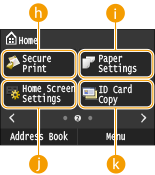
 <Secure Print> (MF729Cdw / MF726Cdw) <Secure Print> (MF729Cdw / MF726Cdw)Use this function to print a secure document. Printing a Document Secured by a PIN (Secure Print) (MF729Cdw / MF726Cdw)
 <Paper Settings> <Paper Settings>This button is also used for specifying the size and type of paper loaded in the paper drawer and manual feed slot. Specifying Paper Size and Type
 <Home Screen Settings> <Home Screen Settings>Allows you to change the order that <Home> Screen buttons are displayed in. Customizing the <Home> Screen
 <ID Card Copy> <ID Card Copy>Settings are preregistered for copying the front and back sides of a driver's license or other ID card onto the same side of a page at actual size.
|
 |
|
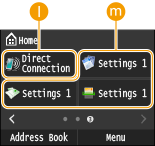
 <Direct Connection> <Direct Connection> Use this to establish a direct wireless connection to a mobile device. Configuring the Settings for Direct Connection (Access Point Mode)
 Shortcut buttons Shortcut buttonsDisplay "Favorite Settings" that are registered to Copy, Fax, and Scan. Adding Buttons to the <Home> Screen
|
<Status Monitor> Screen
When you press  , a screen appears in which you can check the progress of documents that are being printed, sent or received, as well as the status of the machine (amount remaining in the toner cartridge, etc.) and network settings such as the machine's IP address.
, a screen appears in which you can check the progress of documents that are being printed, sent or received, as well as the status of the machine (amount remaining in the toner cartridge, etc.) and network settings such as the machine's IP address.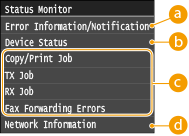
<Error Information/Notification>
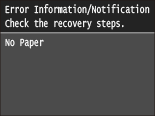
Displays the details of any errors that occurred. When an Error Message Appears
<Device Status>
Displays the status of the machine, such as the amount of paper or the amount remaining in the toner cartridges.

<Paper Information>
Displays whether paper is loaded in each paper source.
Displays whether paper is loaded in each paper source.
<Amount Remaining in Cartridge>
Displays the amount remaining in the toner cartridges. Other internal parts may reach the end of their lifetime before the toner runs out.
Displays the amount remaining in the toner cartridges. Other internal parts may reach the end of their lifetime before the toner runs out.
<Remove Memory Media>
Use to safely remove a USB memory device. Printing from USB Memory (USB Print) Scanning Documents Directly to USB Memory
Use to safely remove a USB memory device. Printing from USB Memory (USB Print) Scanning Documents Directly to USB Memory
<Check Counter> (MF726Cdw / MF628Cw / MF624Cw)
Displays the separate totals for black and white and color printouts. Viewing the Counter Value
Displays the separate totals for black and white and color printouts. Viewing the Counter Value
<Secure Print Memory Usage> (MF729Cdw / MF726Cdw)
Displays the amount of memory currently used for storing secured document data. Printing a Document Secured by a PIN (Secure Print) (MF729Cdw / MF726Cdw)
Displays the amount of memory currently used for storing secured document data. Printing a Document Secured by a PIN (Secure Print) (MF729Cdw / MF726Cdw)
<Version Information>
Displays firmware version information.
Displays firmware version information.
<Serial Number>
Displays the serial number.
Displays the serial number.
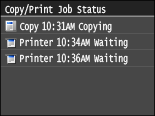
Status of copy/print/send/receive jobs
Displays the current status of the selected item. The <Copy/Print Job Status> screen is shown below as an example.
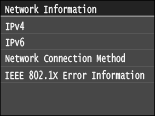
<Network Information>
Displays the network settings such as the IP address of the machine and status such as the condition of wireless LAN communications. Viewing Network Settings
<Check Counter> Screen (MF729Cdw)
When you press  (
( ), the <Check Counter> screen is displayed. From this screen, you can view the counter values of printouts, as well as the serial number of the machine and the machine configuration.
(), the <Check Counter> screen is displayed. From this screen, you can view the counter values of printouts, as well as the serial number of the machine and the machine configuration.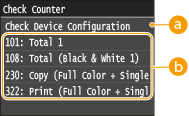
<Check Device Configuration>
Displays the serial number of the machine and the list of the equipment that is attached or enabled.
Counters
Select the counter to check the counter value. Items have different defaults depending on the country or region of purchase. Viewing the Counter Value
When a Message Is Displayed
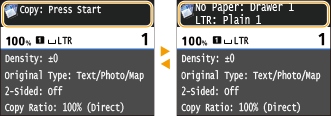
Messages are displayed at the top of the screen in situations such as when paper runs out or end of toner cartridge lifetime. The display alternates between showing the normal screen and the message.
 |
When
|
 Is Displayed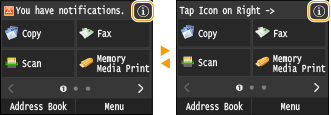
When an Error Occurs
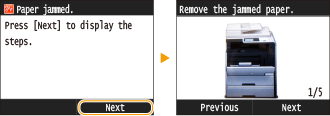
In some cases when an error occurs, instructions on how to respond to the error are displayed. Follow the on-screen instructions to solve the problem. The screen displayed when a paper jam occurs is shown below as an example. When an Error Message Appears