Changing Colour Modes
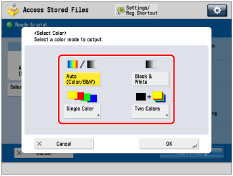
This machine comes with the Automatic Color Selection mode, which recognizes whether the file is in colour or black-and-white, and then automatically switches between the Full Color mode and Black & White mode. You can also manually switch between the Full Color, Black & White, Single Color, and Two Colors modes whenever necessary.
Auto (Color/B&W)
If the Auto (Color/B&W) mode is selected, the machine automatically recognizes whether the file is in colour or black-and-white. Colour files are printed in the Color mode, while black-and-white files are printed in the Black & White mode.
Black & White
The Black & White mode always prints in black-and-white regardless of whether the file is in colour or black-and-white.
Single Color
The Single Color mode enables you to make one-colour prints.
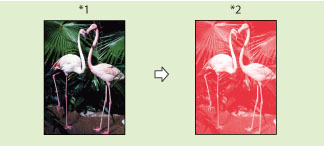
*1 File
*2 Print
Two Colors
The Two Colors mode enables you to make two-colour prints, composed of a colour you specify, and black.
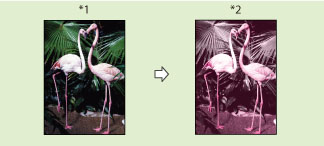
*1 File
*2 Print
IMPORTANT |
You can select Red, Green, Blue, Yellow, Magenta, or Cyan as the colour in the Single Color mode and the Two Colors mode. Files comprised of black-and-white images stored in a mail box cannot be printed in the Two Color mode. Files comprised of colour and black-and-white images stored in a mail box can be printed in the Two Color mode. |
NOTE |
When printing CMYK files stored in mail boxes, only [Auto (Color/B&W)] can be selected. (To print full colour CMYK files, only [Auto (Color/B&W)] can be specified. To print black CMYK files, [Black & White] can also be specified.) If a file comprised of colour and black-and-white images is stored in a mail box using [Store in Mail Box] of the Copy function or using Scan and Store function, and the file is printed in the Two Colors mode, black-and-white page is counted as a colour print. If a file comprised of colour and black-and-white images is stored in a mail box from a computer, and the file is printed in the Two Colors mode, black-and-white page is counted as a black-and-white print. |
1.
Press  (Main Menu) → [Access Stored Files].
(Main Menu) → [Access Stored Files].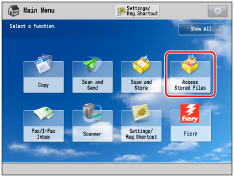
2.
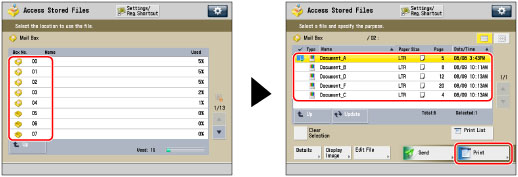
Select the desired Mail Box → select the desired file → press [Print].
3.
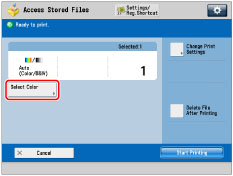
Press [Select Color].
4.
Select [Auto (Color/B&W)], [Black & White], [Single Color], or [Two Colors].
If [Auto (Color/B&W)] or [Black & White] is selected:
Press [OK].
If [Single Color] is selected:
Select the desired colour ([Red], [Green], [Blue], [Yellow], [Magenta], or [Cyan]) → press [OK].
If [Two Colors] is selected:
Select the colour you want to combine with black ([Red], [Green], [Blue], [Yellow], [Magenta], or [Cyan]) → press [OK].
5.
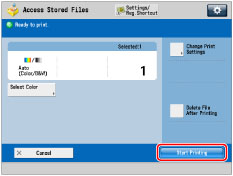
Press [Start Printing].
NOTE |
If colour printing is performed after black printing, a message may appear indicating the machine is preparing for colour printing. Please wait for a moment until the message disappears. Colour printing will start when the message disappears. If you select [Sepia Tone] in the Adjust One-Touch Color mode, the colour mode is automatically set to 'Single Color (Sepia Tone).' The default setting is 'Auto (Color/B&W).' You can store the colour mode in [Change Default Settings]. (See "Specifying the Stored File Settings.") |