Enlarging / Reducing Images
You can set the machine to adjust the copy ratio automatically, or you can specify the copy ratio manually.
Preset Zoom
The machine offers a variety of preset copy ratios to reduce or enlarge standard size originals to another standard paper size.
|
IMPORTANT
|
|
Place the originals horizontally (in landscape orientation) in the following cases:
If you are enlarging A4 originals to A3
If you are enlarging A5 originals to A3
If you are reducing A3 originals to A4 with Auto Orientation in Copy Settings (from the Additional Functions screen) set to ‘Off’, load A4R paper in a paper drawer or the stack bypass.
|
|
NOTE
|
|
For instructions on how to place originals, see Basic Operations.
|
1
Place your originals → press [Copy Ratio].

2
Select the desired copy ratio → press [Done].
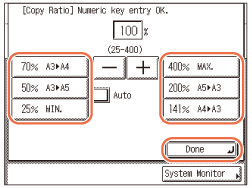
You can select the preset copy ratio from the following:
400% MAX.
200% A5 → A3
141% A4 → A3
100% 1:1
70% A3 → A4
50% A3 → A5
25% MIN.
3
Enter the desired copy quantity (from 1 to 999) using  -
-  (numeric keys).
- (numeric keys).4
Press  (Start).
(Start).Copying starts.
|
NOTE
|
|
To reset the copy ratio to 100%, press [1:1] on the top screen.
You can also reset the copy ratio to 100% by using the Zoom by Percentage mode. (Zoom by Percentage)
|
Zoom by Percentage
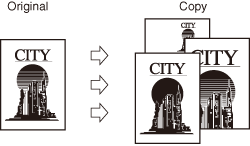
You can reduce or enlarge originals in 1% increments, using any copy ratio between 25% and 400%.
1
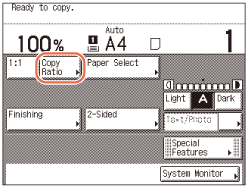
Place your originals → press [Copy Ratio].
2
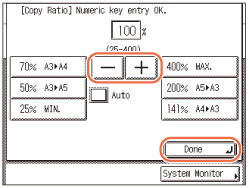
Use [-] or [+] to set the copy ratio → press [Done].
NOTE:
You can also use - (numeric keys) to enter a value, and  (Clear) to clear your entry.
- (numeric keys) to enter a value, and (Clear) to clear your entry.You can reset the copy ratio to 100% by pressing (Clear) instead of entering ‘100’, or pressing [1:1] on the top screen.
(Clear) instead of entering ‘100’, or pressing [1:1] on the top screen.If you enter a value outside the setting range and press [Done], a message prompting you to enter an appropriate value appears on the touch panel display.
3
Enter the desired copy quantity (from 1 to 999) using - (numeric keys).
- (numeric keys).4
Press (Start).
(Start).Copying starts.
Auto Zoom
You can set the machine to automatically select the appropriate copy ratio based on the size of the original and the selected copy paper. The copy ratio is set within the range of 25% to 400%.
|
IMPORTANT
|
|
You cannot use the Auto setting on the Copy Ratio screen with the Automatic Paper Selection mode.
To use the Auto setting on the Copy Ratio screen, your originals must conform to one of the following standard sizes:
A4, A4R, A3, A5, or A5R (Place A5R originals into the feeder.)
The machine automatically detects the size of the originals to generate the optimal copy ratio. However, the machine cannot detect the size of the following originals:
Nonstandard size originals
Highly transparent originals, such as transparencies
Originals with an extremely dark background
A5R or smaller than A5 originals that are placed on the platen glass (A5 originals are available on imageRUNNER 2545i)
For these originals, specify the size of the originals after pressing  (Start) as indicated in step 6 (when placing originals on the platen glass), or copy these originals by manually selecting the paper size and copy ratio instead. (Manual Paper Selection, Preset Zoom, Zoom by Percentage) (Start) as indicated in step 6 (when placing originals on the platen glass), or copy these originals by manually selecting the paper size and copy ratio instead. (Manual Paper Selection, Preset Zoom, Zoom by Percentage) |
1
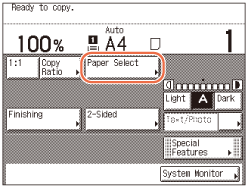
Place your originals → press [Paper Select].
2
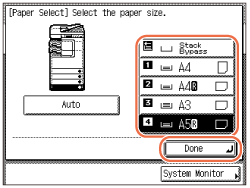
Select the desired paper size → press [Done].
3
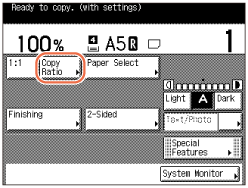
Press [Copy Ratio].
4
Press [Auto] → [Done].

The display returns to the top screen, and the copy ratio generated by the machine is displayed. On the following cases, however, the copy ratio is displayed as <Auto %>:
When the original is placed in the feeder (the copy ratio is generated when scanning is done.)
When the machine cannot detect the size of the original placed on the platen glass (the copy ratio is generated when the size is manually specified on step 6.)
5
Enter the desired copy quantity (from 1 to 999) using - (numeric keys).
- (numeric keys).6
Press (Start).
(Start).If the screen appears prompting you to specify the size of the original, select the original size → press [OK] → (Start).
(Start).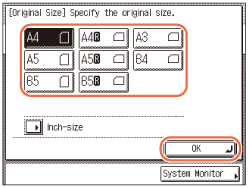
Copying starts.
NOTE:
To return the copy ratio to 100%, press [1:1] on the top screen.
To cancel this setting, press [Copy Ratio] → [Auto].