Printer Settings
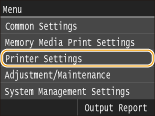 |
|
All the settings about the printer are listed with short descriptions. Default settings are marked with a dagger (
 ). ). |
 |
Asterisks (*)Settings marked with "*1" are only available when the optional paper feeder (drawer 2) is attached.
Settings marked with "*2" have different defaults depending on the country or region of purchase.
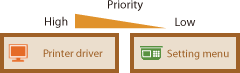
Priority of settingsIf a print setting is specified both from the printer driver and the operation panel of the machine, the specification from the printer driver overrides that from the operation panel. The specification from the operation panel becomes effective in some specific cases, such as when you are printing from UNIX or other operating system on which printer drivers for the machine are not available.
 Availability of settingsAll the printer settings described in this section, except for <Paper Size Override> (Paper Size Override), are only available for PS/PCL printing. Specifying these settings is unnecessary, for example, when you print using the UFR II printer driver.
|
Action When Free Paper Size Mismatch
In the case where the paper size for a paper source is set to <Free Size> under <Free Size>, specify the operation to be performed by the machine when the size of the loaded paper and the paper size setting in the printer driver are rather different from each other.
|
Multi-Purpose Tray
Force Output
Display Error
Drawer 1
Force Output
Display Error
Drawer 2 *1
Force Output
Display Error
|
<Menu>  <Printer Settings> <Print Quality> <Action When Free Paper Size Mismatch> Select the paper source Select <Force Output> or <Display Error>
<Printer Settings> <Print Quality> <Action When Free Paper Size Mismatch> Select the paper source Select <Force Output> or <Display Error> 
 Paper Sources
Select the paper source for which you want to specify the operation.
 <Force Output>
Perform printing even when the paper size setting in the printer driver and the size of the loaded paper are rather different.
 <Display Error>
Display an error message and do not perform printing when the paper size setting in the printer driver and the size of the loaded paper are rather different.
 |
|
If the settings in the printer driver do not match the size and type of the loaded paper, a paper jam or printing error may occur.
|
Copies
Set the number of copies to print.
|
1
to 99 |
<Menu> <Printer Settings> <Copies> Set the number of copies to print <Apply>
<Printer Settings> <Copies> Set the number of copies to print <Apply> 2-Sided Printing
Select whether to make 2-sided printouts.
|
Off
On |
<Menu> <Printer Settings> <2-Sided Printing> Select <Off> or <On>
<Printer Settings> <2-Sided Printing> Select <Off> or <On> Default Paper
Set the default paper size and type. Printing will be performed with paper of the size and type set here when you want to print from an OS not supporting printer drivers or from a mobile device or other device not supporting paper size and type settings. Paper
<Menu> <Printer Settings> <Default Paper> Select the paper size Select the paper type
<Printer Settings> <Default Paper> Select the paper size Select the paper type Paper Size Override
Select whether to switch between printing on A4 and LTR size paper if one of these paper sizes is loaded but the other is not. Configuring Printer Settings on the Machine
|
Off
On |
|
|
|
Most print settings such as setting for number of copies or 1-sided/2-sided printing can be made from the printer driver or an application software (Basic Printing Operations), but the setting for <Paper Size Override> is required to be made on the machine.
|
Print Quality
You can change settings related to print quality.
Density
Adjust the toner density. Adjusting Print Density
|
17 Levels
Fine Adjust
High
17 Levels
Medium
17 Levels
Low
17 Levels
|
|
|
|
The settings specified for <Density> are disabled when <Toner Save> is enabled.
|
Toner Save
You can save toner consumption. Select <On> when you want to check the layout or other appearance characteristics before proceeding to final printing of a large job.
|
Off
On |
<Menu> <Printer Settings> <Print Quality> <Toner Save> Select <Off> or <On>
<Printer Settings> <Print Quality> <Toner Save> Select <Off> or <On> Resolution
Specify the resolution to be used for print data processing.
|
1200 dpi
600 dpi
|
<Menu> <Printer Settings> <Print Quality> <Resolution> Select <1200 dpi> or <600 dpi>
<Printer Settings> <Print Quality> <Resolution> Select <1200 dpi> or <600 dpi> Barcode Adjustment Mode
If bar codes printed with this machine cannot be read, set this item. The improvement effect is weakest with <Mode 1> and strongest with <Mode 3>.
|
Off
Mode 1
Mode 2
Mode 3
|
<Menu> <Printer Settings> <Print Quality> <Barcode Adjustment Mode> Select the mode
<Printer Settings> <Print Quality> <Barcode Adjustment Mode> Select the mode |
|
|
Print density will be lighter when you select stronger improvement.
When printing from the computer, the setting in the printer driver takes precedence. When the setting of [Graphics Mode] in the printer driver is changed to [UFR II Mode] and [Barcode Adjustment Mode] is changed to [Printer Default], the setting in the operation panel takes precedence.
When you set this item to one of <Mode 1> to <Mode 3>, <Special Printing Mode A> is automatically set to <Off>. Special Printing Mode A
|
Layout
Specify the page layout settings such as binding position and margin values.
Binding Location
If you are binding the printouts with a binding tool such as a stapler, use this item to specify whether to bind on the long or short edge. Specify the setting of this item in combination with <Gutter>, which specifies the binding margin to apply to the binding position.
|
Long Edge
Short Edge
|
<Menu> <Printer Settings> <Layout> <Binding Location> Select <Long Edge> or <Short Edge>
<Printer Settings> <Layout> <Binding Location> Select <Long Edge> or <Short Edge> 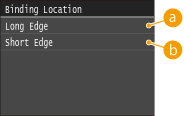
<Long Edge>
Specify this to bind on the long edge of paper.
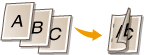
<Short Edge>
Specify this to bind on the short edge of paper.

Gutter
Shift the print position to adjust the binding margin to apply to the binding edge specified by <Binding Location>. The value "0.00" exerts no effect on the binding margin.
|
-1.90 to 0.00
to +1.90 (inches) or -50.0 to 00.0 to +50.0 (mm) |
<Menu> <Printer Settings> <Layout> <Gutter> Specify the binding margin <Apply>
<Printer Settings> <Layout> <Gutter> Specify the binding margin <Apply> 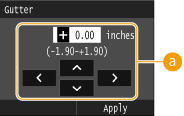
Entering the setting value
Specify the print position shift direction and shift width. Whether the setting value is a "+" or "-" value determines the binding edge along which to adjust the binding margin. You can adjust the binding margin in units of 0.01" (0.5 mm). Use  /
/ to move the cursor, and
  /
/ to switch between "+" / "-" and to increase or decrease the value.
/ to move the cursor, and / to switch between "+" / "-" and to increase or decrease the value.|
Setting Value
|
Long Edge
|
Short Edge
|
|
A value with a "+" sign
|
Left edge of paper
 |
Top edge of paper
 |
|
A value with a "-" sign
|
Right edge of paper
 |
Bottom edge of paper
 |
Offset Short Edge/Offset Long Edge
Irrespective of the paper source, you can shift the print position in units of 0.01" (0.5 mm) for all print jobs.
|
-2.00 to 0.00
to +2.00 (inches) or -50.0 to 00.0 to +50.0 (mm) |
<Menu> <Printer Settings> <Layout> Select the combination of adjustment direction and printing side Specify the offset value <Apply>
<Printer Settings> <Layout> Select the combination of adjustment direction and printing side Specify the offset value <Apply> 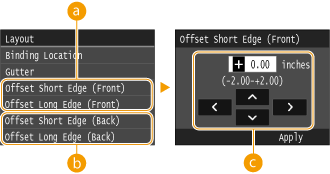
<Offset Short Edge (Front)>/<Offset Long Edge (Front)>
Shifts the print position on the side of paper facing up.
<Offset Short Edge (Back)>/<Offset Long Edge (Back)>
Shifts the print position on the side of paper facing down.
Entering the setting value
For <Offset Short Edge (Front)>/<Offset Short Edge (Back)>, specify a value with a "+" sign to shift the print position in the left-to-right direction. For <Offset Long Edge (Front)>/<Offset Long Edge (Back)>, specify a value with a "+" sign to shift the print position in the up-to-down direction. To shift in the reverse direction, specify a value with a "-" sign. Use / to move the cursor, and / to switch between "+" / "-" and to increase or decrease the value.
/ to move the cursor, and / to switch between "+" / "-" and to increase or decrease the value.|
|
<Offset Short Edge (Front)>
<Offset Short Edge (Back)> 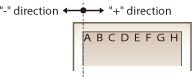 |
|
<Offset Long Edge (Front)>
<Offset Long Edge (Back)> 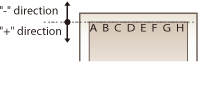 |
 |
|
To shift the print position, change the setting of [Graphics Mode] on the printer driver to [UFR II Mode].
|
Auto Error Skip
Printing stops if a certain error occurs in the process. However, if you set this item to <On>, the certain error will be skipped and printing can continue. Normally, set this item to <Off>.
|
Off
On |
<Menu> <Printer Settings> <Auto Error Skip> Select <Off> or <On>
<Printer Settings> <Auto Error Skip> Select <Off> or <On> Timeout
Set the time period after which the current print job is automatically canceled in the case of a print data reception interruption.
|
5 to 15
to 300 (sec.) |
<Menu> <Printer Settings> <Timeout> Set the time period <Apply>
<Printer Settings> <Timeout> Set the time period <Apply> Personality
Specify the mode in which the machine should operate when the format of document data is unknown.
|
Auto
PS
PCL
PDF
XPS
|
<Menu> <Printer Settings> <Personality> Select the Personality mode
<Printer Settings> <Personality> Select the Personality mode Prioritize Multi-Purpose Tray
Specify whether to feed paper from the multi-purpose tray when Auto Select Paper is enabled. If <On> is selected, paper is fed from the multi-purpose tray when paper of the same size and same type is loaded in both the multi-purpose tray and paper drawer.
|
<Off>
<On>
|
<Menu> <Printer Settings> <Prioritize Multi-Purpose Tray> Select <Off> or <On>
<Printer Settings> <Prioritize Multi-Purpose Tray> Select <Off> or <On> UFR II
You can change the settings that become effective when printing from the UFR II printer driver.
Halftones
You can select the printing method to reproduce halftones (the intermediate range between the lighter and darker areas of an image) for optimal image quality. For each document, you can make settings by type of image.
|
Text
Resolution
Color Tone
Gradation
High Resolution
Graphics
Resolution
Color Tone
Gradation
High Resolution
Image
Resolution
Color Tone
Gradation
High Resolution
|
<Menu> <Printer Settings> <UFR II> <Halftones> Select the type of image Select the halftone reproduction method
<Printer Settings> <UFR II> <Halftones> Select the type of image Select the halftone reproduction method 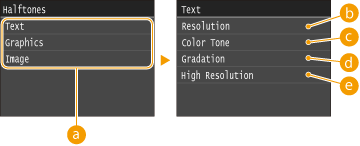
Type of image
Select the object for which to change the setting. <Text> represents letters and characters, <Graphics> represents lines and figures, and <Image> represents photos and images.
<Resolution>
Produces a fine print with clear edges of text. It is suitable for printing characters and fine lines.
<Color Tone>
Produces a sharp print with strong contrast of lightness and darkness. It is suitable for printing image data such as photo image data.
 <Gradation>
Produces a print with smooth gradation or smooth edges. It is suitable for printing figures or graphs containing gradation areas.
 <High Resolution>
As compared to <Resolution>, this produces a finer print but quality stability is slightly lower. It is suitable to obtain a print of character data or fine line data or CAD data with sharp edges.
PCL
Specify the PCL printing settings such as page layout and print quality.
Paper Save
Select whether to save paper by not outputting blank pages in documents. By selecting <On>, the machine will not output blank pages. To output all your document data when printing, including any blank pages that you have inserted in your document, select <Off>.
|
Off
On |
<Menu> <Printer Settings> <PCL> <Paper Save> Select <Off> or <On>
<Printer Settings> <PCL> <Paper Save> Select <Off> or <On> Orientation
Select <Portrait> (vertical orientation) or <Landscape> (horizontal orientation) for the page orientation.
|
Portrait
Landscape
|
<Menu> <Printer Settings> <PCL> <Orientation> Select <Portrait> or <Landscape>
<Printer Settings> <PCL> <Orientation> Select <Portrait> or <Landscape> Font Number
Specify the font to use by selecting a corresponding font ID number. You can print the PCL font list with font samples from the operation panel. PCL Font List
|
0
to 104 |
<Menu> <Printer Settings> <PCL> <Font Number> Select the font number <Apply>
<Printer Settings> <PCL> <Font Number> Select the font number <Apply> Point Size
Set the font size in points, adjustable in 0.25 increments. You can specify this setting only when a proportionally-spaced scalable font is selected in <Font Number>.
|
4.00 to 12.00
to 999.75 (point) |
<Menu> <Printer Settings> <PCL> <Point Size> Specify the point size <Apply>
<Printer Settings> <PCL> <Point Size> Specify the point size <Apply> Pitch
Set the font pitch, or cpi (characters per inch), adjustable in 0.01 increments. You can specify this setting only when a fixed-pitch scalable font or a bitmap font is selected in <Font Number>.
|
0.44 to 10.00
to 99.99 (cpi) |
<Menu> <Printer Settings> <PCL> <Pitch> Specify the pitch value <Apply>
<Printer Settings> <PCL> <Pitch> Specify the pitch value <Apply> Form Lines *2
Set the number of lines printed on one page from 5 to 128. This setting is automatically changed according to the settings specified in <Default Paper Size> and <Orientation>.
|
5 to 60
to 128 (lines) |
<Menu> <Printer Settings> <PCL> <Form Lines> Specify the number of lines <Apply>
<Printer Settings> <PCL> <Form Lines> Specify the number of lines <Apply> Character Code
Select the character code that is most suited for the computer you send print data from. The specified setting is ignored when the character code is controlled by the font specified in <Font Number>.
|
<Menu> <Printer Settings> <PCL> <Character Code> Select the character code
<Printer Settings> <PCL> <Character Code> Select the character code Custom Paper
Select whether to set a custom paper size. Select <On> to set the dimensions of the paper in <X dimension> and <Y dimension>.
|
Off
On |
<Menu> <Printer Settings> <PCL> <Custom Paper> Select <Off> or <On>
<Printer Settings> <PCL> <Custom Paper> Select <Off> or <On> Unit of Measure *2
Select the unit of measurement to use to set a custom paper size.
|
Millimeters
Inches
|
<Menu> <Printer Settings> <PCL> <Unit of Measure> Select <Millimeters> or <Inches>
<Printer Settings> <PCL> <Unit of Measure> Select <Millimeters> or <Inches> X dimension
Specify the horizontal dimension (short edge) of the custom paper.
|
3 to 8 1/2
(inches) or 77 to 216 (mm) |
<Menu> <Printer Settings> <PCL> <X dimension> Specify the dimension <Apply>
<Printer Settings> <PCL> <X dimension> Specify the dimension <Apply> Y dimension
Specify the vertical dimension (long edge) of the custom paper.
|
5 to 14
(inches) or 127 to 356 (mm) |
<Menu> <Printer Settings> <PCL> <Y dimension> Specify the dimension <Apply>
<Printer Settings> <PCL> <Y dimension> Specify the dimension <Apply> Append CR to LF
Select whether to append a carriage return (CR) when the machine receives a line feed code (LF). If <Yes> is selected, the print position moves to the beginning of the next line when the machine receives an LF code. If <No> is selected, the print position moves to the next line, just under the received LF code.

|
Yes
No
|
<Menu> <Printer Settings> <PCL> <Append CR to LF> Select <Yes> or <No>
<Printer Settings> <PCL> <Append CR to LF> Select <Yes> or <No> Enlarge A4 Print Width
Select whether to expand the width of the printable area of A4 size paper in portrait orientation to that of LTR size.
|
Off
On |
<Menu> <Printer Settings> <PCL> <Enlarge A4 Print Width> Select <Off> or <On>
<Printer Settings> <PCL> <Enlarge A4 Print Width> Select <Off> or <On> Halftones
You can select the printing method to reproduce halftones (the intermediate range between the lighter and darker areas of an image) for optimal image quality. For each document, you can make settings by type of image.
|
Text
Resolution
Color Tone
Gradation
High Resolution
Graphics
Resolution
Color Tone
Gradation
High Resolution
Image
Resolution
Color Tone
Gradation
High Resolution
|
<Menu> <Printer Settings> <PCL> <Halftones> Select the type of image Select the halftone reproduction method
<Printer Settings> <PCL> <Halftones> Select the type of image Select the halftone reproduction method Type of image
Select the object for which to change the setting. <Text> represents letters and characters, <Graphics> represents lines and figures, and <Image> represents photos and images.
<Resolution>
Produces a fine print with clear edges of text. It is suitable for printing characters and fine lines.
<Color Tone>
Produces a sharp print with strong contrast of lightness and darkness. It is suitable for printing image data such as photo image data.
<Gradation>
Produces a print with smooth gradation or smooth edges. It is suitable for printing figures or graphs containing gradation areas.
<High Resolution>
As compared to <Resolution>, this produces a finer print but quality stability is slightly lower. It is suitable to obtain a print of character data or fine line data or CAD data with sharp edges.
PS
Specify the PS printing settings such as page layout and print quality.
Job Timeout
This setting enables you to specify the amount of time before a job times out. If a job has not finished within the set time limit, the job automatically cancels.
|
0
to 3600 (sec.) |
<Menu> <Printer Settings> <PS> <Job Timeout> Specify the seconds for job timeout <Apply>
<Printer Settings> <PS> <Job Timeout> Specify the seconds for job timeout <Apply> Print PS Errors
This setting determines whether an error page is printed when an error is encountered.
|
Off
On |
<Menu> <Printer Settings> <PS> <Print PS Errors> Select <Off> or <On>
<Printer Settings> <PS> <Print PS Errors> Select <Off> or <On> Halftones
You can select the printing method to reproduce halftones (the intermediate range between the lighter and darker areas of an image) for optimal image quality. For each document, you can make settings by type of image.
|
Text
Resolution
Gradation
High Resolution
Graphics
Resolution
Gradation
High Resolution
Image
Resolution
Gradation
High Resolution
|
<Menu> <Printer Settings> <PS> <Halftones> Select the type of image Select the halftone reproduction method
<Printer Settings> <PS> <Halftones> Select the type of image Select the halftone reproduction method 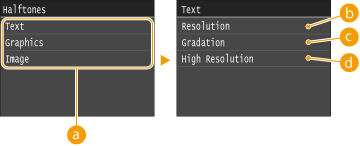
Type of image
Select the object for which to change the setting. <Text> represents letters and characters, <Graphics> represents lines and figures, and <Image> represents photos and images.
<Resolution>
Produces a fine print with clear edges of text. It is suitable for printing characters and fine lines.
<Gradation>
Produces a print with smooth gradation or smooth edges. It is suitable for printing figures or graphs containing gradation areas.
<High Resolution>
As compared to <Resolution>, this produces a finer print but quality stability is slightly lower. It is suitable to obtain a print of character data or fine line data or CAD data with sharp edges.
Grayscale Conversion
You can select ways to convert color values to a grayscale value when you print color print data.
|
sRGB
NTSC Uniform RGB |
|
|
|
This section describes the settings to convert the color data into grayscale data.
This setting is invalid for black-and-white data.
|
<Menu> <Printer Settings> <PS> <Grayscale Conversion> Specify the grayscale conversion
<Printer Settings> <PS> <Grayscale Conversion> Specify the grayscale conversion Imaging
Make settings for JPEG and TIFF image files that you can print by AirPrint.
Halftones
You can select the printing method to reproduce halftones (the intermediate range between the lighter and darker areas of an image) for optimal image quality.
|
Gradation
Error Diffusion
|
<Menu> <Printer Settings> <Imaging> <Halftones> Select the halftone reproduction method
<Printer Settings> <Imaging> <Halftones> Select the halftone reproduction method 
<Gradation>
Prints images with fine gradation, such as digital camera images, with a smooth finish.
<Error Diffusion>
Prints images with small text or fine lines with a clear finish.
You can change settings for PDF files.
Enlarge/Reduce to Fit Paper Size
Specify whether to print in an enlarged/reduced size to fit to the Printable Area of the paper. Note that size enlargement/reduction will not affect the aspect ratio of the document.
|
Off
On
|
<Menu> <Printer Settings> <PDF> <Enlarge/Reduce to Fit Paper Size> Select <Off> or <On>
<Printer Settings> <PDF> <Enlarge/Reduce to Fit Paper Size> Select <Off> or <On> Enlarge Print Area
Specify whether to enlarge the Printable Area as much as the paper size permits.
|
Off
On
|
<Menu> <Printer Settings> <PDF> <Enlarge Print Area> Select <Off> or <On>
<Printer Settings> <PDF> <Enlarge Print Area> Select <Off> or <On> |
|
|
If you specify <On>, it may occur that edge-adjacent portions of page are not printed or that printouts come out partially smudged depending on the document.
|
N on 1
Specify whether to shrink multiple pages and print them on one page in such arrangement that the first page is positioned at top left. For example, to print 4 pages onto a single sheet, select <4 on 1>.
|
Off
2 on 1
4 on 1
6 on 1
8 on 1
9 on 1
16 on 1
|
<Menu> <Printer Settings> <PDF> <N on 1> Select the shrinkage ratio
<Printer Settings> <PDF> <N on 1> Select the shrinkage ratio Print Comments
Specify whether to print comments. If you specify <Auto>, comments in PDF files will be printed.
|
Off
Auto
|
<Menu> <Printer Settings> <PDF> <Print Comments> Select <Auto> or <Off>
<Printer Settings> <PDF> <Print Comments> Select <Auto> or <Off> Halftones
You can select the printing method to reproduce halftones (the intermediate range between the lighter and darker areas of an image) for optimal image quality. For each document, you can make settings by type of image.
|
Text
Resolution
Gradation
High Resolution
Graphics
Resolution
Gradation
High Resolution
Image
Resolution
Gradation
High Resolution
|
<Menu> <Printer Settings> <PDF> <Halftones> Select the type of image Select the halftone reproduction method
<Printer Settings> <PDF> <Halftones> Select the type of image Select the halftone reproduction method Type of image
Select the object for which to change the setting. <Text> represents letters and characters, <Graphics> represents lines and figures, and <Image> represents photos and images.
<Resolution>
Produces a fine print with clear edges of text. It is suitable for printing characters and fine lines.
<Gradation>
Produces a print with smooth gradation or smooth edges. It is suitable for printing figures or graphs containing gradation areas.
<High Resolution>
As compared to <Resolution>, this produces a finer print but quality stability is slightly lower. It is suitable to obtain a print of character data or fine line data or CAD data with sharp edges.
Grayscale Conversion
Specify the type of grayscale conversion of color print data.
|
sRGB
NTSC
Uniform RGB
|
<Menu> <Printer Settings> <PDF> <Grayscale Conversion> Select the type of grayscale conversion
<Printer Settings> <PDF> <Grayscale Conversion> Select the type of grayscale conversion 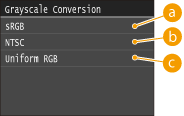
<sRGB>
Color data is converted to monochrome with emphasis on color differences so that a smooth gradation is achieved.
<NTSC>
Color data is converted to monochrome so that the resulting image looks like a television picture (of the NTSC system).
<Uniform RGB>
Color data is converted to monochrome so that R, G, and B are uniformly converted to the same gray level.
XPS
You can change settings for XPS files.
Halftones
You can select the printing method to reproduce halftones (the intermediate range between the lighter and darker areas of an image) for optimal image quality. For each document, you can make settings by type of image.
|
Text
Resolution
Gradation
High Resolution
Graphics
Resolution
Gradation
High Resolution
Image
Resolution
Gradation
High Resolution
|
<Menu> <Printer Settings> <XPS> <Halftones> Select the type of image Select the halftone reproduction method
<Printer Settings> <XPS> <Halftones> Select the type of image Select the halftone reproduction method 
Type of image
Select the object for which to change the setting. <Text> represents letters and characters, <Graphics> represents lines and figures, and <Image> represents photos and images.
<Resolution>
Produces a fine print with clear edges of text. It is suitable for printing characters and fine lines.
<Gradation>
Produces a print with smooth gradation or smooth edges. It is suitable for printing figures or graphs containing gradation areas.
<High Resolution>
As compared to <Resolution>, this produces a finer print but quality stability is slightly lower. It is suitable to obtain a print of character data or fine line data or CAD data with sharp edges.
Grayscale Conversion
Specify the type of grayscale conversion of color print data.
|
Text
sRGB
NTSC
Uniform RGB
Graphics
sRGB
NTSC
Uniform RGB
Image
sRGB
NTSC
Uniform RGB
|
<Menu> <Printer Settings> <XPS> <Grayscale Conversion> Select the type of image Select the type of grayscale conversion
<Printer Settings> <XPS> <Grayscale Conversion> Select the type of image Select the type of grayscale conversion 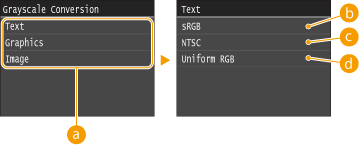
Type of image
Select the object for which to change the setting. <Text> represents letters and characters, <Graphics> represents lines and figures, and <Image> represents photos and images.
<sRGB>
Color data is converted to monochrome with emphasis on color differences so that a smooth gradation is achieved.
<NTSC>
Color data is converted to monochrome so that the resulting image looks like a television picture (of the NTSC system).
<Uniform RGB>
Color data is converted to monochrome so that R, G, and B are uniformly converted to the same gray level.
Compressed Image Output
As time passes after a print job starts, image quality may decrease depending on the print data. Specify how the machine is to behave when image quality has significantly decreased.
|
Output
Display Error
|
<Menu> <Printer Settings> <XPS> <Compressed Image Output> Select <Output> or <Display Error>
<Printer Settings> <XPS> <Compressed Image Output> Select <Output> or <Display Error> 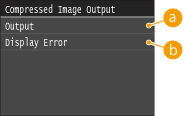
<Output>
The machine continues the print job regardless of the degree of decrease in image quality.
<Display Error>
When image quality has significantly decreased, the machine displays an error message and stops the print job.