Setting the System Manager ID
This is a PIN for using the Remote UI. Only users who know the PIN can access the Remote UI. You can also set a PIN for the System Manager ID. If this ID is enabled, you can access <Network Settings> and <System Management Settings> only when the System Manager ID and PIN have been entered correctly. The System Manager ID settings information is critical to the security of the machine, so make sure that only Administrators know the System Manager ID and PIN.
1
Press  .
.
.2
Use  /
/ to select <System Management Settings>, and press
  .
.
/ to select <System Management Settings>, and press .
If the System Manager ID has already been set
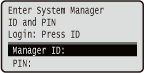
If the logon screen appears, enter the correct ID and PIN using the numeric keys, and then press  . Logging on to the Machine
. Logging on to the Machine3
Select <System Manager Information Settings>  <System Manager ID and PIN>.
<System Manager ID and PIN>.4
Specify the System Manager ID and PIN.
Specify the <System Manager ID>, and then specify the <System Manager PIN>.
Enter a number of up to seven digits using the numeric keys, and press .
.When <PIN (Confirm)> is displayed, enter the PIN once again to confirm.

You cannot register an ID or PIN that consists only of zeros, such as "00" or "0000000".
To cancel the System Manager ID and PIN settings, clear the information you entered in  and press with the fields blank.
and press with the fields blank. Setting the System Manager Name
|
1
|
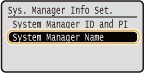
Select <System Manager Name>, and press
. |
|
2
|
Enter up to 32 characters for the System Manager Name, select <Apply>, and press
. Entering Text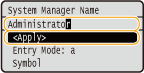 |
 |
|
Be sure to remember the PIN that you have set. If you have forgotten the PIN, contact your local authorized Canon dealer or the Canon help line.
|
 |
|||
Configuring settings via the Remote UIStart the Remote UI and log on in System Manager Mode. Click [Settings/Registration]
[System Management] [Security Settings] [Edit] and specify the necessary settings on the displayed screen.By using the Remote UI, you can register a variety of information, including contact information, Administrator comments, the installation location of the machine, as well as to the settings that you can register by using the operation panel. The registered information can be viewed on the [Device Information] page of the Remote UI. Checking System Manager Information
Logging on to the machine
|