Offline Authentication
If the computer on which you want to use Desktop is not connected to the Internet, select [Offline Authentication] from the [License Authentication] dialog box.
Create a Request Data File
1.
Start Desktop Browser or Desktop Editor.
The [License Authentication] dialog box is displayed.
|
NOTE
|
|
The [License Authentication] dialog box can also be started with the following operations.
Starting the Printer Monitor
Execute Fax, Print Settings, and Convert to PDF in the Quick Printing Tool.
For more information on the startup method, see the User's Guide.
The [License Authentication] dialog box is not displayed when authentication has already been performed with a node lock license, or when Desktop is being used with a floating license.
|
2.
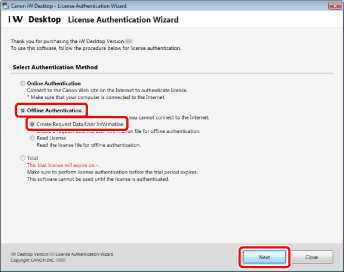
Select [Create Request Data/User Information] for [Offline Authentication], and click [Next].
3.
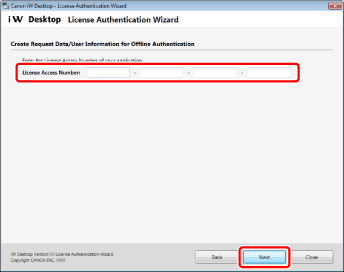
Enter the License Access Number, and click [Next].
|
IMPORTANT
|
|
Make sure to enter the correct License Access Number. A license file will not be issued if the License Access Number is incorrect, even if a Request Data File is sent.
|
|
NOTE
|
|
Enter the License Access Number as 16 (4 groups of 4 characters) alphanumeric characters. The number is not case-sensitive.
Your License Access Number can be found in the material included in the product package of Desktop.
|
4.
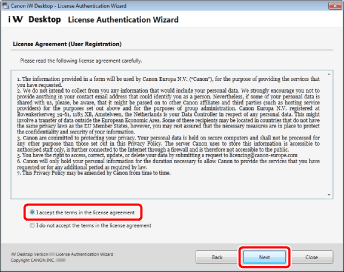
Check the content of the License Agreement (User Registration). Select [I accept the terms in the license agreement] if you agree, and then click [Next].
5.
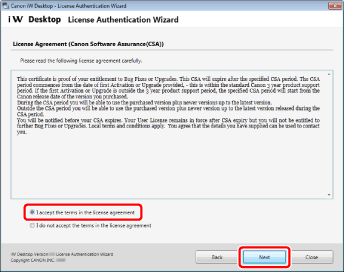
Check the content of the License Agreement (Canon Software Assurance(CSA)). Select [I accept the terms in the license agreement] if you agree, and then click [Next].
6.
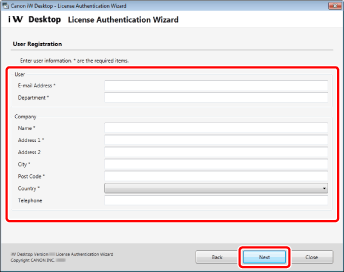
Enter the user information, and click [Next].
7.
Click [Create].
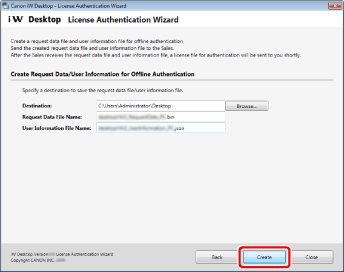
The Request Data File and User Information Files (two types, *.bin and *.json) are saved.
|
NOTE
|
|
You can also select a folder in the [Browse For Folder] dialog box that is displayed when [Browse] is clicked. Alternatively, in the [Browse For Folder] dialog box, you can create a new folder and select it.
You can change the file name. However, the following symbols cannot be entered: \ / : * ? " < > | ; . & % '
|
8.
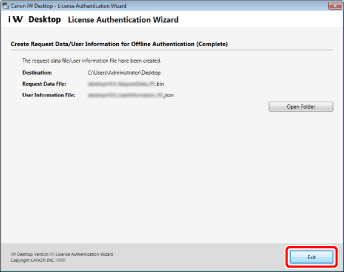
Click [Exit].
|
NOTE
|
|
You can click [Open Folder] to open the destination folder.
|
Request for a License File to Be Issued
1.
Contact your Canon dealer and check the methods for sending the Request Data File and User Information Files (two types, *.bin and *.json).
2.
Follow the directions to send the Request Data File and User Information Files (two types, *.bin and *.json) to your Canon dealer.
3.
Acquire the issued license file (*.bin) from your Canon dealer.
Read the License File
1.
Start Desktop Browser or Desktop Editor.
The [License Authentication] dialog box is displayed.
|
NOTE
|
|
The [License Authentication] dialog box can also be started with the following operations.
Starting the Printer Monitor
Execute Fax, Print Settings, and Convert to PDF in the Quick Printing Tool.
For more information on the startup method, see the User's Guide.
The [License Authentication] dialog box is not displayed when authentication has already been performed with a node lock license, or when Desktop is being used with a floating license.
|
2.
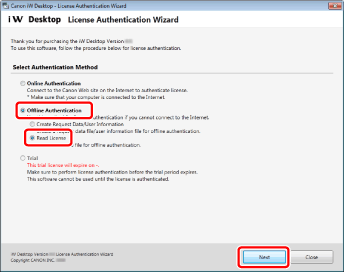
Select [Read License] for [Offline Authentication], and click [Next].
3.
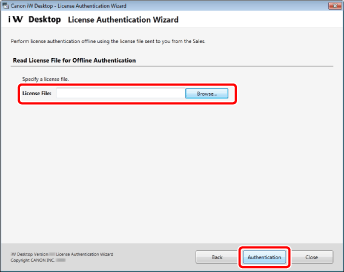
Specify the license file (*.bin) and click [Authentication].
|
NOTE
|
|
You can select a license file in the [Open] dialog box displayed by clicking [Browse].
|
4.
Click [Create].
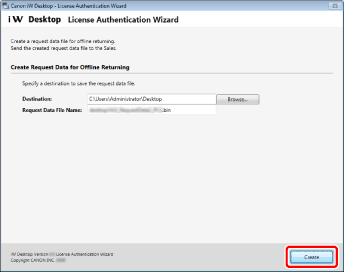
The Request Data File for Returning (*.bin) is saved.
|
NOTE
|
|
This procedure will not be displayed if the trial license is unauthenticated.
You can also select a folder in the [Browse For Folder] dialog box that is displayed when [Browse] is clicked. Alternatively, in the [Browse For Folder] dialog box, you can create a new folder and select it.
You can change the file name. However, the following symbols cannot be entered: \ / : * ? " < > | ; . & % '
|
5.
Click [Exit].
License authentication is complete.
|
NOTE
|
|
If you created a Request Data File for Returning in step 4, send the created file to your Canon dealer.
|