Booklet Printing
You can bind printed documents into a booklet by printing 2 pages of a document onto each side of the paper, such that they can be folded in half to create a booklet (4 pages of a document are printed onto one sheet of paper).
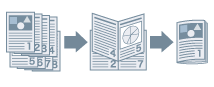
1.
Display the [Basic Settings] or [Finishing] tab.
2.
Select a printing method.
From the [Basic Settings] tab: Select [1-sided/2-sided/Booklet Printing] - [Booklet Printing] - click [Booklet]
From the [Finishing] tab: Select [Print Style] - [Booklet Printing] - click [Booklet]
The [Detailed Settings for Booklet] Dialog Box is displayed.
3.
Select [Specify Booklet Gutter] → specify a gutter width in [Booklet Gutter] → click [OK].
4.
If you want to perform saddle stitching, select [Saddle Stitch].
About this Function
Required Options
2-sided printing: Duplex unit
Saddle stitching: Saddle finisher
Functions that Cannot Be Used with this Function
[Basic Settings] or [Page Setup] tab → [Page Layout] → [N on 1] (N = 6, 8, 9, or 16) (when selecting [Device Settings] tab → [Spooling at Host] → [Disabled])
[Basic Settings] or [Page Setup] tab → [Manual Scaling]
[Basic Settings] or [Finishing] tab → [Finishing] → [Collate]/[Staple + Collate]/[Eco (Staple-Free) + Collate]
[Finishing] tab → [Print with Mixed Paper Sizes/Orientations]