Department ID Management
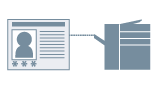
You can perform printer management using a department ID and PIN.
1.
Display the [Device Settings] tab.
Click [ ] (Start) → [Devices and Printers].
] (Start) → [Devices and Printers].The above is for Windows 7 and Server 2008 R2.
For Windows 8 and Server 2012: From the desktop, display the charm bar to the right of the screen, and click or tap [ Settings] → [Control Panel] → [Devices and Printers].
Settings] → [Control Panel] → [Devices and Printers].For Windows Vista and Server 2008: Click [] (Start) → [Control Panel] → [Printers].
] (Start) → [Control Panel] → [Printers].For Windows XP and Server 2003: Click [Start] → [Printers and Faxes] (or [Start] → [Control Panel] → [Printers and Other Hardware] → [Printers and Faxes]).
Right-click the icon of the printer you want to configure → click [Printer properties] (or [Properties]).
Click the [Device Settings] tab.
2.
Select [Use Department ID Management] → click [Settings].
The [Department ID/PIN Settings] Dialog Box is displayed.
3.
Select [Allow PIN Setting] → enter [Department ID] and [PIN].
To confirm the Department ID and PIN each time you print: Select [Confirm Department ID/PIN When Printing].
4.
Click [OK] → click [Apply] in the [Device Settings] tab.
5.
Click the print button in the application.
6.
If the [Confirm Department ID/PIN] dialog box is displayed, confirm the settings.
Printing starts.
About this Function
Supported Printers
A printer connected to the network
Required Conditions
An account with full control permission for the printer
References
If no PIN is set in the [Department ID/PIN Settings] dialog box, you must enter the PIN each time you print.