Reduced Size Layout
You can print multiple pages of a document on each side of each sheet of paper when printing.
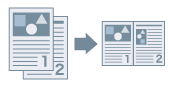 |
|
|
2-page data
|
Printed
on 1 sheet |
1.
Display the [Print Settings] tab.
2.
Select [Page Layout] → [N on 1] (N = 2, 4, 6, 9, or 16).
N represents the number of pages arranged on one side of the sheet of paper. For example, [4 on 1] prints four pages of the document on one side of the paper.
About this Function
References
The document may not print correctly if collating is selected in the application when printing.