Enabling the Desktop Office Toolbar
Desktop can display the Desktop Office Toolbar as an add-in in the toolbar of Microsoft Office applications (Word/Excel/PowerPoint).
Enabling the Desktop Office Toolbar allows seamless linking with Microsoft Office applications.
|
IMPORTANT
|
|
Microsoft Office 2010/2013/2016 and [Office Shared Features] - [Visual Basic for Applications] must be installed in order to use the Desktop Office Toolbar.
|
|
NOTE
|
|
For more information on Desktop Office Toolbar, see "User's Guide."
The [System Settings] can be displayed from the Desktop Browser and Desktop Editor modules, and the Document Monitor icon on the Taskbar. This section uses the procedure from Desktop Browser as an example.
|
1.
Select the [Start] menu > [All Programs] > [Canon imageRUNNER ADVANCE Desktop] > [imageRUNNER ADVANCE Desktop].
Desktop Browser is started.
|
NOTE
|
|
For Windows 8.1, click the
 on the [Start] screen > [imageRUNNER ADVANCE Desktop]. on the [Start] screen > [imageRUNNER ADVANCE Desktop].For Windows 10, select the [Start] menu > [Canon imageRUNNER ADVANCE Desktop] > [imageRUNNER ADVANCE Desktop].
|
2.
Select the [File] menu > [Option] > [System Settings].
The [System Settings] is displayed.
3.
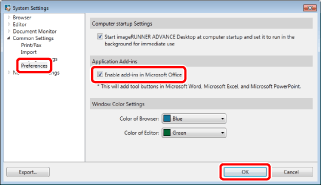
Click [Common Settings] > select the [Enable add-ins in Microsoft Office] check box in [Preferences], and click [OK].
4.
If either of the following messages is displayed, follow the instruction in the message.
[The components required to enable the add-in feature for applications are not installed. If you perform a repair installation of imageRUNNER ADVANCE Desktop, you will be able to use the add-in feature for applications.]
For information on repairing Desktop, see the following.
[The components required to enable the add-in feature for applications are not installed. Select the necessary application from Control Panel, click [Change], and update the installation. Refer to the manual for more information on the steps required to perform this operation.]
For information on repairing Microsoft Office, see the manuals for Microsoft Office.