Customizing Ribbons
This section describes how to customize the ribbon of Desktop Browser and Desktop Editor.
|
NOTE
|
|
Ribbon commands displayed by default cannot be deleted. To hide ribbon commands displayed by default, hide the tab or group that include the commands.
|
Adding Commands to Ribbons
You can customize the ribbon by creating new tabs and groups on the ribbon and then placing commands not displayed by default or frequently used commands.
Desktop Browser
This section describes how to add commands to the ribbon of Desktop Browser.
1.
Right-click the ribbon or toolbar and select [Customize the Ribbon].
Or, select the [File] menu > [Option] > [Customize the Ribbon].
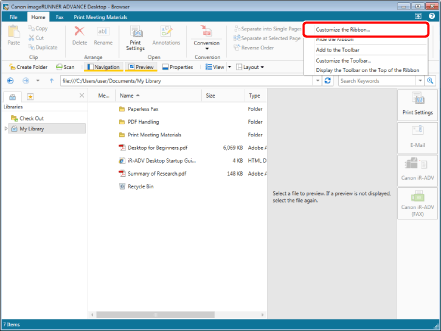
[Customize the Ribbon] is displayed.
2.
Add a new tab or group.
For information on adding new tabs or groups to the ribbon, see the following.
3.
Change the name of the tab or group you added, as necessary.
For information on changing the tab or group name, see the following.
4.
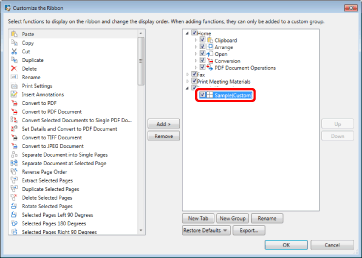
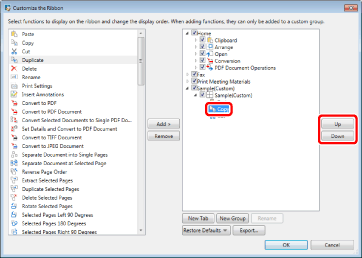
Select the group to add the command to from the list on the right.
5.
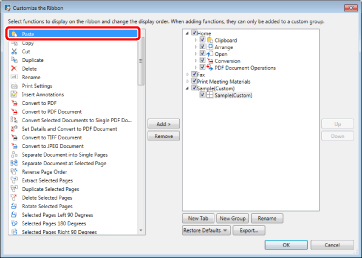
Select the command to add from the list on the left.
6.
Click [Add].
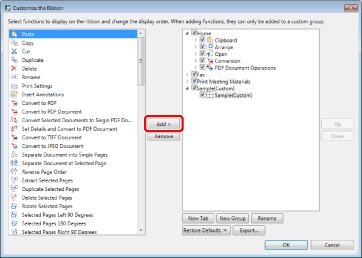
The command is added to the selected group.
7.
To change the display order of the tabs, groups, and added commands, select the tab, group, or command to change the display order of in the list on the right, and click [Up]/[Down].
8.
Click [OK].
The command is added to the ribbon.
Desktop Editor
This section describes how to add commands to the ribbon of Desktop Editor.
1.
Right-click the ribbon or toolbar and select [Customize the Ribbon].
Or, select the [File] menu > [Option] > [Customize the Ribbon].
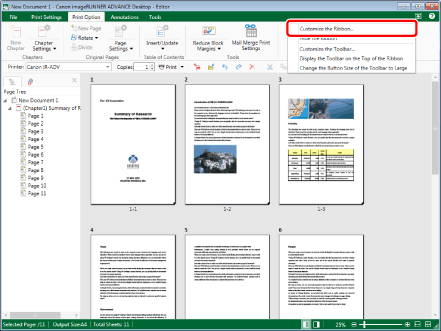
[Customize the Ribbon] is displayed.
2.
Add a new tab or group.
For information on adding new tabs or groups to the ribbon, see the following.
3.
Change the name of the tab or group you added, as necessary.
For information on changing the tab or group name, see the following.
4.
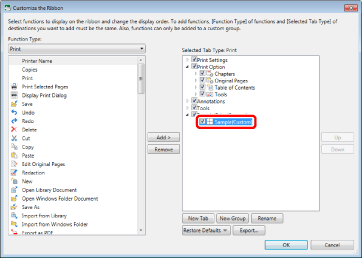
Select the group to add the command to from the list on the right.
To add a group, select the tab to add it to.
5.
In the [Function Type] pull-down list, select the same mode as [Selected Tab Type].
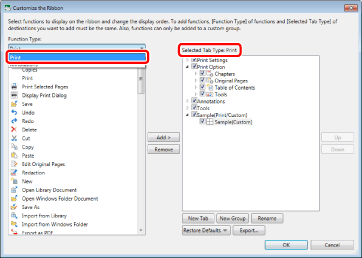
The commands/groups belonging to the selected mode are displayed in the list on the left.
6.
Select the command or group to add in the list on the left.
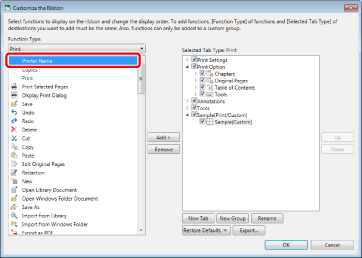
7.
Click [Add].
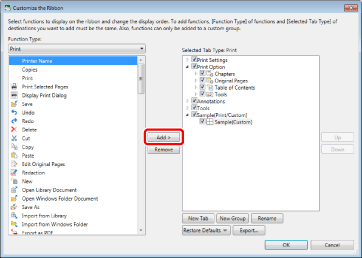
The command is added to the selected group.
8.
To change the display order of the tabs, groups, and added commands, select the tab, group, or command to change the display order of in the list on the right, and click [Up]/[Down].
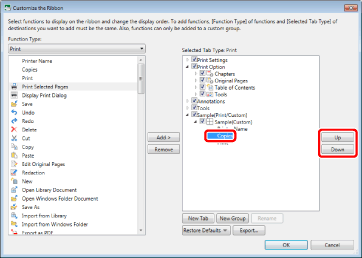
9.
Click [OK].
The command is added to the ribbon.
Adding New Tabs/Groups to the Ribbon
You can add new tabs and groups to the ribbon.
Adding New Tabs to the Ribbon
This section describes how to add new tabs to the ribbon.
1.
Right-click the ribbon or toolbar and select [Customize the Ribbon].
Or, select the [File] menu > [Option] > [Customize the Ribbon].
[Customize the Ribbon] is displayed.
To add a new tab to the ribbon of Desktop Browser, proceed to step 3.
To add a new tab to the ribbon of Desktop Editor, proceed to step 2.
2.
Select the mode for the tab to add in the [Function Type] pull-down list.
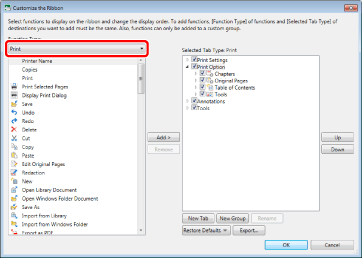
3.
Click [New Tab].
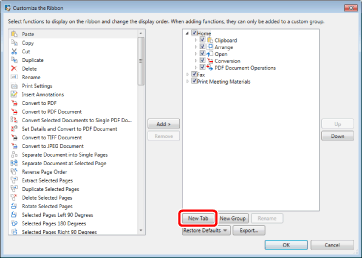
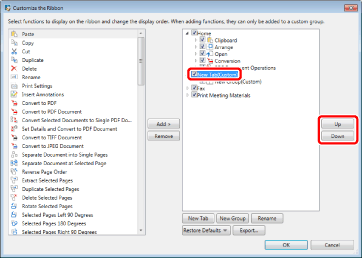
[New Tab] is added to the list on the right.
[New Group] is added below [New Tab] you added.
4.
To change the display order of the tabs, select the tab to change the display order of in the list on the right and click [Up]/[Down].
5.
Specify whether to display/hide the tab, as necessary.
To hide the tab, deselect the check box for the tab.
To display the tab, select the check box for the tab.
6.
Click [OK].
The new tab is added to the ribbon.
Adding New Groups to Ribbons
This section describes how to add new groups to the ribbon.
1.
Right-click the ribbon or toolbar and select [Customize the Ribbon].
Or, select the [File] menu > [Option] > [Customize the Ribbon].
[Customize the Ribbon] is displayed.
2.
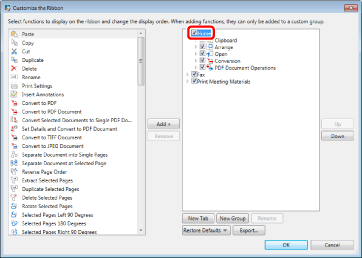
Select the tab to add a new group to from the list on the right.
3.
Click [New Group].
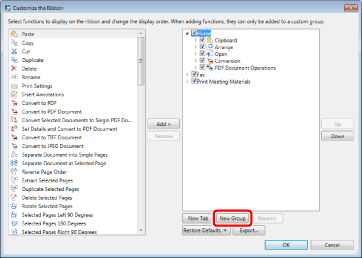
[New Group] is added to the list on the right.
4.
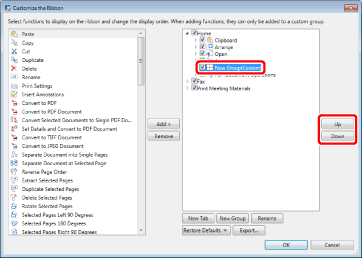
To change the display order of the groups, select the group to change the display order of in the list on the right and click [Up]/[Down].
5.
Specify whether to display/hide the group displayed in the ribbon, as necessary.
To hide a group, deselect the check box for the group.
To display the group, select the check box for the group.
6.
Click [OK].
The new group is added to the ribbon.
Renaming Tabs and Groups Added to the Ribbon
You can rename tabs and groups added to the ribbon.
1.
Right-click the ribbon or toolbar and select [Customize the Ribbon].
Or, select the [File] menu > [Option] > [Customize the Ribbon].
[Customize the Ribbon] is displayed.
2.
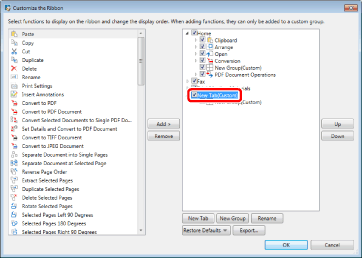
Select the tab or group to rename from the list on the right.
3.
Click [Rename].
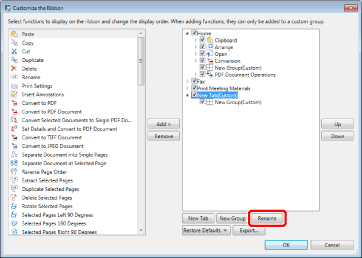
[Rename] is displayed.
4.
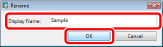
Enter the new name in [Display Name] and click [OK].
5.
Click [OK].
The selected ribbon tab or group is renamed.
Deleting Commands from Ribbons
You can delete commands added to the ribbon.
1.
Right-click the ribbon or toolbar and select [Customize the Ribbon].
Or, select the [File] menu > [Option] > [Customize the Ribbon].
[Customize the Ribbon] is displayed.
2.
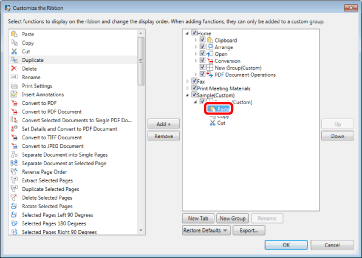
Select the command to delete from the list on the right.
3.
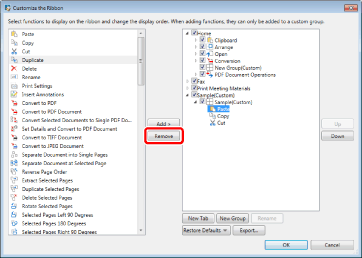
Click [Remove].
4.
Click [OK].
The selected command is deleted from the ribbon.
Deleting Tabs/Groups Added to the Ribbon
You can delete tabs and groups added to the ribbon.
1.
Right-click the ribbon or toolbar and select [Customize the Ribbon].
Or, select the [File] menu > [Option] > [Customize the Ribbon].
[Customize the Ribbon] is displayed.
2.
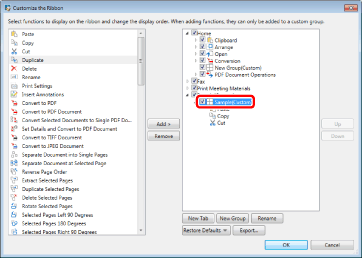
Select the tab or group to delete from the list on the right.
3.
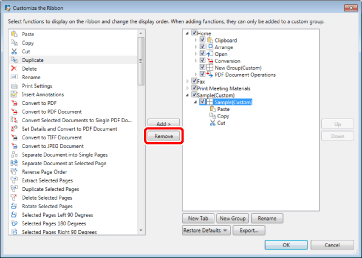
Click [Remove].
4.
Click [OK].
The selected ribbon tab or group is deleted.
Displaying/Hiding Ribbons
The ribbon can be displayed or hidden. If you hide the ribbon, the Work Window is displayed larger.
This section describes how to hide the ribbon.
1.
Click  (Hide the Ribbon) on the ribbon.
(Hide the Ribbon) on the ribbon.Or, follow one of the steps described below.
Double-click a tab name on the ribbon.
Right-click the ribbon or toolbar and select [Hide the Ribbon].
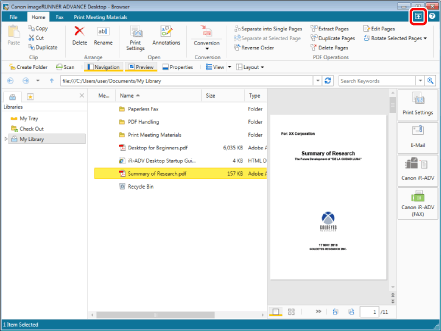
The ribbon is hidden.