
Viewing the Counter Value
You can check the number of printed pages.
Checking Total Number of Printed Pages
You can check the total number of pages so far printed, as well as the current number of black and white printed pages and that of color printed pages.
 (
( )
)  <Check Counter>
  Select the setting to view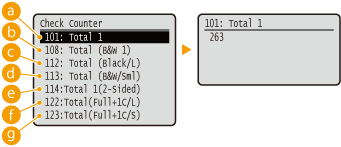
 <101: Total 1>
You can check the total number of printed pages.
 <108: Total (B&W 1)>
You can check the number of pages printed in black and white.
 <112: Total (Black/L)>
You can check the number of pages printed in black and white on paper of size larger than B4.
 <113: Total (B&W/Sml)>
You can check the number of pages printed in black and white on paper of size B4 or smaller.
 <114:Total 1(2-Sided)>
You can check the number of pages printed in 2-sided printing mode.
 <122:Total(Full+1C/L)>
You can check the number of pages printed in color on paper of size larger than B4 (other than e-mail printing).
 <123:Total(Full+1C/S)>
You can check the number of pages printed in color on paper of size B4 or smaller (other than e-mail printing).
Checking the Number of Pages Printed for Each Department
You can check the number of pages printed for each department.
1
Start the Remote UI and log on in Management Mode. Starting Remote UI
2
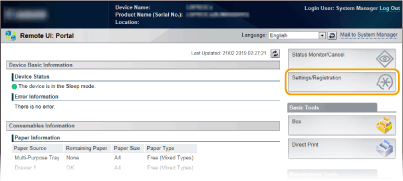
Click [Settings/Registration].
3
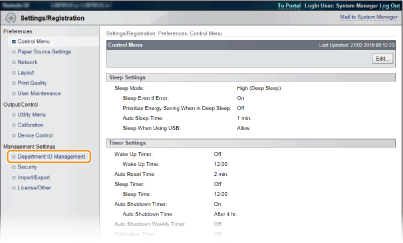
Click [Department ID Management].
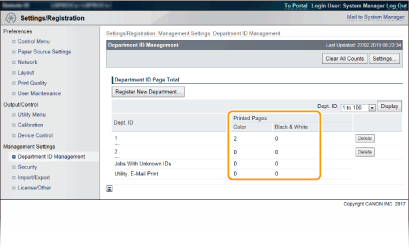
The number of printed pages is displayed for each Department ID under [Printed Pages].
|
To print the check resultTo clear the page count to zeroWhen you want to clear the page count to zero for each department, click the text link under [Dept. ID], and click [Clear Count] [OK].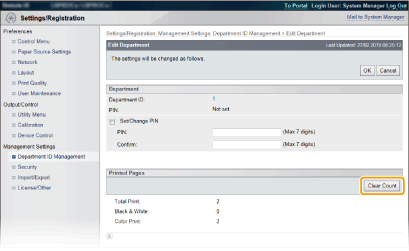 If you want to return the counts of all departments to zero, click [Clear All Counts] [OK].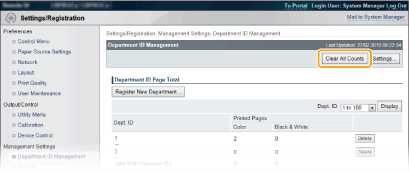 |