
Paper Type Management Settings
You can register and edit detailed information of frequently used paper types as the <Custom Type>.
To register a new paper type, first duplicate the paper type that resembles the new type in order to copy all of the internal operational parameters. This procedure copies the suitable settings to the new paper type from the registered custom paper easily.
You can also improve printing quality and paper feeding trouble by editing the custom paper, depending on the characteristics.
|
It is necessary to log in as an administrator to register custom paper types or change the settings of registered custom paper types. Logging into the Machine When you register the custom paper type, you cannot specify the paper source. For more information on registering the paper source, see Specifying Paper Size and Type in the Paper Drawer. You can import/export the registered custom paper type information, and share it with another Canon machine. Importing/Exporting the Settings Individually |
Registering frequently used paper types
1
Press  (Settings/Registration) .
(Settings/Registration) .2
Press <Preferences>  <Paper Settings> <Paper Type Management Settings>.
<Paper Settings> <Paper Type Management Settings>.3
Specify the settings.
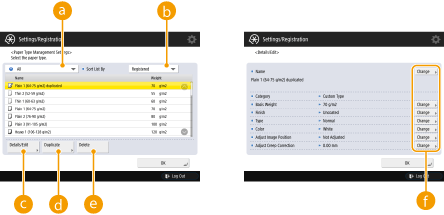
 Paper type drop-down list
Enables you to select the paper type to display.
 <Sort List By>
Enables you to change the display order of the list.
 <Details/Edit>
Displays details for the selected paper type on the <Details/Edit> screen. If you select a custom paper type, you can edit it.
 <Duplicate>
Duplicates the selected paper type as a custom paper type.
 <Delete>
Deletes the selected custom paper type.
 <Change>
Appears on the <Details/Edit> screen for the custom paper type and enables you to change the settings for the selected item.

You can only edit/delete custom paper types.
4
Press <OK> .
Items that can be specified
The following items can be specified.
Name
You can change the name of the custom paper type.
|
When you register the settings for the custom paper type, make sure to change its name. You cannot change the settings of the default paper types registered in the machine. |
Basis Weight
You can change the basis weight of the custom paper type.
|
If you enter a value that is different from the actual weight of the set paper, paper jams may occur, and the quality of the image may be adversely affected. |
Finish
You can change the Finish setting of Custom Type you have registered.
|
If you select a finishing type which is different from that of the loaded paper, paper jams may occur, and the quality of the image may be adversely affected. |
Type
You can change the Type setting of Custom Type you have registered.
|
If you select a paper type which is different from that of the loaded paper, paper jams may occur, and the quality of the image may be adversely affected. |
Color
You can change the colour of the custom paper type.
|
If you select a color which is different from that of the loaded paper, paper jams may occur, and the quality of the image may be adversely affected. |
Use as Template Paper
You can set this mode to <On> to use preprinted paper (paper which has logos already printed on it), such as a letterhead.
|
The custom paper type with <On> set for <Use as Template Paper> is not automatically selected in the following cases. When the paper type for printing is set to <Auto> If <Paper Drawer Auto Selection On/Off> is set to <On> and <Consider Paper Type> is set to <Off> when copying |
|
Methods for loading paper if <Use as Template Paper> is set to <On>: Paper drawer of the main unit: the side with a logo facing down Paper source other than a paper drawer of the main unit: the side with a logo facing up |
2nd Side of 2-Sided Page (C7700 Series / C5700 Series Only)
You can set whether the back side of the custom paper type is previously printed or not. If the back side of the paper is not previously printed, select <Off>.
Adjust Image Position (C7700 Series / C5700 Series Only)
You can adjust the printed image position, which is misaligned or distorted, by confirming test pages and specifying setting values. Adjusting the Image Position (C7700 Series / C5700 Series Only)
Adjust Creep Correction
If you want to change the creep (displacement) correction for each page in a booklet, adjust the creep correction width for the registered custom paper type.
|
For information on creep (displacement), see Making Booklets (Booklet Copying). The value you set here becomes the default correction width when the selected paper type is used for saddle stitching with automatic "Adjust Creep (Displacement) Correction". |
Curl Correction Level (C7700 Series Only)
You can adjust the curl correction level for custom paper type.
|
This mode may affect paper feeding. Since increasing the value to a great extent may cause paper jams, adjusting the values in small increments is recommended. Depending on the characteristic of the paper type, such as heavy paper, you may not be able to correct the paper curl properly even if you adjust the curl correction level. |
| ||||||
To determine the direction of the paper curl, place the paper in the direction where the paper is output to the output tray. Adjust the curl correction level in the direction opposite to that of printed paper.
|


Adjust Fan for Paper Conveyance (C7700 Series Only)
If a paper jam often occurs or the output paper is creased and it has a wave like appearance, you may be able to solve the problem by increasing the fan level for paper conveyance before fixation.
 |
Adjust the fan when the paper which length of the parallel edge to the feeding direction is shorter than 200 mm jammed in the paper conveyance before fixation repeatedly. Set to +1 when a plain paper or a thin paper is used. Set to -1 when temperature/humidity is high and heavy paper is used. |
Adjust Gloss
This mode enables you to adjust the glossiness of the custom paper type. You can change the glossiness of a printed image when using plain or coated paper by adjusting the temperature of the fixing unit. Press <+> to increase the gloss, and press <-> to decrease the gloss.
|
Depending on the paper, if the value in this mode is increased, a paper jam may occur. If the value is decreased, the quality of the image could be adversely affected or toner may not be applied properly to the image. Make sure to change the value in small increments as changing the value abruptly may cause some troubles. |
|
C7700 Series OnlyAdjusting this mode may affect the paper curl status. Readjust the <Curl Correction Level> setting, if necessary. |
Adjust Lead/Tail Margins (C7700 Series Only)
You can adjust the lead edge and tail end margins.
Depending on the paper type, if the lead edge and tail end margins are small, the paper is hard to be removed from the roller surface of the fixing unit. For that reason, the quality of the image may be adversely affected, output paper may be folded or bent at the corner, or the paper feeding troubles may occur.
In this case, you may improve the conditions by expanding the margin.
Depending on the paper type, if the lead edge and tail end margins are small, the paper is hard to be removed from the roller surface of the fixing unit. For that reason, the quality of the image may be adversely affected, output paper may be folded or bent at the corner, or the paper feeding troubles may occur.
In this case, you may improve the conditions by expanding the margin.
Adjust Temp. to Prevent Wrinkles (C7700 Series Only)
You can change the wrinkle correction level in the registered user settings if wrinkles appear or the paper seems thin and worn. Changing the Wrinkle Correction Level (C7700 Series Only)
Adjust Secondary Transfer Voltage
You can adjust the Secondary Transfer Voltage (the voltage that transfers toner to the paper) when image blurring occurs. Adjusting the Secondary Transfer Voltage
Toner Amount Reduction Mode (C7700 Series / C5700 Series Only)
You can adjust the total amount of toner used for each paper type.
If you set this mode to <On>, you can reduce the total amount of toner usage while retaining the CMYK values specified in Color Balance settings. As a result, you may prevent the quality of image from being affected adversely, and reduce the frequency of paper jams and paper feeding troubles.
If you set this mode to <On>, you can reduce the total amount of toner usage while retaining the CMYK values specified in Color Balance settings. As a result, you may prevent the quality of image from being affected adversely, and reduce the frequency of paper jams and paper feeding troubles.
|
Depending on the paper type, if the total amount of toner usage is reduced, density, colour, and glossiness may change. |
Embossing Depth (C7700 Series Only)
You can select <Deep> when printing on textured paper that has significant unevenness.
|
Specifying <Deep> may cause printing speed to become slower than normal. |