Configuring the Built-in Tasks
This section describes the method for retrieving the various printer information.
[Retrieve Printer Information]
1.
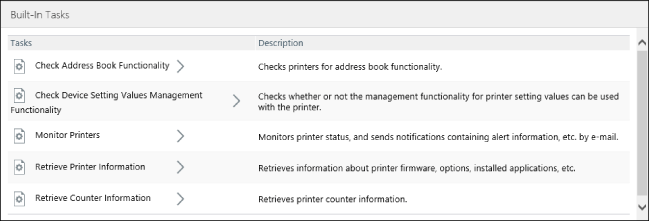
Select the [Tasks] menu > [Built-In Tasks].
2.
Select [Retrieve Printer Information] from the list.
3.
Configure [Task Execution] for retrieving the printer information, and click [Apply].
[Retrieve Counter Information]
Refer to the following settings of iW Management Console V3.x.
[Device] > [Meter Capture] > [Registered Tasks]
1.
Select the [Tasks] menu > [Built-In Tasks].
2.
Select [Retrieve Counter Information] from the list.
3.
Set the interval for retrieving the counter information, and click [Apply].
NOTE |
The specifications differ between V3.x and V4.x of this software. With V4.x, retrieve counters from devices by setting a counter retrieval interval. |
[Monitor Printers]
This section describes the method for sending e-mail notification for the result of monitoring the printers managed by this software.
1.
Select the [Tasks] menu > [Built-In Tasks].
2.
Select [Monitor Printers] from the list.
3.
Specify the monitoring interval on the [Monitoring Settings] tab, and click [Apply].
4.
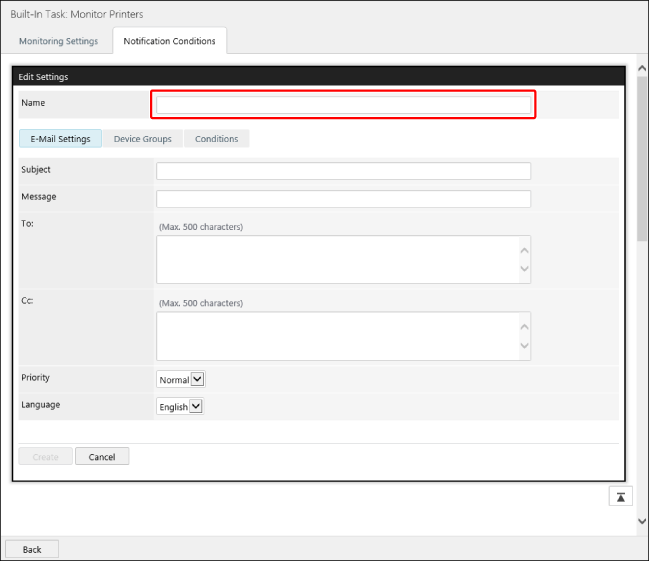
Configure the notification settings on the [Notification Conditions] tab.
Click [Create].
In [Name], enter a name indicating the notification condition.
5.
In [E-Mail Settings], configure the notification e-mail settings.
[Subject] | Enter the subject. In addition to an arbitrary string, the following variables starting with "$" can be used. Device Name: $DEVICENAME Product Name: $PRODUCTNAME Manufacturer: $MANUFACTURER Serial Number: $SERIALNUMBER IPv4 Address: $IPADDRESS Location: $LOCATION For example, when using the device name and IPv4 address as the subject, enter "$DEVICENAME ($IPADDRESS)." When a variable is used, it is replaced with information of the target printer for notification when e-mail is sent. Multiple variables and arbitrary strings can also be combined. |
[Message] | Enter the body of the e-mail. |
[To]/[Cc] | Enter the e-mail address to notify. To set multiple addresses, separate them with commas or line breaks. |
[Priority] | Select the e-mail priority. |
[Language] | Select the e-mail language. |
6.
On the [Device Groups] tab, specify the target printers for notification.
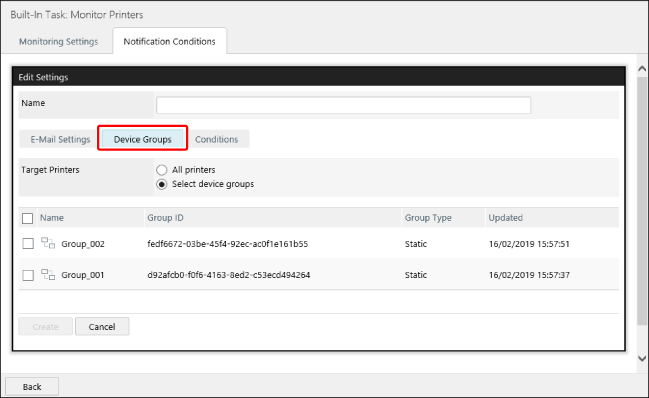
If you selected [Select device groups], select the target device groups.
7.
Configure the detailed notification conditions on the [Conditions] tab.
Select the notification conditions (Error Occurred, Error Occurred or Resolved, and Error Ongoing) from the drop-down list, and click [ Add].
Add].
Add].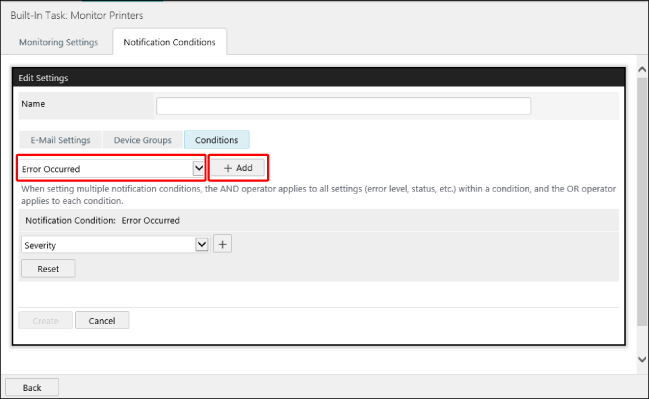
Configure the detailed notification conditions.
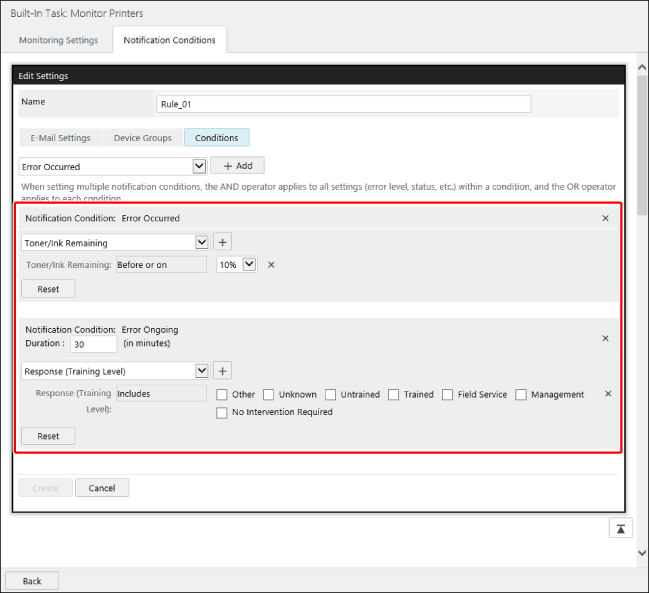
[Notification Condition] | Displays the set notifications. To delete a notification condition, click [  ] on the right edge of the condition. ] on the right edge of the condition. |
[Duration] | Set this when [Notification Condition] is set to [Error Ongoing]. If the same error continues to occur after the time set here, a notification is sent only once. A notification is not sent again if the error continues after the first notification. |
Notification target selection drop-down list | After selecting the notification target, click [ ] next to this.Next, specify the target statuses for notification. You can select multiple statuses. |
[Severity] | Select the error priority. You can select multiple items. Displays the information collected from PrtAlertSeverityLevelTC in the standard printer MIB defined in RFC 3805. |
[Response (Training Level)] | Select the skill level required for fixing the error. Displays the information collected from PrtAlertTrainingLevelTC in the standard printer MIB defined in RFC 3805. |
[Error Content] | Select the error content. You can select multiple items. Displays the information collected from PrtAlertCodeTC in the standard printer MIB defined in RFC 3805 by category. You can select a category to select all the items included in that category. When it is not necessary to set each item, select a category. |
[Toner/Ink Remaining] | Specify the remaining toner or ink as a percentage. A notification is sent when the value reaches the entered value or lower. |
[Drum Life Remaining] | Specify the remaining toner or ink as a percentage. A notification is sent when the value reaches the entered value or lower. |
[Paper Remaining] | Specify the remaining paper as a percentage. A notification is sent when the value reaches the entered value or lower. The multi-purpose tray is excluded. |
[Developer Remaining] | Specify the remaining developer as a percentage. A notification is sent when the value reaches the entered value or lower. |
[Waste Toner/Waste Ink Capacity Remaining] | Specify the waste toner/waste ink capacity remaining as a percentage. A notification is sent when the value reaches the entered value or lower. |
[Staples Remaining] | Specify the staples remaining as a percentage. A notification is sent when the value reaches the entered value or lower. |
[Reset] | Deletes all the settings of the notification destinations. To delete a single setting of the destination, click [ ] on the right edge of the destination. |
NOTE |
When multiple notification conditions are set, e-mail is sent when either of the notification conditions is met. |
8.
Click [Create].