Importing Address Lists
Import the address list file exported from the device to Enterprise Management Console V4.x.
IMPORTANT |
Even if an address list file exported from iW Management Console V3.x is imported to Enterprise Management Console V4.x, the address lists cannot be correctly migrated. Prepare an address list file exported from a device managed in iW Management Console V3.x. For details, see the following. |
1.
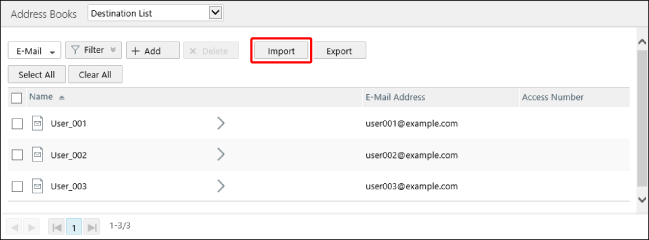
Click [Import] on the [Data Management] menu > [Address Books] > [Destination List] page.
2.
Enter the information for the file to import.
In [File Type], select the type of file exported from the device.
IMPORTANT |
The [Address Book] category data (extension: dcm) of the device settings values is not imported. |
Select [Enter a password] to import a file with authentication information encrypted.
In [Password], enter the password set when exporting the destinations.
IMPORTANT |
When importing a file with authentication information encrypted, make sure to specify the decryption password. If you import a file with authentication information encrypted without specifying the decryption password, the encrypted string will be registered to this software as the authentication information. |
To create an address list or one-touch at the same time as importing the file, select [Create an address list at the same time].
The address list included in the imported file is created in this software. If group destinations are included in the address list or one-touches, they are also imported.
IMPORTANT |
If [Create an address list at the same time] is disabled, only the destinations included in the imported file are added to the destination list, and an address list or one-touch is not created. When an address list exported from a Type II/Type III printer is imported, an address list is not created, even if [Create an address list at the same time] is enabled. Only the destinations included in the address list are registered. |
NOTE |
Note the following when [Create an address list at the same time] is enabled. Even if an address list with the same name is already registered in this software, a new address list with the same name is created. An address list is not created if no destinations are included in the imported file. |
3.
Select the file to import in [File].
4.
Click [Import].
5.
If you enabled [Create an address list at the same time], check the created address lists and one-touches.
Select [Address Lists] from the drop-down list on the top of the [Address Books] page.