Creating Address Books to Distribute to Printers
Create address books including address lists and one-touches. Next, associate the printers to distribute those address books to.
Creating Sets (Address Lists + Printers)
1.
Select the [Data Management] menu > [Address Books].
2.
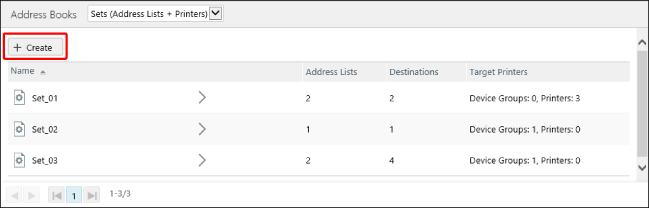
Select [Sets (Address Lists + Printers)] from the drop-down list on the top of the [Address Books] page.
3.
Click [Create] on the [Sets (Address Lists + Printers)] page.
When editing, click the association to edit.
4.
Enter the name of the association in [Name].
5.
Select the address lists and one-touches to distribute to printers on the [Address Books] tab.
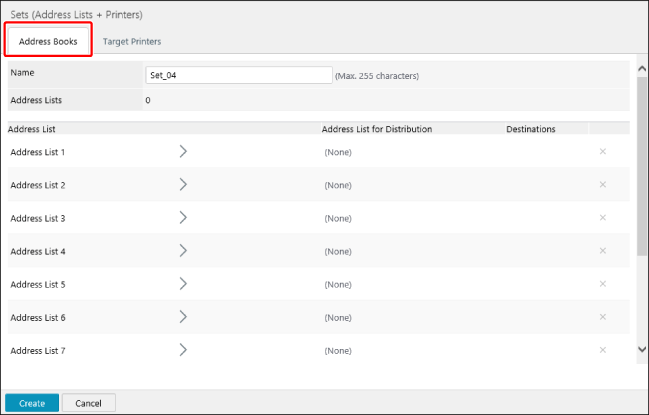
[Address List] | Indicates an address list or one-touch on the printer side. |
[Address List for Distribution] | The name of the address lists and one-touches created in this software assigned to the address lists and one-touches on the printer side. |
[Destinations] | The number of destinations registered in the address lists and one-touches displayed in [Address List for Distribution]. |
[  ] ] | Click [ ] to return [Address List for Distribution] to [(None)]. |
IMPORTANT |
An error occurs when executing the task if any of the following conditions are met. The total number of destinations included in the address lists associated with a printer exceeds the upper limit of destinations that can be registered to a printer The total number of destinations included in the address lists and one-touches associated with a printer exceeds the upper limit of destinations and one-touches that can be registered to a printer For printers other than Type I printers, the address lists and one touches assigned to [Address List 1] and [One-Touch] are distributed to a printer. The number of destinations that can be distributed differs according to the printer type. Refer to the following to ensure that the number of destinations does not exceed the upper limit of the printers to distribute to. "Cautions for Operation (Address Book Management)" > "Maximum Numbers of Destinations" in the User's Guide |
NOTE |
Tasks for distributing address books do not distribute destinations to address books with [Address List for Distribution] set to [(None)]. The content of the address books registered in the destination printers is retained. |
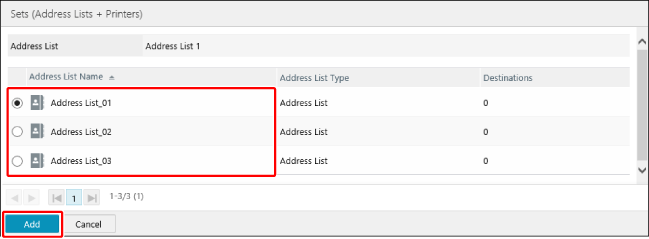
Select the address lists and one-touches to distribute to in [Address List].
Select the address lists and one-touches to distribute to printers, and click [Add].
The target address lists to distribute to are displayed in [Address List] on the top.
6.
Select the target devices on the [Target Printers] tab.
Click [Devices] or [Groups], and select the target printers or groups to distribute to.
If you selected [Devices], you can apply a filter to filter the printers displayed in the list.
A maximum of 5,000 printers can be selected at a time.
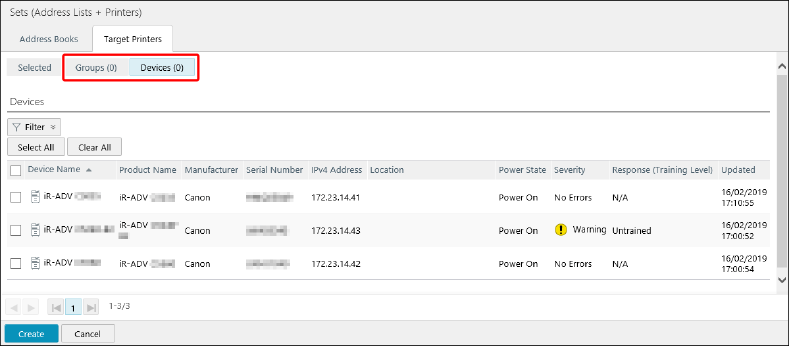
Click [Selected], and confirm that the selected printers and groups are displayed.
7.
Click [Create].
When editing, click [Update].