The procedure described here uses the control panel.
You can also configure the settings using the Remote UI from a computer.
Administrator, DeviceAdmin, or NetworkAdmin privileges are required. The machine must be restarted to apply the settings.
CESC-00R
Changing to the Recommended Security Settings
You can change the machine to the recommended settings for your environment type.
The procedure differs according to the model of your machine.
The procedure differs according to the model of your machine.
For an imageFORCE series machine
In the procedure for changing to the recommended security settings, you can detect the recommended environment type.
In the procedure for changing to the recommended security settings, you can detect the recommended environment type.
For an imageRUNNER ADVANCE/imagePRESS series machine
You can select your environment type to change the machine to the recommended settings.
You can select your environment type to change the machine to the recommended settings.
*If you are unsure of your environment type, see the following.
List of Environment Types
List of Environment Types
For an imageFORCE series machine
The procedure described here uses the control panel.
You can also configure the settings using the Remote UI from a computer.
Administrator, DeviceAdmin, or NetworkAdmin privileges are required. The machine must be restarted to apply the settings.
You can also configure the settings using the Remote UI from a computer.
Administrator, DeviceAdmin, or NetworkAdmin privileges are required. The machine must be restarted to apply the settings.
1
Check whether any jobs are currently executing.
You can press <Status Monitor> on the control panel of the machine, select <Copy/Print>, <Send>, <Receive>, or <Store>, and press <Job Status> to check whether there are any jobs currently executing.
2
Press  (Settings/Register) on the control panel of the machine.
(Settings/Register) on the control panel of the machine.3
Press <Management Settings> → <Security Settings> → <Recommended Security Set. for Usage Environment>.
The <Recommended Security Set. for Usage Environment> screen appears.
4
Press <Usage Environment Settings>.
The recommended environment type is detected based on the usage of your machine and displayed. Step 5
If the security settings have already been changed by selecting the recommended environment type, the <Usage Environment Settings> screen is displayed. Step 6
To select the recommended environment type to change the security settings, press <Continue Config>.
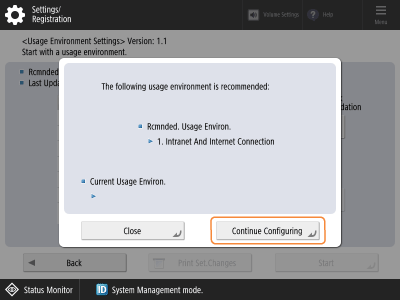
A message confirming whether you want to execute appears. Step 7
You can also press <Close> and select the environment type. Step 6
Select the environment type, and press <Start>.
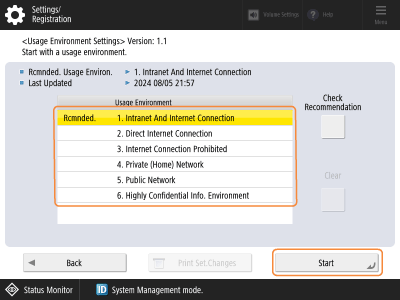
*From now on, when the recommended environment type is changed, a message is displayed on the screen of the control panel. You can press <Check Recommendation> to confirm the recommended environment type.
For information on the message display settings, access the User's Guide for your machine from the manual portal site.
Confirm the message, and press <Yes>.
The machine restarts, and the security settings for the selected environment type are reflected.
The settings are complete.
For an imageRUNNER ADVANCE/imagePRESS series machine
1
Check whether any jobs are currently executing.
You can press <Status Monitor> on the control panel of the machine, select <Copy/Print>, <Send>, <Receive>, or <Store>, and press <Job Status> to check whether there are any jobs currently executing.
2
Press (Settings/Register) on the control panel of the machine.
(Settings/Register) on the control panel of the machine.3
Press <Management Settings> → <Security Settings> → <Recommended Security Set. for Usage Environment>.
The <Recommended Security Set. for Usage Environment> screen appears.
4
Select the environment type, and press <Start>.
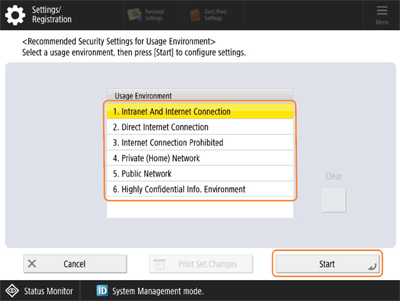
A message confirming whether you want to execute appears.
5
Confirm the message, and press <Yes>.
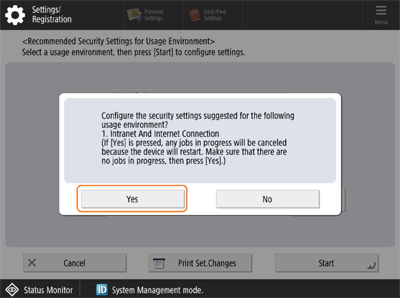
The machine restarts, and the security settings for the selected environment type are reflected.
The settings are complete.
 |
If <Recommended Security Set. for Usage Environment> is not available, you can manually change the security settings. Effect and Impact of Security Settings <Recommended Security Set. for Usage Environment> is not available if any security policy settings are set. |
 |
If functions you want to use become unavailable after changing the security settingsYou can undo the changes to revert the machine to its previous state. Restoring the Security Settings You can also change some settings individually. Example: If you select the Highly Confidential Info. Environment type and a certain MEAP application becomes unavailable, return the following settings to <On> in (Settings/Registration).<Preferences> → <Network> → <TCP/IP Settings> → <SMB Server Settings> → <Use SMB Server> <Function Settings> → <Store/Access Files> → <Advanced Box Settings> → <Open to Public> For details on the effect and impact of the security settings for each environment type, see the following. Effect and Impact of Security Settings You can also print the changed settings to check the setting values that have been changed. Checking the Settings Changed with the Recommended Security Settings |