
Adjusting Gradation
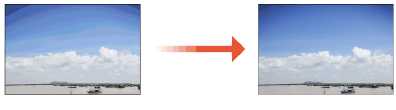
The maximum density and balance of the CMYK toner that is originally output will vary due to fluctuations in the operating environment (temperature and humidity) and continuous output. The automatic gradation adjustment is a function that always maintains an optimal density balance. There are two types of adjustments: Full Adjustment and Quick Adjustment.
|
Make sure to perform this function in the stable room environment (i.e. temperature and humidity). The color may become unstable due to the rapid changes in room environment, especially soon after staring up an air conditioner during summer or winter season. It is recommended that you select <Full Adjust> when performing an automatic gradation adjustment. Select <Quick Adjust> for a quick, but less complete adjustment between regular full adjustment recalibrations. This machine adjusts the toner and print speed according to the paper type. To make effective adjustments, select the correct paper type. Make sure that you place the test pages properly. Accurate recalibrations of the gradation, density, and color settings of the machine cannot be made if the test pages are not scanned correctly. |
Full Adjustment
Correct the gradation of an image accurately and optimize reproducibility during printing. Optimized information will be retained until the next accurate correction.
The gradation adjustment is performed by automatically repeating the operation of loading a test page. 5 to 9 sheets of paper are consumed. The number of sheets to be consumed will differ depending on the number of sheets that are specified in <Number of Sheets to Output for Test Page>.
|
You can use the following paper. Make sure that the following paper is loaded in the paper source before operating. Size: A3, 11" x 17", 320 mm x 450 mm(SRA3), 12" x 18" or 13" x 19" Basis Weight/Finish/Whiteness: International Paper Hammermill Premium Color Copy (28 Lb. Bond)* or the paper type registered/selected as paper to adjust * The name of the paper is subject to change without notice. For more information, contact your local authorized Canon dealer. |
1
Press  (Settings/Registration)
  <Adjustment/Maintenance> <Adjust Image Quality> <Auto Adjust Gradation>.
(Settings/Registration) <Adjustment/Maintenance> <Adjust Image Quality> <Auto Adjust Gradation>.2
Press <Full Adjust>.
3
Select the paper source that the paper for the test print is loaded, and press <OK>.
4
Press <Start Printing>.
The test page is printed, and then the adjustment will be performed automatically.
Quick Adjustment
This adjustment maintains the optimized status that was acquired by <Full Adjust>. If the result of this adjustment is not satisfactory, perform <Full Adjust>.
1
Press (Settings/Registration) <Adjustment/Maintenance> <Adjust Image Quality> <Auto Adjust Gradation>.
(Settings/Registration) <Adjustment/Maintenance> <Adjust Image Quality> <Auto Adjust Gradation>.2
Select the paper to adjust, and press <Quick Adjust>.
3
Press <Start>.
Registering Paper for Calibration
If you perform automatic gradation adjustment for a custom paper type, registering a custom paper type for calibration is required beforehand.
In this procedure, you need to scan the printed test pages 2 times, 1 time for base paper and 1 time for a custom paper type. The number of sheets required for the registration is 2 sheets of paper.
| ||||
Make sure to register paper to adjust in the stable room environment (i.e. temperature and humidity). If the rapid changes in room environment occur after the registration of paper to adjust, accurate recalibrations of the gradation, density, and color settings of the machine cannot be made for paper already registered to adjust. In this case, register again that paper to adjust. Make sure to register paper whose finish and whiteness are equivalent to the International Paper Hammermill Premium Color Copy (28 Lb. Bond)as paper to adjust. Accurate recalibrations of the gradation, density, and color settings of the machine may not be made if you register and use paper other than that condition as paper to adjust. To perform the procedure described in this section, you must log in to the machine as an administrator. Logging in as an Administrator Confirm that both paper to use as a basis and a custom paper type to register to adjust, described in the following table, are set in paper sources correctly before starting this procedure.
* The name of the paper is subject to change without notice. For more information, contact your local authorized Canon dealer. |
 |
<Custom Type> registered in <Paper Information> of <Paper to Adjust 1>, <Paper to Adjust 2>, and <Paper to Adjust 3> becomes unable to be changed or deleted. If you want to delete or change <Custom Type>, first register another <Custom Type> as the paper to adjust. Paper Type Management Settings |
1
Press (Settings/Registration) <Adjustment/Maintenance> <Adjust Image Quality> <Auto Adjust Gradation>.
(Settings/Registration) <Adjustment/Maintenance> <Adjust Image Quality> <Auto Adjust Gradation>.2
Press <Register Paper to Adjust>.
3
Select the destination for registering new paper to adjust, and press <Next>.
|
You can register up to three type of paper to adjust and you can overwrite them. When overwriting, you cannot restore the paper settings previously registered. |
4
Select the type for the paper to use as a basis, and press <Next>.
5
Select the paper source contains the type of paper to use as a basis, and press <Next>.
|
This machine adjusts the toner and print speed according to the paper type. To make effective adjustments, select the correct paper type. |
6
Press <Start Printing>.
First test page is output.
7
Place the first test page on the platen glass, and press <Start Scanning>.
Place the first test page face down on the platen glass, with the black bar along the top back edge of the platen glass.
8
Remove the first test page from the platen glass.
9
Select the paper source that contains the custom paper type to adjust, and press <Next>.
|
This machine adjusts the toner and print speed according to the paper type. To make effective adjustments, select the correct paper type. |
10
Press <Start Printing>.
Second test page is output.
11
Place the second test page on the platen glass, and press <Start Scanning>.
Place the second test page face down on the platen glass, with the black bar along the top back edge of the platen glass.
12
Remove the second test page from the platen glass.
Selecting Paper for Calibration
You can select the type of paper for calibration.
|
To perform the procedure described in this section, you must log in to the machine as an administrator. Logging in as an Administrator |
1
Press (Settings/Registration) <Adjustment/Maintenance> <Adjust Image Quality> <Auto Adjust Gradation>.
(Settings/Registration) <Adjustment/Maintenance> <Adjust Image Quality> <Auto Adjust Gradation>.2
Press <Select Paper to Adjust> select the type of paper to adjust press <OK>.
select the type of paper to adjust press <OK>. |
This machine adjusts the toner and print speed according to the paper type. To make effective adjustments, select the correct paper type. To perform the auto gradation adjustment to some custom paper type, select that custom paper type, which is registered in advance, for paper to adjust. |
Initializing Standard Values for Calibration
If you perform automatic gradation adjustment but cannot adjust gradation, density, or color correctly, or scanned error message appears for the test page, set <Initialize When Using Full Adjust> to <On>, and then perform <Full Adjust>.
1
Press (Settings/Registration) <Adjustment/Maintenance> <Adjust Image Quality> <Auto Adjust Gradation>.
(Settings/Registration) <Adjustment/Maintenance> <Adjust Image Quality> <Auto Adjust Gradation>.2
Press <Initialize When Using Full Adjust> <On> <OK>.
<On> <OK>.3
Perform Full Adjust by following steps 2 to 4 in Full Adjustment.
Full Adjustment.