
[Printer Settings]
Specify the settings for printer operation and for processing print data.
* Values in bold red text are the default settings for each item.
* Values in bold red text are the default settings for each item.
|
If the Operation Panel and Printer Driver Have the Same SettingsPriority is given to the printer driver settings. The operation panel settings are valid for operating systems such as UNIX, PS, and PCL printing where printer drivers cannot be used and when printing from mobile devices. |
[Prioritize Driver Settings When Printing]
[Menu]  [Function Settings] [Printer] [Printer Settings]
[Function Settings] [Printer] [Printer Settings]Specify for each paper source whether the printer driver settings are given priority over the paper size and type specified in [Paper Settings] in the [Home] screen.
If you specify [On] in this setting, the machine will print from the paper source specified by the printer driver, regardless of the paper setting on the machine.
Also, if [On] is specified here and the size of the paper loaded differs markedly from that specified in the printer driver settings, you can specify whether printing proceeds anyway or printing is stopped and an error message is displayed.
If you specify [On] in this setting, the machine will print from the paper source specified by the printer driver, regardless of the paper setting on the machine.
Also, if [On] is specified here and the size of the paper loaded differs markedly from that specified in the printer driver settings, you can specify whether printing proceeds anyway or printing is stopped and an error message is displayed.
* Note that specifying [On] in this setting when the paper loaded in the machine does not match the paper specified by the printer driver could lead to paper jams or printing errors.
* Several sheets of paper may be printed even if the machine is configured to cancel printing when an error message is displayed.
[Multi-Purpose Tray] [Prioritize Driver Settings When Printing] [Off] [On] [Action When Size Mismatch] [Force Output] [Display Error] [Drawer 1] [Prioritize Driver Settings When Printing] [Off] [On] [Action When Size Mismatch] [Force Output] [Display Error] [Drawer 2]*1 [Prioritize Driver Settings When Printing] [Off] [On] [Action When Size Mismatch] [Force Output] [Display Error] |
*1 May not be displayed depending on the model, the installed options, and other settings. |
[Copies]
[Menu] [Function Settings] [Printer] [Printer Settings]
[Function Settings] [Printer] [Printer Settings]Specify the number of copies to be printed.
1 to 999 |
[2-Sided Printing]
[Menu] [Function Settings] [Printer] [Printer Settings]
[Function Settings] [Printer] [Printer Settings]Specify whether to print on both sides of the paper.
[Off] [On] |
[Default Paper]
[Menu] [Function Settings] [Printer] [Printer Settings]
[Function Settings] [Printer] [Printer Settings]Specify the paper size and type to be used when printing from a mobile device or an OS that does not support the printer driver.
See below for the papers that can be specified.
Usable Paper
See below for the papers that can be specified.
Usable Paper
[Paper Size Override]
[Menu] [Function Settings] [Printer] [Printer Settings]
[Function Settings] [Printer] [Printer Settings]Specify whether the machine substitutes A4 size paper for Letter size paper and vice-versa when printing.
Specifying [On] in this setting means that if, for example, printing on A4 size paper is specified on the computer and there is only Letter size paper loaded, the job is printed on Letter size paper instead.
Specifying [On] in this setting means that if, for example, printing on A4 size paper is specified on the computer and there is only Letter size paper loaded, the job is printed on Letter size paper instead.
* Print settings are specified in an application or printer driver, but this setting can only be specified on the operation panel.
[Off] [On] |
[Print Quality]
[Menu] [Function Settings] [Printer] [Printer Settings]
[Function Settings] [Printer] [Printer Settings]Adjust print quality settings such as the density and resolution according to the document being printed and the purpose.
[Density]
[Menu] [Function Settings] [Printer] [Printer Settings] [Print Quality]
[Function Settings] [Printer] [Printer Settings] [Print Quality]Adjust the toner density used when printing each color.
For more precise adjustment, you can adjust the levels of the three density areas for each color in [Fine Adjust].
For more precise adjustment, you can adjust the levels of the three density areas for each color in [Fine Adjust].
* Note that you cannot adjust the toner density if [Toner Save] is set to [On].[Toner Save]
* [Density] may not be displayed depending on the model, the installed options, and other settings.
Yellow/Magenta/Cyan/Black 17 levels [Fine Adjust] [Yellow]/[Magenta]/[Cyan]/[Black] [High]/[Medium]/[Low] 17 levels |
[Toner Save]
[Menu] [Function Settings] [Printer] [Printer Settings] [Print Quality]
[Function Settings] [Printer] [Printer Settings] [Print Quality]Specify whether to save toner when printing.
Specify [On] in this setting when you only want to check the layout or other finishing prior to the final print, such as before printing a very large job.
Specify [On] in this setting when you only want to check the layout or other finishing prior to the final print, such as before printing a very large job.
[Off] [On] |
[Gradation]
[Menu] [Function Settings] [Printer] [Printer Settings] [Print Quality]
[Function Settings] [Printer] [Printer Settings] [Print Quality]Specify the processing method used to reproduce gradations.
Specify [High 2] to print with finer gradations than the [High 1] setting.
Specify [High 2] to print with finer gradations than the [High 1] setting.
* This setting is only enabled when [Resolution] is set to [600 dpi]. [Resolution]
[High 1] [High 2] |
[Density Fine Adjustment]
[Menu] [Function Settings] [Printer] [Printer Settings] [Print Quality]
[Function Settings] [Printer] [Printer Settings] [Print Quality]Adjust the density for fine lines or small text. If fine lines and small text appear faded, adjusting the density will alleviate the fading.
* Note that adjusting the density will also affect the color balance and objects other than lines and text.
* This setting is only enabled when [Resolution] is set to [1200 dpi].[Resolution]
5 levels |
[Resolution]
[Menu] [Function Settings] [Printer] [Printer Settings] [Print Quality]
[Function Settings] [Printer] [Printer Settings] [Print Quality]Specify the resolution used to process print data.
To print with a higher resolution, specify [1200 dpi] in this setting.
To print with a higher resolution, specify [1200 dpi] in this setting.
[1200 dpi] [600 dpi] |
[Special Smoothing Mode]
[Menu] [Function Settings] [Printer] [Printer Settings] [Print Quality]
[Function Settings] [Printer] [Printer Settings] [Print Quality]Specify the mode for printing data such as text, figures, and images with smoother outlines. This is normally set to [Mode 1], which is the best setting for various types of printing. However, if the print results are not satisfactory, try another mode. Specify [Mode 1] for smooth printing of outlines on darkly colored text or figures. Specify [Mode 2] for smooth printing of figure outlines and internal halftones. Specify [Mode 3] for smooth printing of darkly colored text and lines against a colored background. Specify [Mode 4] for smooth printing of images such as photos or the outlines of figures and text. Specify [Mode 5] for evenly balanced printing of images and halftones. Specify [Mode 6] for smooth printing over the entire document. |
[Mode 1] [Mode 2] [Mode 3] [Mode 4] [Mode 5] [Mode 6] |
|
If [Halftones] is set to [Error Diffusion], all the settings will give the same print results except for [Mode 5]. [Halftones] ([UFR II]) [Halftones] ([PCL]) [Halftones] ([PS]) [Halftones] ([Imaging Settings]) [Halftones] ([PDF]) [Halftones] ([XPS]) If [Resolution] is set to [1200 dpi], all the settings will give the same print results except for [Mode 6]. [Resolution] |
[Toner Volume Correction]
[Menu] [Function Settings] [Printer] [Printer Settings] [Print Quality]
[Function Settings] [Printer] [Printer Settings] [Print Quality]Correct the amount of toner so that it is below the machine’s limit when the amount of toner in the machine exceeds the limit for text and lines. This is normally set to [Standard]. This maintains the resolution of text and lines while ensuring proper color tones for other types of data. To adjust the toner volume to maintain the proper color tones for all types of data, specify [Gradation Priority] in this setting. To adjust the toner volume to maintain the proper resolution for all types of data, specify [Text Priority] in this setting. |
[Standard] [Gradation Priority] [Text Priority] |
[Line Control]
[Menu] [Function Settings] [Printer] [Printer Settings] [Print Quality]
[Function Settings] [Printer] [Printer Settings] [Print Quality]Set the processing method used to reproduce lines. To draw lines at the same resolution as the text, specify [Resolution Priority] in this setting. To draw lines so that the proper colors and gradations are maintained, specify [Gradation Priority] in this setting. |
[Resolution Priority] [Gradation Priority] |
[Width Adjustment]
[Menu] [Function Settings] [Printer] [Printer Settings] [Print Quality]
[Function Settings] [Printer] [Printer Settings] [Print Quality]Specify whether to adjust the printing of text and fine lines so that they appear bold.
If you specify [On] in this setting, select what is to be adjusted.
If you specify [On] in this setting, select what is to be adjusted.
* Specifying [On] in this setting may lead to changes in the print speed or in the image quality.
* Depending on the application used, this setting may not be applied.
[Off] [On] [Text] [Line] [Text and Line] |
[Advanced Smoothing]
[Menu] [Function Settings] [Printer] [Printer Settings] [Print Quality]
[Function Settings] [Printer] [Printer Settings] [Print Quality]Specify smoothing processing that will produce smoother printed outlines for text and graphics (illustrations created in an application).
To enable smoothing, set [Advanced Smoothing] to [Level 1]. To increase the smoothing effect, specify [Level 2].
You can also individually specify whether to apply smoothing to graphics and text.
To enable smoothing, set [Advanced Smoothing] to [Level 1]. To increase the smoothing effect, specify [Level 2].
You can also individually specify whether to apply smoothing to graphics and text.
* If you are printing using a printer driver, set [Advanced Smoothing] to [Printer Default] in the printer driver to apply the operation panel settings.
[Advanced Smoothing] [Off] [Level 1] [Level 2] [Apply to Graphics]*1 [Off] [On] [Apply to Text]*1 [Off] [On] |
*1 May not be displayed depending on the model, the installed options, and other settings. |
[Gradation Smoothing]
[Menu] [Function Settings] [Printer] [Printer Settings] [Print Quality]
[Function Settings] [Printer] [Printer Settings] [Print Quality]Specify smoothing processing that will produce smoother printed gradations in images such as graphics (illustrations created in an application) and bitmap images.
To enable smoothing, set [Gradation Smoothing] to [Level 1]. To increase the smoothing effect, specify [Level 2].
You can also individually specify whether to apply smoothing to graphics and images.
To enable smoothing, set [Gradation Smoothing] to [Level 1]. To increase the smoothing effect, specify [Level 2].
You can also individually specify whether to apply smoothing to graphics and images.
* If you are printing using a printer driver, the [Gradation Smoothing] setting is only applied to graphics data. The smoothing setting in the operation panel is applied to image data.
[Gradation Smoothing] [Off] [Level 1] [Level 2] [Apply to Graphics]*1 [Off] [On] [Apply to Images]*1 [Off] [On] |
*1 May not be displayed depending on the model, the installed options, and other settings. |
[Enhance Text for B&W Printing]
[Menu] [Function Settings] [Printer] [Printer Settings] [Print Quality]
[Function Settings] [Printer] [Printer Settings] [Print Quality]When using black and white printing for a document that includes color text, specify whether to adjust the text density to make it easier to read. While this is effective for light-colored text, it has no effect on the following types of data: Text data drawn as a graphic or image PDF data If you specify [Off] in this setting when using black and white printing for a document that includes light-colored text, the text will be printed more faintly and will be more difficult to see than when [On] is specified. If the text appears enhanced even when [Off] is selected, specify that text smoothing not be used. [Advanced Smoothing] |
[Off] [On] |
[Layout]
[Menu] [Function Settings] [Printer] [Printer Settings]
[Function Settings] [Printer] [Printer Settings]Specify the gutter direction or margin and the print position.
[Binding Location]
[Menu] [Function Settings] [Printer] [Printer Settings] [Layout]
[Function Settings] [Printer] [Printer Settings] [Layout]Specify whether the gutter will be on the long edge or the short edge when the printed document will be bound using a method such as staples. Use this setting in conjunction with the [Gutter] setting to adjust the binding position and margins. [Gutter] To bind the paper on the long edge, specify [Long Edge] in this setting.  To bind the paper on the short edge, specify [Short Edge] in this setting.  |
[Long Edge] [Short Edge] |
[Gutter]
[Menu] [Function Settings] [Printer] [Printer Settings] [Layout]
[Function Settings] [Printer] [Printer Settings] [Layout]Offset the print position to adjust the width of the margin that will form the gutter.
Specify the offset width in 0.5 mm increments in the plus (+) or minus (-) offset direction, in accordance with the edge specified in [Binding Location]. [Binding Location]
Specify the offset width in 0.5 mm increments in the plus (+) or minus (-) offset direction, in accordance with the edge specified in [Binding Location]. [Binding Location]
If [Binding Location] is set to [Long Edge]
Specify the offset width by selecting a positive (+) value to bind on the left edge of the paper or a negative (-) value to bind on the right edge.
 Specified as a positive (+) value |  Specified as a negative (-) value |
If [Binding Location] is set to [Short Edge]
Specify the offset width by selecting a positive (+) value to bind on the top edge of the paper or a negative (-) value to bind on the bottom edge.
 Specified as a positive (+) value |  Specified as a negative (-) value |
-50.0 to 00.0 to +50.0 (mm) |
[Offset Short Edge] or [Offset Long Edge]
[Menu] [Function Settings] [Printer] [Printer Settings] [Layout]
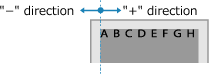
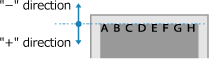
[Function Settings] [Printer] [Printer Settings] [Layout]Offset the print position of text and images. Use this setting when the printed text and images are shifted towards one edge of the paper or when they extend beyond the print range.
Specify the offset width as a positive (+) or negative (-) value in 0.5 mm increments for each paper edge direction and print side.
Specify the offset width as a positive (+) or negative (-) value in 0.5 mm increments for each paper edge direction and print side.
To Offset Along the Short Edge (Horizontally)
Specify the adjustment width by selecting a positive (+) value to adjust to the right on the paper or a negative (-) value to adjust to the left on the paper.
To Offset Along the Long Edge (Vertically)
Specify the adjustment width by selecting a positive (+) value to adjust down on the paper or a negative (-) value to adjust up on the paper.
-50.0 to 00.0 to +50.0 (mm) |
[Auto Skip Error]
[Menu] [Function Settings] [Printer] [Printer Settings]
[Function Settings] [Printer] [Printer Settings]Specify whether to continue printing if an error occurs during printing.
It is recommended that the [Off] setting normally be used so that printing stops when an error occurs.
It is recommended that the [Off] setting normally be used so that printing stops when an error occurs.
[Off] [On] |
[Timeout]
[Menu] [Function Settings] [Printer] [Printer Settings]
[Function Settings] [Printer] [Printer Settings]Specify the time from the start of waiting to receive print data until reception times out when print data reception is interrupted.
5 to 15 to 300 (sec.) |
[Personality]
[Menu] [Function Settings] [Printer] [Printer Settings]
[Function Settings] [Printer] [Printer Settings]This should normally be set to [Auto], in which the machine automatically identifies the received print data and switches to the appropriate operating mode.
If the machine doesn’t switch to the appropriate operating mode for some reason (such as an unknown print data format), set the operating mode manually.
If the machine doesn’t switch to the appropriate operating mode for some reason (such as an unknown print data format), set the operating mode manually.
[Auto] [PS]*1 [PCL] [PDF] [XPS] [Imaging] |
*1 May not be displayed depending on the model, the installed options, and other settings. |
[Color Mode]
[Menu] [Function Settings] [Printer] [Printer Settings]
[Function Settings] [Printer] [Printer Settings]Specify whether to automatically switch between color printing and black and white printing according to the print data, or use black and white printing for all print data.
[Auto (Color/B&W)] [Black & White] |
[Compressed Image Output]
[Menu] [Function Settings] [Printer] [Printer Settings]
[Function Settings] [Printer] [Printer Settings]If the machine runs short of memory during printing, image quality may suffer. Specify whether to continue printing when this occurs. To continue printing even with degraded image quality, specify [Output] in this setting. To stop printing and display an error when image quality is severely degraded, specify [Display Error]. |
[Output] [Display Error] |
[Prioritize MP Tray]
[Menu] [Function Settings] [Printer] [Printer Settings]
[Function Settings] [Printer] [Printer Settings]Specify whether to give priority to paper feeding from the multi-purpose tray over feeding from the paper drawer when the machine automatically selects the correct paper source for the size of the paper to be printed.
If you specify [On] in this setting and the same paper is loaded into both the multi-purpose tray and the paper drawer, paper is fed from the multi-purpose tray.
If you specify [On] in this setting and the same paper is loaded into both the multi-purpose tray and the paper drawer, paper is fed from the multi-purpose tray.
[Off] [On] |
[UFR II]
[Menu] [Function Settings] [Printer] [Printer Settings]
[Function Settings] [Printer] [Printer Settings]Specify the print data processing method used when the UFR II Printer Driver is used.
[Halftones]
[Menu] [Function Settings] [Printer] [Printer Settings] [UFR II]
[Function Settings] [Printer] [Printer Settings] [UFR II]Specify the print method used to reproduce halftones (intermediate areas between light and dark areas) according to the print data content.
To Print Data with Fine Lines and Small Text (such as CAD Data)
Set [Error Diffusion] to [On].
* Only applicable if [Resolution] is set to [600 dpi]. [Resolution]
* Specifying [On] in this setting may lower the stability of toner fixing and textures.
To Print Other Data Types
Set [Error Diffusion] to [Off] and specify the respective halftone reproduction method in [Resolution/Gradation]. This can be set separately for text, graphics (lines or figures), and images (photos).
Specify [Resolution] for high-resolution printing where text outlines are clear. Suitable for printing data with text and fine lines.
Specify [Gradation] for smooth printing of tones and outlines. Suitable for printing data such as figures that use gradations.
[Error Diffusion] [Off] [On] [Resolution/Gradation]*1 [Text] [Resolution] [Gradation] [Graphics] [Resolution] [Gradation] [Image] [Resolution] [Gradation] |
*1 May not be displayed depending on the model, the installed options, and other settings. |
[Matching Method]
[Menu] [Function Settings] [Printer] [Printer Settings] [UFR II]
[Function Settings] [Printer] [Printer Settings] [UFR II]Specify whether to adjust the color according to the print data. Specify [General] in this setting to print with the color tones adjusted to suit ordinary documents such as photos or text documents. Specify [Perceptual] in this setting to print with the color tones adjusted to suit bitmap images so that the printed colors match the colors shown on screen. Specify [Colorimetric] in this setting to minimize color aberrations when converting RGB data to CMYK data. Specify [Vivid Photo] in this setting to print with the color tones corrected to give more intense and vivid colors than the [General] setting. |
[General] [Perceptual] [Colorimetric] [Vivid Photo] |
[Gray Compensation]
[Menu] [Function Settings] [Printer] [Printer Settings] [UFR II]
[Function Settings] [Printer] [Printer Settings] [UFR II]Specify whether to print black or gray RGB data where R=G=B using 1-color black (K) toner. This can be set separately for text, graphics (lines or figures), and images (photos).
If [Off] is specified in this setting, black and gray are printed using the four CMYK toner colors.
If [Off] is specified in this setting, black and gray are printed using the four CMYK toner colors.
[Text] [Off] [On] [Graphics] [Off] [On] [Image] [Off] [On] |
[Paper Save]
[Menu] [Function Settings] [Printer] [Printer Settings] [UFR II]
[Function Settings] [Printer] [Printer Settings] [UFR II]Specify whether to disable output for blank pages included in the print data.
[Off] [On] |
[PCL]
[Menu] [Function Settings] [Printer] [Printer Settings]
[Function Settings] [Printer] [Printer Settings]Specify the PCL printing settings, such as page layout and print quality.
[Paper Save]
[Menu] [Function Settings] [Printer] [Printer Settings] [PCL]
[Function Settings] [Printer] [Printer Settings] [PCL]Specify whether to disable output for blank pages included in print data.
[Off] [On] |
[Orientation]
[Menu] [Function Settings] [Printer] [Printer Settings] [PCL]
[Function Settings] [Printer] [Printer Settings] [PCL]Select [Portrait] (vertical orientation) or [Landscape] (horizontal orientation) as the page orientation.
[Portrait] [Landscape] |
[Font Number]
[Menu] [Function Settings] [Printer] [Printer Settings] [PCL]
[Function Settings] [Printer] [Printer Settings] [PCL]Specify the font to use by selecting a corresponding font ID number.
* You can print the PCL font list with font samples from the operation panel. Printing and Viewing Reports and Lists
0 to 54 |
[Point Size]
[Menu] [Function Settings] [Printer] [Printer Settings] [PCL]
[Function Settings] [Printer] [Printer Settings] [PCL]Set the font size in points, adjustable in 0.25 increments. You can specify this setting only when a proportionally-spaced scalable font is selected in [Font Number]. * [Point Size] may not be displayed depending on the model, the installed options, and other settings. |
4.00 to 12.00 to 999.75 (point) |
[Pitch]
[Menu] [Function Settings] [Printer] [Printer Settings] [PCL]
[Function Settings] [Printer] [Printer Settings] [PCL]Set the font pitch, or cpi (characters per inch), adjustable in 0.01 increments. You can specify this setting only when a fixed-pitch scalable font or a bitmap font is selected in [Font Number]. * [Pitch] may not be displayed depending on the model, the installed options, and other settings. |
0.44 to 10.00 to 99.99 (cpi) |
[Form Lines]
[Menu] [Function Settings] [Printer] [Printer Settings] [PCL]
[Function Settings] [Printer] [Printer Settings] [PCL]Set the number of lines printed on one page from 5 to 128. This setting is automatically changed according to the settings specified in [Default Paper Size] and [Orientation]. * Depending on your country or region, the [Form Lines] setting may not be available, or its content or default setting may be different. |
5 to 64 to 128 (lines) |
[Character Code]
[Menu] [Function Settings] [Printer] [Printer Settings] [PCL]
[Function Settings] [Printer] [Printer Settings] [PCL]Select the character code that is best suited to the computer you are sending print data from. The specified setting is ignored when the character code is controlled by the font specified in [Font Number]. |
|
[Custom Paper]
[Menu] [Function Settings] [Printer] [Printer Settings] [PCL]
[Function Settings] [Printer] [Printer Settings] [PCL]Specify whether to set a custom paper size.
Specify [On] to set the dimensions of the paper in [X dimension] and [Y dimension].
Specify [On] to set the dimensions of the paper in [X dimension] and [Y dimension].
[Off] [On] |
[Unit of Measure]
[Menu] [Function Settings] [Printer] [Printer Settings] [PCL]
[Function Settings] [Printer] [Printer Settings] [PCL]Select the unit of measurement used to set custom paper sizes.
* Depending on your country or region, the [Unit of Measure] setting may not be displayed, or its content or default setting may be different.
[Millimeter] [Inch] |
[X dimension]
[Menu] [Function Settings] [Printer] [Printer Settings] [PCL]
[Function Settings] [Printer] [Printer Settings] [PCL]Specify the horizontal dimension (short edge) of the custom paper.
* [X dimension] may not be displayed depending on the model, the installed options, and other settings.
76 to 216 (mm) |
[Y dimension]
[Menu] [Function Settings] [Printer] [Printer Settings] [PCL]
[Function Settings] [Printer] [Printer Settings] [PCL]Specify the vertical dimension (long edge) of the custom paper.
* [Y dimension] may not be displayed depending on the model, the installed options, and other settings.
127 to 356 (mm) |
[Append CR to LF]
[Menu] [Function Settings] [Printer] [Printer Settings] [PCL]
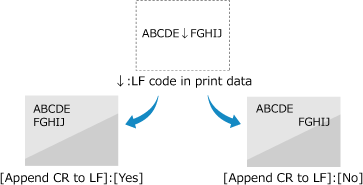
[Function Settings] [Printer] [Printer Settings] [PCL]Select whether to append a carriage return (CR) when the machine receives a line feed code (LF). If [Yes] is selected, the print position moves to the beginning of the next line when the machine receives an LF code. If [No] is selected, the print position moves to the next line, just under the received LF code. |
[Yes] [No] |
[Enlarge A4 Print Width]
[Menu] [Function Settings] [Printer] [Printer Settings] [PCL]
[Function Settings] [Printer] [Printer Settings] [PCL]Select whether to expand the width of the printable area of A4 size paper in portrait orientation to that of Letter size.
[Off] [On] |
[Halftones]
[Menu] [Function Settings] [Printer] [Printer Settings] [PCL]
[Function Settings] [Printer] [Printer Settings] [PCL]Specify the print method used to reproduce halftones (intermediate areas between light and dark areas) according to the print data content.
To Print Data with Fine Lines and Small Text (such as CAD Data)
Set [Error Diffusion] to [On].
* Only applicable if [Resolution] is set to [600 dpi]. [Resolution]
* Specifying [On] in this setting may lower the stability of toner fixing and textures.
To Print Other Data Types
Set [Error Diffusion] to [Off] and specify the respective halftone reproduction method in [Resolution/Gradation]. This can be set separately for text, graphics (lines or figures), and images (photos).
Specify [Resolution] for high-resolution printing where text outlines are clear. Suitable for printing data with text and fine lines.
Specify [Gradation] for smooth printing of tones and outlines. Suitable for printing data such as figures that use gradations.
[Error Diffusion] [Off] [On] [Resolution/Gradation]*1 [Text] [Resolution] [Gradation] [Graphics] [Resolution] [Gradation] [Image] [Resolution] [Gradation] |
*1 May not be displayed depending on the model, the installed options, and other settings. |
[Matching Method]
[Menu] [Function Settings] [Printer] [Printer Settings] [PCL]
[Function Settings] [Printer] [Printer Settings] [PCL]Specify whether to adjust the color according to the print data. Specify [General] in this setting to print with the color tones adjusted to suit ordinary documents such as photos or text documents. Specify [Perceptual] in this setting to print with the color tones adjusted to suit bitmap images so that the printed colors match the colors shown on screen. Specify [Colorimetric] in this setting to minimize color aberrations when converting RGB data to CMYK data. Specify [Vivid Photo] in this setting to print with the color tones corrected to give more intense and vivid colors than the [General] setting. |
[General] [Perceptual] [Colorimetric] [Vivid Photo] |
[Gray Compensation]
[Menu] [Function Settings] [Printer] [Printer Settings] [PCL]
[Function Settings] [Printer] [Printer Settings] [PCL]Specify whether to print black or gray RGB data where R=G=B using 1-color black (K) toner. This can be set separately for text, graphics (lines or figures), and images (photos).
If [Off] is specified in this setting, black and gray are printed using the four CMYK toner colors.
If [Off] is specified in this setting, black and gray are printed using the four CMYK toner colors.
[Text] [Off] [On] [Graphics] [Off] [On] [Image] [Off] [On] |
[PS]
[Menu] [Function Settings] [Printer] [Printer Settings]
[Function Settings] [Printer] [Printer Settings]Specify the PS printing settings such as page layout and print quality.
* [PS] may not be displayed depending on the model, the installed options, and other settings.
[Job Timeout]
[Menu] [Function Settings] [Printer] [Printer Settings] [PS]
[Function Settings] [Printer] [Printer Settings] [PS]This setting enables you to specify the amount of time before a job times out. If a job has not finished within the set time limit, the job is automatically canceled. |
0 to 3600 (sec.) |
[Print PS Errors]
[Menu] [Function Settings] [Printer] [Printer Settings] [PS]
[Function Settings] [Printer] [Printer Settings] [PS]This setting determines whether an error page is printed when an error is encountered.
[Off] [On] |
[Line Refinement]
[Menu] [Function Settings] [Printer] [Printer Settings] [PS]
[Function Settings] [Printer] [Printer Settings] [PS]Specify whether to standardize the thickness of fine lines in printed documents.
* Specifying [On (Slim)] in this setting will produce finer lines than the [On] setting, but may also cause lines to be too fine or faded.
[On] [On (Slim)] [Off] |
[Pure Black Text]
[Menu] [Function Settings] [Printer] [Printer Settings] [PS]
[Function Settings] [Printer] [Printer Settings] [PS]Specify whether to print black text using 1-color black (K) toner.
If you specify [Off] in this setting, documents are printed according to the settings in [Output Profile]. [Output Profile]
If you specify [Off] in this setting, documents are printed according to the settings in [Output Profile]. [Output Profile]
* This applies to black text where the color information is as follows: R = G = B = 0% C = M = Y = 100% C = M = Y = 0%, K = 100% |
[Off] [On] |
[Black Overprint]
[Menu] [Function Settings] [Printer] [Printer Settings] [PS]
[Function Settings] [Printer] [Printer Settings] [PS]Specify whether overprinting (printing colors on top of each other) is used when black text appears on a color background or is overlaid on a colored figure.
If [Off] is specified
The colored background or figure behind the black text is printed knocked out (left blank) and the black text is then printed into the knocked-out area.

* Specifying [Off] in this setting may result in black being printed paler or a white border appearing around the edges of black text.
If [On] is specified
The colored background or figure is printed and the black text is then printed on top of the color.

* You can specify this setting if the setting for black text is to print using 1-color black (K) toner. [Pure Black Text]
* [Black Overprint] may not be displayed depending on the model, the installed options, and other settings.
[Off] [On] |
[RGB Source Profile]
[Menu] [Function Settings] [Printer] [Printer Settings] [PS]
[Function Settings] [Printer] [Printer Settings] [PS]Specify the color profile for RGB data that is appropriate for the monitor being used. Specify [sRGB] in this setting if you are using an sRGB monitor. This adjusts the colors to the industry standard for ordinary Windows monitors so that printed colors match those shown on the monitor. To ensure no loss in the brightest and darkest areas of the data, specify a value from [Gamma 1.5] to [Gamma 2.4] in this setting. Higher settings produce darker prints. To convert to CMYK data when no RGB input profile is used, specify [None]. |
[sRGB] [Gamma 1.5] [Gamma 1.8] [Gamma 2.4] [None] |
[CMYK Simulation Profile]
[Menu] [Function Settings] [Printer] [Printer Settings] [PS]
[Function Settings] [Printer] [Printer Settings] [PS]Specify the simulation target used to print CMYK data. The machine converts CMYK data to a device-dependent CMYK color model based on the simulation. Specify [JapanColor(Canon)] in this setting to print with color tones close to the Japanese standard. The JapanColor profile is applied. Specify [U.S. Web Coated v1.00(Canon)] in this setting to print with color tones close to the US standard. The U.S. Web Coated profile is applied. Specify [Euro Standard v1.00(Canon)] in this setting to print with color tones close to the European standard. The Euro Standard profile is applied. Specify [None] to print without using a CMYK simulation profile. CMYK data is then printed using a device-dependent CMYK color model. Depending on the data, some gradations of dark colors may not be reproduced. |
[JapanColor(Canon)] [U.S. Web Coated v1.00(Canon)] [Euro Standard v1.00(Canon)] [None] |
[Use Grayscale Profile]
[Menu] [Function Settings] [Printer] [Printer Settings] [PS]
[Function Settings] [Printer] [Printer Settings] [PS]Specify whether to convert gray data to CMYK data using the machine’s grayscale profile.
* Even when [On] is specified in this setting, depending on the [Output Profile] and [Pure Black Text] settings, the data will be printed in 1-color black (K) toner.
[Output Profile]
[Pure Black Text]
[Output Profile]
[Pure Black Text]
[Off] [On] |
[Output Profile]
[Menu] [Function Settings] [Printer] [Printer Settings] [PS]
[Function Settings] [Printer] [Printer Settings] [PS]Specify the appropriate profile for the print data. This can be set separately for text, graphics (lines or figures), and images (photos). Specify [Normal] in this setting to print with the color tones adjusted to closely match the monitor display. Specify [Photo] in this setting to print with the color tones adjusted to resemble a photo. Specify [TR Normal] in this setting to adjust the color tones to closely match the monitor display and reproduce black and gray areas as 1-color black (K) toner. Specify [TR Photo] in this setting to adjust the color tones to resemble a photo and reproduce black and gray areas as 1-color black (K) toner. |
[Text] [Normal] [Photo] [TR Normal] [TR Photo] [Graphics] [Normal] [Photo] [TR Normal] [TR Photo] [Image] [Normal] [Photo] [TR Normal] [TR Photo] |
|
If any of the following settings is used, the [Output Profile] setting is ignored. [RGB Source Profile] is set to [None]. [RGB Source Profile] [CMYK Simulation Profile] is set to [None]. [CMYK Simulation Profile] [Use Grayscale Profile] is set to [Off]. [Use Grayscale Profile] |
[Matching Method]
[Menu] [Function Settings] [Printer] [Printer Settings] [PS]
[Function Settings] [Printer] [Printer Settings] [PS]Specify which element is to be prioritized during color adjustment in the [RGB Source Profile]. [RGB Source Profile] When printing photos or bitmap images, specify [Perceptual] in this setting to prioritize color tones. When printing artwork and graphs for presentations, specify [Saturation] in this setting to prioritize clarity and vividness. Specify [Colorimetric] in this setting to reproduce RGB color values as accurately as possible within the scope of the machine to reproduce colors and to minimize color aberrations. |
* This item cannot be set when [RGB Source Profile] is set to [None].
[Perceptual] [Saturation] [Colorimetric] |
[Halftones]
[Menu] [Function Settings] [Printer] [Printer Settings] [PS]
[Function Settings] [Printer] [Printer Settings] [PS]Specify the print method used to reproduce halftones (intermediate areas between light and dark areas) according to the print data content.
To Print Data with Fine Lines and Small Text (such as CAD Data)
Set [Error Diffusion] to [On].
* Only applicable if [Resolution] is set to [600 dpi]. [Resolution]
* Specifying [On] in this setting may lower the stability of toner fixing and textures.
To Print Other Data Types
Set [Error Diffusion] to [Off] and specify the respective halftone reproduction method in [Resolution/Gradation]. This can be set separately for text, graphics (lines or figures), and images (photos).
Specify [Resolution] for high-resolution printing where text outlines are clear. Suitable for printing data with text and fine lines.
Specify [Gradation] for smooth printing of tones and outlines. Suitable for printing data such as figures that use gradations.
[Error Diffusion] [Off] [On] [Resolution/Gradation]*1 [Text] [Resolution] [Gradation] [Graphics] [Resolution] [Gradation] [Image] [Resolution] [Gradation] |
*1 May not be displayed depending on the model, the installed options, and other settings. |
[Brightness]
[Menu] [Function Settings] [Printer] [Printer Settings] [PS]
[Function Settings] [Printer] [Printer Settings] [PS]Adjust the brightness of printed images in 5% increments. The higher the value, the darker the image will be printed.
* [Brightness] may not be displayed depending on the model, the installed options, and other settings.
85 to 100 to 115 (%) |
[Composite Overprint]
[Menu] [Function Settings] [Printer] [Printer Settings] [PS]
[Function Settings] [Printer] [Printer Settings] [PS]Specify whether to overprint CMYK data as composite output with overprinting specified.
Specifying [Off] in this setting prints the image as if overprinting were not specified.
Specifying [Off] in this setting prints the image as if overprinting were not specified.
* Overprinting with special colors is not used, even if [On] is specified here.
[Off] [On] |
[Grayscale Conversion]
[Menu] [Function Settings] [Printer] [Printer Settings] [PS]
[Function Settings] [Printer] [Printer Settings] [PS]Specify the conversion method when printing color data in black and white. Specify [sRGB] for black and white printing with smooth gradations to represent different colors. Specify [NTSC] for black and white printing that looks similar to NTSC television images. Specify [Uniform RGB] for uniform black and white printing of RGB over the entire document, based on the brightness. |
* [Grayscale Conversion] may not be displayed depending on the model, the installed options, and other settings.
[sRGB] [NTSC] [Uniform RGB] |
[PS Password Settings]
[Menu] [Function Settings] [Printer] [Printer Settings] [PS]
[Function Settings] [Printer] [Printer Settings] [PS]You can specify the password that restricts the use of the control command prepared by the PS printer. [SystemParamsPassword] is a password that allows changes to the system parameter, and [StartJobPassword] is a password that allows the startjob and exitserver operators to perform. For more information, check the PostScript language specifications. |
* If [StartJobPassword] is set but [SystemParamsPassword] is not set, password check will not be performed while performing the startjob or exitserver operator.
[SystemParamsPassword] [StartJobPassword] |
[Imaging Settings]
[Menu] [Function Settings] [Printer] [Printer Settings]
[Function Settings] [Printer] [Printer Settings]Specify the print data processing method used for printing JPEG or TIFF format image files.
[Halftones]
[Menu] [Function Settings] [Printer] [Printer Settings] [Imaging Settings]
[Function Settings] [Printer] [Printer Settings] [Imaging Settings]Specify the print method used to reproduce halftones (intermediate areas between light and dark areas) according to the image content.
To Print Images with Fine Gradations, Such as Digital Camera Photos
Specify [Gradation] in this setting. This reproduces gradations smoothly.
To Print Images with Fine Lines and Small Text, Such as CAD Images
Specify [Error Diffusion] in this setting. Fine lines and small text are printed in high definition.
* Specifying [Error Diffusion] in this setting may lower the stability of toner fixing and textures.
[Gradation] [Error Diffusion] |
[Matching Method]
[Menu] [Function Settings] [Printer] [Printer Settings] [Imaging Settings]
[Function Settings] [Printer] [Printer Settings] [Imaging Settings]Select how to correct the color when printing.
When you select [Vivid Photo], the color tone is corrected to deeper and more vivid colors than with [General].
When you select [Vivid Photo], the color tone is corrected to deeper and more vivid colors than with [General].
[General] [Vivid Photo] |
[PDF]
[Menu] [Function Settings] [Printer] [Printer Settings]
[Function Settings] [Printer] [Printer Settings]Specify the print data processing method used for printing PDF format files.
[Enlarge/Reduce to Fit Paper Size]
[Menu] [Function Settings] [Printer] [Printer Settings] [PDF]
[Function Settings] [Printer] [Printer Settings] [PDF]Specify whether to enlarge or reduce documents to fit the paper used for printing.
* If you specify [On] in this setting, documents are enlarged or reduced while maintaining their aspect ratio.
[Off] [On] |
[Enlarge Print Area]
[Menu] [Function Settings] [Printer] [Printer Settings] [PDF]
[Function Settings] [Printer] [Printer Settings] [PDF]Specify whether to print with the print area enlarged so that it occupies the entire paper, leaving no margins around the edges of the paper.
* In some documents, specifying [On] in this setting may lead to images being printed with some of the edges cut off, or to smudging on some parts of the paper.
[Off] [On] |
[N on 1]
[Menu] [Function Settings] [Printer] [Printer Settings] [PDF]
[Function Settings] [Printer] [Printer Settings] [PDF]Specify whether to reduce the size of a multi-page original and print the pages arranged on one sheet of paper.
To print multiple pages on one sheet (N on 1), select the number of pages to be combined.
Example: To print a 4-page document on one side of the paper
Select [4 on 1].
To print multiple pages on one sheet (N on 1), select the number of pages to be combined.
Example: To print a 4-page document on one side of the paper
Select [4 on 1].
[Off] [2 on 1] [4 on 1] [6 on 1] [8 on 1] [9 on 1] [16 on 1] |
[Print Comments]
[Menu] [Function Settings] [Printer] [Printer Settings] [PDF]
[Function Settings] [Printer] [Printer Settings] [PDF]Specify whether to print the comments in a PDF file.
If you specify [Auto] in this setting, the document and comments*1 are printed.
If you specify [Auto] in this setting, the document and comments*1 are printed.
*1 This only applies to comments specified for printing within the PDF file. |
[Off] [Auto] |
[Line Refinement]
[Menu] [Function Settings] [Printer] [Printer Settings] [PDF]
[Function Settings] [Printer] [Printer Settings] [PDF]Specify whether to standardize the thickness of fine lines in printed documents.
Specifying [On (Slim)] in this setting will produce finer lines than the [On] setting, but may also cause lines to be too fine or faded.
Specifying [On (Slim)] in this setting will produce finer lines than the [On] setting, but may also cause lines to be too fine or faded.
[On] [On (Slim)] [Off] |
[Pure Black Text]
[Menu] [Function Settings] [Printer] [Printer Settings] [PDF]
[Function Settings] [Printer] [Printer Settings] [PDF]Specify whether to print black text using 1-color black (K) toner.
If you specify [Off] in this setting, documents are printed according to the settings in [Output Profile].[Output Profile]
If you specify [Off] in this setting, documents are printed according to the settings in [Output Profile].[Output Profile]
* This applies to black text where the color information is as follows: R = G = B = 0% C = M = Y = 100% C = M = Y = 0%, K = 100% |
[Off] [On] |
[Black Overprint]
[Menu] [Function Settings] [Printer] [Printer Settings] [PDF]
[Function Settings] [Printer] [Printer Settings] [PDF]Specify whether overprinting (printing colors on top of each other) is used when black text appears on a color background or is overlaid on a colored figure.
If [Off] is specified
The colored background or figure behind the black text is printed knocked out (left blank) and the black text is then printed into the knocked-out area.
* Specifying [Off] in this setting may result in black being printed paler or a white border appearing around the edges of black text.
If [On] is specified
The colored background or figure is printed and the black text is then printed on top of the color.
* You can specify this setting if the setting for black text is to print using 1-color black (K) toner. [Pure Black Text]
* [Black Overprint] may not be displayed depending on the model, the installed options, and other settings.
[Off] [On] |
[RGB Source Profile]
[Menu] [Function Settings] [Printer] [Printer Settings] [PDF]
[Function Settings] [Printer] [Printer Settings] [PDF]Specify the color profile for RGB data that is appropriate for the monitor being used. Specify [sRGB] in this setting if you are using an sRGB monitor. This adjusts the colors to the industry standard for ordinary Windows monitors so that printed colors match those shown on the monitor. To ensure no loss in the brightest and darkest areas of the data, specify a value from [Gamma 1.5] to [Gamma 2.4] in this setting. Higher settings produce darker prints. To convert to CMYK data when no RGB input profile is used, specify [None]. |
[sRGB] [Gamma 1.5] [Gamma 1.8] [Gamma 2.4] [None] |
[CMYK Simulation Profile]
[Menu] [Function Settings] [Printer] [Printer Settings] [PDF]
[Function Settings] [Printer] [Printer Settings] [PDF]Specify the simulation target used to print CMYK data. The machine converts CMYK data to a device-dependent CMYK color model based on the simulation. Specify [JapanColor(Canon)] in this setting to print with color tones close to the Japanese standard. The JapanColor profile is applied. Specify [U.S. Web Coated v1.00(Canon)] in this setting to print with color tones close to the US standard. The U.S. Web Coated profile is applied. Specify [Euro Standard v1.00(Canon)] in this setting to print with color tones close to the European standard. The Euro Standard profile is applied. Specify [None] to print without using a CMYK simulation profile. CMYK data is then printed using a device-dependent CMYK color model. Depending on the data, some gradations of dark colors may not be reproduced. |
[JapanColor(Canon)] [U.S. Web Coated v1.00(Canon)] [Euro Standard v1.00(Canon)] [None] |
[Use Grayscale Profile]
[Menu] [Function Settings] [Printer] [Printer Settings] [PDF]
[Function Settings] [Printer] [Printer Settings] [PDF]Specify whether to convert gray data to CMYK data using the machine’s grayscale profile.
* Even when [On] is specified in this setting, depending on the [Output Profile] and [Pure Black Text] settings, the data will be printed in 1-color black (K) toner.
[Output Profile]
[Pure Black Text]
[Output Profile]
[Pure Black Text]
[Off] [On] |
[Output Profile]
[Menu] [Function Settings] [Printer] [Printer Settings] [PDF]
[Function Settings] [Printer] [Printer Settings] [PDF]Specify the appropriate profile for the print data. This can be set separately for text, graphics (lines or figures), and images (photos). Specify [Normal] in this setting to print with the color tones adjusted to closely match the monitor display. Specify [Photo] in this setting to print with the color tones adjusted to resemble a photo. Specify [TR Normal] in this setting to adjust the color tones to closely match the monitor display and reproduce black and gray areas as 1-color black (K) toner. Specify [TR Photo] in this setting to adjust the color tones to resemble a photo and reproduce black and gray areas as 1-color black (K) toner. |
[Text] [Normal] [Photo] [TR Normal] [TR Photo] [Graphics] [Normal] [Photo] [TR Normal] [TR Photo] [Image] [Normal] [Photo] [TR Normal] [TR Photo] |
|
If any of the following settings is used, the [Output Profile] setting is ignored. [RGB Source Profile] is set to [None]. [RGB Source Profile] [CMYK Simulation Profile] is set to [None]. [CMYK Simulation Profile] [Use Grayscale Profile] is set to [Off]. [Use Grayscale Profile] |
[Matching Method]
[Menu] [Function Settings] [Printer] [Printer Settings] [PDF]
[Function Settings] [Printer] [Printer Settings] [PDF]Specify which element is to be prioritized during color adjustment in the [RGB Source Profile]. [RGB Source Profile] When printing photos or bitmap images, specify [Perceptual] in this setting to prioritize color tones. When printing artwork and graphs for presentations, specify [Saturation] in this setting to prioritize clarity and vividness. Specify [Colorimetric] in this setting to reproduce RGB color values as accurately as possible within the scope of the machine to reproduce colors and to minimize color aberrations. |
[Perceptual] [Saturation] [Colorimetric] |
[Halftones]
[Menu] [Function Settings] [Printer] [Printer Settings] [PDF]
[Function Settings] [Printer] [Printer Settings] [PDF]Specify the print method used to reproduce halftones (intermediate areas between light and dark areas) according to the print data content.
To Print Data with Fine Lines and Small Text (such as CAD Data)
Set [Error Diffusion] to [On].
* Only applicable if [Resolution] is set to [600 dpi]. [Resolution]
* Specifying [On] in this setting may lower the stability of toner fixing and textures.
To Print Other Data Types
Set [Error Diffusion] to [Off] and specify the respective halftone reproduction method in [Resolution/Gradation]. This can be set separately for text, graphics (lines or figures), and images (photos).
Specify [Resolution] for high-resolution printing where text outlines are clear. Suitable for printing data with text and fine lines.
Specify [Gradation] for smooth printing of tones and outlines. Suitable for printing data such as figures that use gradations.
[Error Diffusion] [Off] [On] [Resolution/Gradation]*1 [Text] [Resolution] [Gradation] [Graphics] [Resolution] [Gradation] [Image] [Resolution] [Gradation] |
*1 May not be displayed depending on the model, the installed options, and other settings. |
[Brightness]
[Menu] [Function Settings] [Printer] [Printer Settings] [PDF]
[Function Settings] [Printer] [Printer Settings] [PDF]Adjust the brightness of printed images in 5% increments. The higher the value, the darker the image will be printed.
* [Brightness] may not be displayed depending on the model, the installed options, and other settings.
85 to 100 to 115 (%) |
[Composite Overprint]
[Menu] [Function Settings] [Printer] [Printer Settings] [PDF]
[Function Settings] [Printer] [Printer Settings] [PDF]Specify whether to overprint CMYK data as composite output with overprinting specified.
Specifying [Off] in this setting prints the image as if overprinting were not specified.
Specifying [Off] in this setting prints the image as if overprinting were not specified.
* Overprinting with special colors is not used, even if [On] is specified here.
[Off] [On] |
[Grayscale Conversion]
[Menu] [Function Settings] [Printer] [Printer Settings] [PDF]
[Function Settings] [Printer] [Printer Settings] [PDF]Specify the conversion method when printing color data in black and white. Specify [sRGB] for black and white printing with smooth gradations to represent different colors. Specify [NTSC] for black and white printing that looks similar to NTSC television images. Specify [Uniform RGB] for uniform black and white printing of RGB over the entire document, based on the brightness. |
* [Grayscale Conversion] may not be displayed depending on the model, the installed options, and other settings.
[sRGB] [NTSC] [Uniform RGB] |
[XPS]
[Menu] [Function Settings] [Printer] [Printer Settings]
[Function Settings] [Printer] [Printer Settings]Specify the print data processing used for printing XPS format files.
[Matching Method]
[Menu] [Function Settings] [Printer] [Printer Settings] [XPS]
[Function Settings] [Printer] [Printer Settings] [XPS]Specify whether to adjust the color according to the print data. Specify [General] in this setting to print with the color tones adjusted to suit ordinary documents such as photos or text documents. Specify [Perceptual] in this setting to print with the color tones adjusted to suit bitmap images so that the printed colors match the colors shown on screen. Specify [Colorimetric] in this setting to minimize color aberrations when converting RGB data to CMYK data. Specify [Vivid Photo] in this setting to print with the color tones corrected to give more intense and vivid colors than the [General] setting. |
[General] [Perceptual] [Colorimetric] [Vivid Photo] |
[Halftones]
[Menu] [Function Settings] [Printer] [Printer Settings] [XPS]
[Function Settings] [Printer] [Printer Settings] [XPS]Specify the print method used to reproduce halftones (intermediate areas between light and dark areas) according to the print data content.
To Print Data with Fine Lines and Small Text (such as CAD Data)
Set [Error Diffusion] to [On].
* Only applicable if [Resolution] is set to [600 dpi]. [Resolution]
* Specifying [On] in this setting may lower the stability of toner fixing and textures.
To Print Other Data Types
Set [Error Diffusion] to [Off] and specify the respective halftone reproduction method in [Resolution/Gradation]. This can be set separately for text, graphics (lines or figures), and images (photos).
Specify [Resolution] for high-resolution printing where text outlines are clear. Suitable for printing data with text and fine lines.
Specify [Gradation] for smooth printing of tones and outlines. Suitable for printing data such as figures that use gradations.
[Error Diffusion] [Off] [On] [Resolution/Gradation]*1 [Text] [Resolution] [Gradation] [Graphics] [Resolution] [Gradation] [Image] [Resolution] [Gradation] |
*1 May not be displayed depending on the model, the installed options, and other settings. |
[Gray Compensation]
[Menu] [Function Settings] [Printer] [Printer Settings] [XPS]
[Function Settings] [Printer] [Printer Settings] [XPS]Specify whether to print black or gray RGB data where R=G=B using 1-color black (K) toner. This can be set separately for text, graphics (lines or figures), and images (photos).
If [Off] is specified in this setting, black and gray are printed using the four CMYK toner colors.
If [Off] is specified in this setting, black and gray are printed using the four CMYK toner colors.
[Text] [Off] [On] [Graphics] [Off] [On] [Image] [Off] [On] |
[Grayscale Conversion]
[Menu] [Function Settings] [Printer] [Printer Settings] [XPS]
[Function Settings] [Printer] [Printer Settings] [XPS]Specify the conversion method used when printing color data in black and white. This can be set separately for text, graphics (lines or figures), and images (photos). Specify [sRGB] for black and white printing with smooth gradations to represent different colors. Specify [NTSC] for black and white printing that looks similar to NTSC television images. Specify [Uniform RGB] for uniform black and white printing of RGB over the entire document, based on the brightness. |
* [Grayscale Conversion] may not be displayed depending on the model, the installed options, and other settings.
[Text] [sRGB] [NTSC] [Uniform RGB] [Graphics] [sRGB] [NTSC] [Uniform RGB] [Image] [sRGB] [NTSC] [Uniform RGB] |
[Paper Save]
[Menu] [Function Settings] [Printer] [Printer Settings] [XPS]
[Function Settings] [Printer] [Printer Settings] [XPS]Specify whether to disable output for blank pages included in the print data.
[Off] [On] |