Discovering Devices
Follow the procedure below to discover devices in this software and register the discovered devices to the Remote Monitoring Server.
When HTTPS Is the Protocol for Communication with the Remote Monitoring Server
There are two methods for discovering devices; discovering one device and discovering multiple devices.
NOTE |
It is not necessary to discover devices when device information (such as the IP address and MAC address) is already registered to the Remote Monitoring Server. If a device discovery task is configured before configuring the settings on the [Connection Settings] page, it is not necessary to manually discover devices after configuring the settings on the [Connection Settings] page. This is because device discovery will be performed automatically. |
Discovering One Device
1.
Select the [Devices] menu > [Monitored Device List].
2.
Click [Discover Devices].
3.
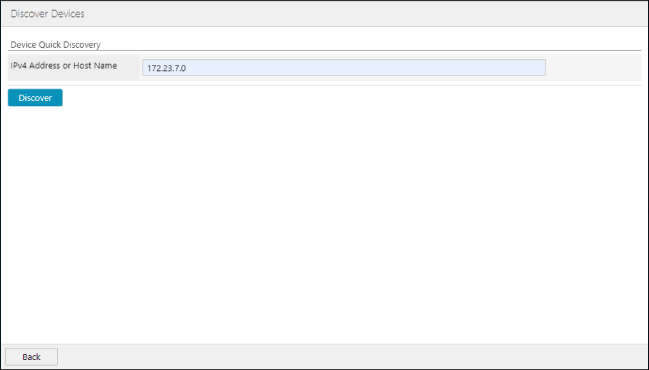
Enter the IPv4 address or host name of the device to discover on the [Discover Devices] page.
4.
Click [Discover].
The product name and device name of the discovered devices are displayed.
The following built-in tasks are then executed.
Device Registration
Discovering Multiple Devices
1.
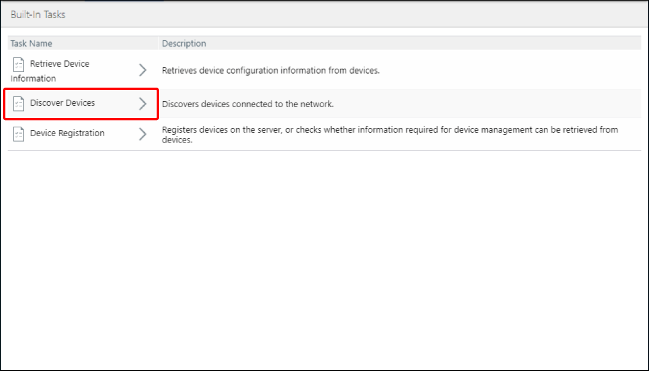
Select the [Tasks] menu > [Built-In Tasks].
2.
Click [Discover Devices].
3.
Configure the task execution schedule on the [Built-In Task Details] page.
Select [Active] for [Active/Inactive].
Enter the information for the device to discover in [Discovery Settings].
These settings are not required if the IP address and host name of the device to discover is already registered in the Remote Monitoring Server.
[IPv4 Addresses] | Enter the range of IPv4 addresses for the devices to manage with this software. Enter the range of IPv4 addresses in the format "<start address>-<end address>" or in the "IPv4 address" format. Example: 192.168.10.0-192.168.19.255 192.168.100.0-192.168.119.255 192.168.200.11 192.168.200.12 |
[Host Name] | Enter the host names for the devices to manage with this software. Enter each host name on a separate line. |
Click [Execute Now].
Discovered devices not already registered to the Remote Monitoring Server are displayed on the following screen.
[Devices] menu > [Monitored Device List] > [Manage Devices] > [Devices Removed from Management]
The task execution status can be checked on the following screen.
[Tasks] menu > [Running Tasks]
4.
To register the information of the discovered devices to the Remote Monitoring Server, export the device information.
When SMTP Is the Protocol for Communication with the Remote Monitoring Server
1.
Select the [Devices] menu > [Monitored Device List].
2.
Click [Discover Devices].
3.
Configure the devices for management on the [Discover Devices] page.
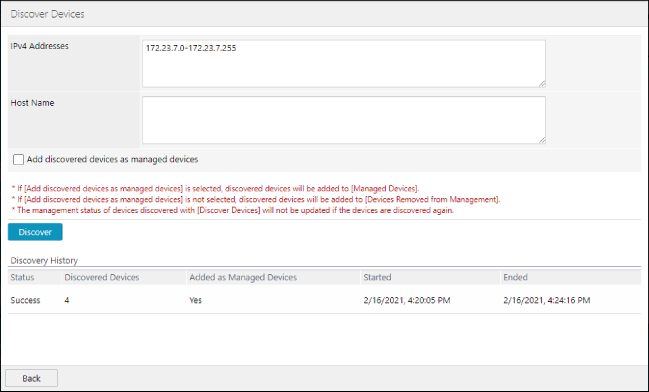
[IPv4 Addresses] | Enter the range of IPv4 addresses for the devices to manage with this software. Enter the range of IPv4 addresses in the format "<start address>-<end address>" or in the "IPv4 address" format. Example: 192.168.10.0-192.168.19.255 192.168.100.0-192.168.119.255 192.168.200.11 192.168.200.12 |
[Host Name] | Enter the host names for the devices to manage with this software. Enter each host name on a separate line. |
[Add discovered devices as managed devices] | Enable this to add the discovered device to the list in [Managed Devices], and automatically add the device to the monitored devices if it is deemed to be able to be monitored, as a result of the data transmission function check. Disable this to add the discovered device to the list in [Devices Removed from Management]. If a device already registered to either list is rediscovered, it will belong to the same list as before, regardless of this setting. |
NOTE |
An address range cannot be specified in environments operating with IPv6. In this case, register the device names to a DNS server and WINS server and enter the FQDN of the target devices in [Host Name] in advance. |
Click [Discover].
4.
The status of discovery is displayed in [Discovery History].
NOTE |
The discovery results for the past 10 times are displayed in [Discovery History]. |
5.
To register the information of the discovered devices to the Remote Monitoring Server, export the device information.
Exporting the Device Information
1.
Select the [Devices] menu > [Monitored Device List] > [Manage Devices] > [Devices Removed from Management].
2.
Click [Export].
Enables you to select a file format from the drop-down list to export the device information to a file.
The exported device information file cannot be imported to this software.
There are precautions to note when exporting to a CSV file. For more information, see the following.