
Adjusting Gradation
0UUY-0J6 0UW1-0HR 0YRY-0HL 0X7F-0L6 0X7H-0KR 1100-0HU 0X6E-0L6 0X6W-0KR 10XJ-0HU 0X7C-0L6 0X7A-0KR 1106-0HU 0WXY-0L7 0X7E-0KR 10YY-0HU 10H3-0HR 0WR6-0LC 0WR7-0KY 108A-0HS 1116-0HS 10H4-0HR 0WR5-0LC 0WR8-0KY 0YWJ-0JK 0YWH-0KR 0YWR-0JC 0YWK-0KR 0YWE-0L6 0YWF-0KR 0YAS-0HU
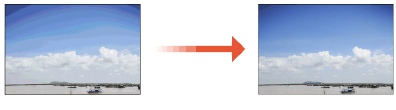
If color gradation reproducibility has become so poor that the gradation in the printed or copied image differs markedly from the print data or original document, gradation adjustment may improve the problem. There are two types of adjustments: Full Adjustment and Quick Adjustment.
|
Adjustments may not be performed effectively if there is not sufficient toner. If the machine is running without having executed <Full Adjust> or <Quick Adjust> once, it may take time to print the first sheet after turning the power ON. |
Full Adjustment
Correct the gradation of an image accurately and optimize reproducibility during printing. Optimized information will be retained until the next accurate correction.
 |
You can use the following paper sizes/types. Size: A3, A4, 11" x 17", LTR Type: Thin 1 to 2, Plain 1 to 3, Recycled 1 to 3, Heavy 1 to 7 |
|
If the colors in the printed image differ from those in the originalAdjust the gradation in the steps below according to the paper and settings used for printing. To print on heavy paper 1. Use thin, plain, or recycled paper and adjust with <Thin/Plain/Recycled>. 2. Use heavy paper and adjust with <Heavy>. If both of the following apply: To print in Superfine on thin, plain, or recycled paper If <Speed/Image Quality Priority for Superfine (1200 dpi)> is set to <Quality Priority> <Speed/Image Quality Priority for Superfine (1200 dpi)> 1. Use thin, plain, or recycled paper and adjust with <Thin/Plain/Recycled>. 2. Use thin, plain, or recycled paper and adjust with <Thin/Plain/Recycled(1200dpi)>. |
1
Press  (Settings/Registration)
  <Adjustment/Maintenance> <Adjust Image Quality> <Auto Adjust Gradation>.
(Settings/Registration) <Adjustment/Maintenance> <Adjust Image Quality> <Auto Adjust Gradation>.2
Select the paper to adjust, and press <Full Adjust>.

Changing the Settings for Adjustment
You can change the settings for adjustment, such as whether the feeder is used during full adjustment. Changing the Settings for Adjustment
<Thin/Plain/Recycled(1200dpi)> can only be selected when <Speed/Image Quality Priority for Superfine (1200 dpi)> is set to <Quality Priority>. <Speed/Image Quality Priority for Superfine (1200 dpi)>
3
Select the paper source in which the paper you selected in step 2 is loaded, and press <OK>.
4
Press <Start Printing>.
A test page is printed.
5
Scan the test page.
If the paper source selected in step 3 contains one of the paper types listed below, use the platen glass for scanning even when <Use Feeder When Performing Full Adjust> is set to On.
Thin 1, Thin 2, Heavy 6, Heavy 7
 Scanning Using the Feeder
1 | Place the test pages in the feeder. Place the test pages in the feeder. |
2 | Press <Start Scanning>. The test pages are scanned and full adjustment is completed. |
Scanning Using the Platen Glass
1 | Place the test page on the platen glass. Place the test page as indicated by the on-screen instructions. |
2 | Close the feeder and press <Start Scanning>. The machine starts scanning the test page. |
3 | Open the feeder, and remove the test page. |
4 | Repeat steps 4 (Press <Start Printing>) and 5 (Scan the test page) above for full adjustment. To complete adjustment, follow the on-screen instructions to print and then scan the test page multiple times. |
Quick Adjustment
This adjustment maintains the optimized status that was acquired by <Full Adjust>. If the result of this adjustment is not satisfactory, perform <Full Adjust>.
1
Press (Settings/Registration) <Adjustment/Maintenance> <Adjust Image Quality> <Auto Adjust Gradation>.
(Settings/Registration) <Adjustment/Maintenance> <Adjust Image Quality> <Auto Adjust Gradation>.2
<Thin/Plain/Recycled> Press <Quick Adjust>.
Press <Quick Adjust>.The adjustment is applied to all paper types.
3
Press <Start>.
Changing the Settings for Adjustment
You can change the settings for adjustment, such as whether the feeder is used during full adjustment.
(Settings/Registration) <Adjustment/Maintenance> <Adjust Image Quality> <Auto Adjust Gradation>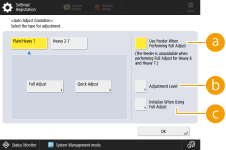
 <Use Feeder When Performing Full Adjust>
Select On to use the feeder when scanning the test page or Off to use the platen glass.
 <Initialize When Using Full Adjust>
Enables you to set whether to use default settings for gradation adjustment.
|
Since this may cause poor color balance, make sure to perform auto gradation adjustment (full adjustment) after changing the settings. |