Cleaning the Registration Unit
Remove paper dust attached to the sensor surface of the registration unit.
Remove any ink or paper dust attached to the outer surface of the print belt.
Required Preparations
Wear plastic gloves and protective goggles.
If dirt cannot be removed with a dry cleaning cloth, prepare the following cleaning materials.
AlphaWipe TX1004 (commercially available)
Pure water (commercially available)
1
Select [Unlock] on the main control panel.
If a screen prompting you to enter a password appears, enter the password.
2
Open the front middle left cover of the PM, and then take out the included cleaning cloth.
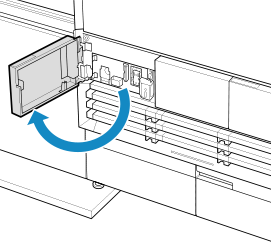
After taking out the included cleaning cloth, close the front middle left cover.
3
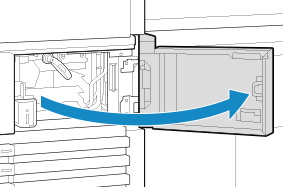
Open the front middle right cover of the PM.
4
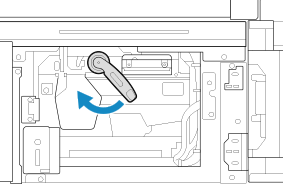
Turn handle B1 clockwise.
5
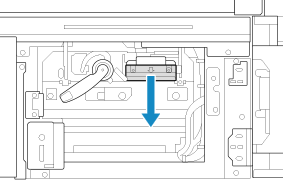
Grip handle B2, and pull out the registration unit.
6
Wipe the scanning glasses.
Wipe the upper scanning glass first, then wipe the lower scanning glass.
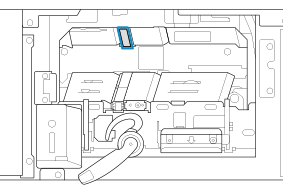
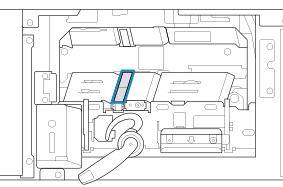
Use the included cleaning cloth to wipe the glasses clean, without dampening the cleaning cloth.
If dirt cannot be removed with a dry cleaning cloth, dampen an AlphaWipe with pure water, wring it out thoroughly, then wipe the glasses with it.
After wiping the glasses using pure water, wipe them again with a dry cloth to ensure that no water remains.
If you cannot reach the far side of the scanning glasses
1
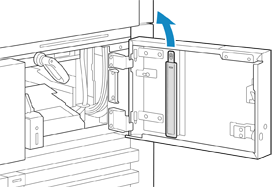
Remove the included paper dust cleaning tool from the inside of the front middle right cover of the PM.
2
Use the included paper dust cleaning tool to wipe the scanning glasses.
Wipe the upper scanning glass first, then wipe the lower scanning glass.
Press the included paper dust cleaning tool against the scanning glass so that it bends.
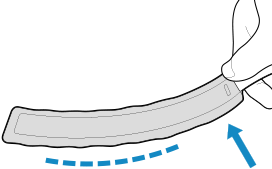
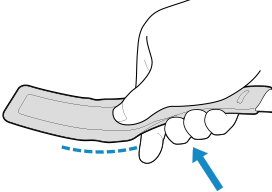
Return the included paper dust cleaning tool to its original position after use.
Grip handle B2, and close the registration unit.
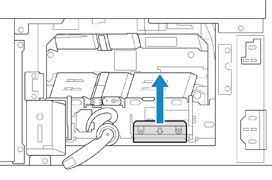
8
Turn handle B1 counterclockwise.
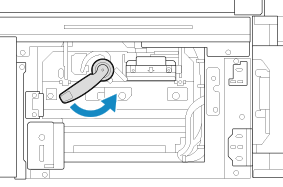
9
Close the front middle right cover of the PM.
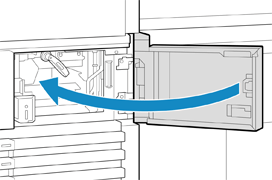
10
Open the front middle left cover of the PM, then return the included cleaning cloth to its original position.
After returning the included cleaning cloth, close the front middle left cover of the PM.
11
Press [Finishing cleaning.] on the main control panel.