Registering User Information in the Local Device
 | To perform personal authentication management, you must first register user information in the database of the machine. |
Registering User Information
1
Start the Remote UI. Starting the Remote UI
2
Click [Settings/Registration] on the portal page. Remote UI Screen
3
Click [User Management]  [Authentication Management].
[Authentication Management].
Disabling "Administrator"
A user with "Administrator" as the user name is registered by default as the user with administrator privileges. This "Administrator" user cannot be deleted but it can be disabled after adding another user with "Administrator" privileges. If the "Administrator" user is disabled, you cannot change settings that only the "Administrator" user can configure, on the control panel of the machine.
4
Click [Add User].
To edit user information
Click [Edit] for the user information that you want to edit, make the necessary changes, and click [Update].
To delete user information
Select the check box for the user information that you want to delete, and click [Delete] [OK].
[OK].5
Enter the necessary information.
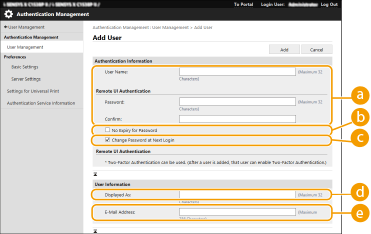
 [User Name:] / [Password:] / [Confirm:]
Enter the user name and password. For confirmation, enter the password again in [Confirm:]. Single-byte or double-byte characters can be used for the user name.
When a detailed password policy is set, enter a password that complies with the password policy. Setting a Password Policy
 [No Expiry for Password]
Select the check box to set the password of the user to register to have no expiration date. This setting can be specified when [Set password validity period] is set to [Off] in [Password Settings Policy] in [Authentication] in [Security Policy Settings].
 [Change Password at Next Login]
Select this check box to force registered users to change their passwords the first time they log in. Once a user has changed their password, the check box is cleared automatically.
 [Displayed As:]
Enter the name of the user. The display name is displayed as the user name for forced hold printing.
 [E-Mail Address:]
Enter the e-mail address that the user is using on devices such as computers.
It is also possible for general users to change their own password.
Selecting the [Allow e-mail address settings] check box enables general users to specify e-mail addresses. Configuring the User Login Methods and Authentication Devices
6
Specify other required settings.
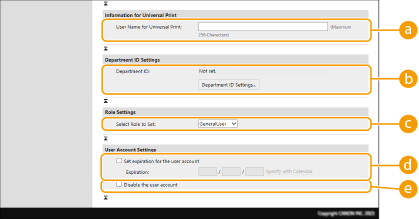 [User Name for Universal Print:]
If [Settings/Registration] [Network Settings] [Settings for Universal Print] is enabled, you can enter the email address or phone number used in the Microsoft 365 account of the user with which Universal Print jobs are associated.
[Network Settings] [Settings for Universal Print] is enabled, you can enter the email address or phone number used in the Microsoft 365 account of the user with which Universal Print jobs are associated.[Department ID:]When using Department ID Management, you must click [Department ID Settings...] and select the Department ID from the list to assign to the user. First, register the necessary Department IDs in [Register New Department...] on the list screen. If the Department ID that you specify here is later deleted, make sure to change this setting. Configuring the Department ID Management Settings
[Select Role to Set:]The user privileges (roles) listed below can be selected. The available setting items vary depending on the privileges (Settings/Registration).
[Administrator] | Allows all operations as an administrator of the machine. |
[GeneralUser] | Allows general user privileges. |
[Set expiration for the user account]When setting a period of validity for the account, select the check box and enter a value for [Expiration].
[Disable the user account]Select the check box to temporarily disable the account.
7
Click [Add].
 |
Batch importing/batch exportingThis setting can be imported/exported with models that support batch importing of this setting. Importing/Exporting the Setting Data This setting is included in [Settings/Registration Basic Information] when batch exporting. Importing/Exporting All Settings |
 |
Check for unregistered Department IDsIf you click [Check Unregistered Department ID...] on the screen displayed in step 4, you can find out Department IDs that are not registered in the machine by checking Department IDs assigned to the users against Department IDs registered in the machine. Batch settings for Department IDsIf you click [Batch Settings for Department ID...] on the screen displayed in step 4, you can create new Department IDs and apply settings for all users. If the user name is comprised of numbers and is seven digits or fewer, the same number is assigned to the same user as the Department ID. If the password of the same user is registered as a number that is seven digits or fewer, it is also set as the PIN for that Department ID. If the user name and password do not meet the above conditions, a Department ID is automatically assigned starting from 0000001, and 0 (none) is set for the PIN. Registering the Department ID as the User NameIf you click [Add User Using Department ID...] on the screen in step 4, a new user with the same name as the Department ID is registered. When keyboard authentication is used, authentication can be performed using numeric key entry only. |
Enabling Two-Factor Authentication
You can use two-factor authentication to increase the security of logging into the Remote UI by requiring a one-time password in addition to the password set in "Registering User Information."
|
To obtain a one-time password, a mobile app (Microsoft Authenticator or Google_Authenticator) must be installed to a mobile device such as a smartphone or tablet. The time of the mobile device must also match that of the machine. Two-factor authentication can only be enabled for the user account that is logged in. |
1
Start the Remote UI. Starting the Remote UI
2
Click [Settings/Registration] on the portal page. Remote UI Screen
3
Click [User Management] [Authentication Management].
[Authentication Management].For a user with Administrator privileges, click [Edit] on the [User Management] screen.
4
Select [Use Two-Factor Authentication], and click [Update].
5
Start the mobile app and use it to scan the QR code displayed on the [Enable Two-Factor Authentication] screen of the Remote UI.
If you cannot scan the QR code, enter the key displayed in [Manual Entry Key:].
6
On the [One-Time Password:] screen, enter the one-time password displayed in the mobile app click [Verify].
click [Verify]. When account information has been lost or deleted |
A QR code or key can be used to register or restore the account information from any mobile device. It is recommended that you take a photo or screenshot of the QR code or key displayed on the computer screen, in case the mobile device is lost or the account information registered in the mobile app is accidentally deleted. Store the photo or screenshot of the QR code or key carefully so that others cannot see it. |
|
If the mobile device is lost or the account information registered to the mobile app is deleted and you do not have a photo or screenshot of the QR code or key, you will be unable to obtain a one-time password and therefore unable to log in to the Remote UI. In this case, ask a user with Administrator privileges to deselect [Use Two-Factor Authentication] so that you can log into the Remote UI. |