Support for the Removal of Specific Colors in the Original
 (Ver. 4.04-)
 (Ver. 2.06-)
You can now copy and scan with specific colors removed from the original.

Copying with a Specific Color Removed
1
Place the original.
2
Press <Copy> on the home screen.
3
Press <Options> on the Copy Basic Features screen.
4
Press <Remove Specific Color>.
5
Press the color to remove.
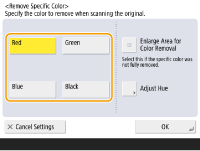
If the specified color is not removed, press <Enlarge Area for Color Removal>.
If you selected <Red>, <Green>, or <Blue>, press <Adjust Hue> and adjust the hue. When adjustment is complete, press <OK>.
6
Press <OK>  <Close>.
<Close>.7
Press  (Start).
(Start).Copying starts.


Scanning with a Specific Color Removed
1
Place the original.
2
Press <Scan and Send> on the home screen.
3
Specify the destination on the Scan Basic Features screen.
4
Press <Options> <Remove Specific Color>.
<Remove Specific Color>.5
Press the color to remove.
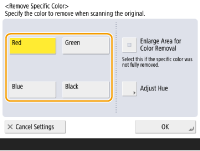
If the specified color is not removed, press <Enlarge Area for Color Removal>.
If you selected <Red>, <Green>, or <Blue>, press <Adjust Hue> and adjust the hue. When adjustment is complete, press <OK>.
6
Press <OK> <Close>.
<Close>.7
Press (Start).
(Start).Originals are scanned and sending/saving starts.