Registering Authentication Server Information
When using Google Workspace as an external authentication server, register the information of the server to be used.
Register the server information using Remote UI from a computer. You cannot use the control panel to register the information.
Administrator privileges are required. The machine must be restarted to apply the registered information.
Administrator privileges are required. The machine must be restarted to apply the registered information.
Required Preparations
You must configure the settings required to use Google Workspace, such as the DNS settings and the date and time settings.
Prepare the credentials for accessing Google Workspace you want to use.
When configuring Google Workspace information, the [Browser Engine] under [Web Access] must be set to [WebKit2].
1
Log in to Remote UI as an administrator.
2
On the Portal page of Remote UI, click [Settings/Registration].
3
Click [User Management]  [Authentication Management] [Server Settings] [Edit].
[Authentication Management] [Server Settings] [Edit].The [Edit Server Settings] screen is displayed.
4
Configure Google Workspace information in [Authentication Server].
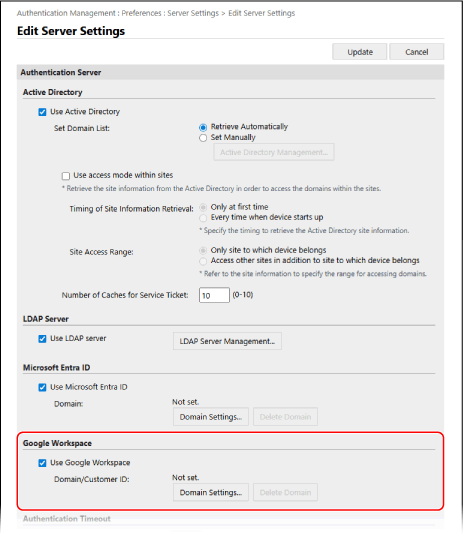
Specifying the Google Workspace Information
1
Select the [Use Google Workspace] checkbox.
2
Click [Domain Settings].
The [Google Workspace Domain Settings] screen is displayed.
3
Specify the Google Workspace information.
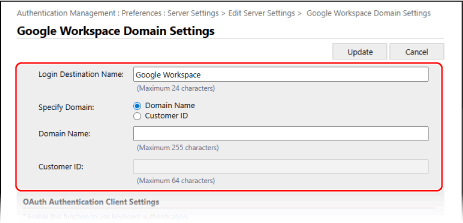
[Login Destination Name]
Enter the name to be displayed at the login destination.
[Specify Domain]
Select whether to use the [Domain Name] or [Customer ID] as the domain.
[Domain Name]
Enter the domain name of Google Workspace that is the login destination.
[Customer ID]
Enter the customer ID of Google Workspace that is the login destination.
4
Specify the OAuth authentication client information.
[Client ID]
Enter the client ID.
[Client secret]
Enter the client secret generated by Google Workspace.
5
Configure the service account information, and then click [Test Connection] to confirm the connection.
[Service Account E-Mail Address]
Enter the e-mail address of the service account that is issued in Google Workspace.
[Google Workspace Administrator E-Mail Address]
Enter the Google Workspace administrator's e-mail address.
[Key and Certificate]
Click [Key and Certificate] to set the certificate to be registered to Google Workspace when you use a key and certificate. Select the certificate for which the key algorithm is RSA 2048 bits or more and the signature algorithm is SHA256, SHA384, or SHA512.
You can click [Export Certificate] to export the certificate to be registered to Google Workspace.
6
Specify the attributes.
[Attribute to Set for Login Account]
From the pulldown menu, select the attributes for the [Login Name], [Display Name], and [E-Mail Address] of each user account on the server.
7
Specify the domain name of the login destination in [Domain Name] under [Domain Name to Set for Login Account].
8
Specify the settings in [Domain Name to Autocomplete] under [Autocomplete for Entering User Name When Using Keyboard Authentication].
Enter the name of the domain for which to perform autocomplete. Normally, set the same name as entered in [Domain Name].
9
Click [Update].
The [Edit Server Settings] screen is displayed again.
Enter the time from start of authentication to timeout in [Authentication Timeout].
6
Specify the priority domain to which to connect in [Default Domain].
Specify whether to retain the authentication information of users in [Cache for User Information].
To retain the authentication information of users who logged in with the control panel, select the [Save authentication information for login users] checkbox. If the machine is unable to connect to the authentication server within the time set in Step 5, you can log in using the authentication information held in the cache.
To retain the authentication information of users who logged in with keyboard authentication, also select the [Save user information when using keyboard authentication] checkbox.
When this checkbox is selected, even if the machine is unable to connect to the server, you can log in using the held authentication information.
When this checkbox is selected, even if the machine is unable to connect to the server, you can log in using the held authentication information.
8
Specify the user information and privileges in [Role Association].
[User Attribute to Browse]
Enter the attribute on the referenced server that is used to determine user privileges (roles).
For Google Workspace
Both "Any Google Workspace user attribute" and "memberOf" can be set.
"Any Google Workspace user attribute" is applicable only when a custom attribute is set in the “customSchemas.category name.field name” format. The custom attributes you set must be created on Google Workspace.
[Retrieve role name to apply from [User Attribute to Browse]]
Select this checkbox to use the character string registered to the attribute specified in [User Attribute to Browse] for the role name. Before selecting the checkbox, check the role names that can be selected on the machine and register them on the server.
[Conditions]
You can set the conditions to determine user privileges. The conditions are applied in the order they are listed.
In [Search Criteria], select the search criteria for [Character String].
In [Character String], enter the character string registered to the attribute specified in [User Attribute to Browse]. To specify the privileges based on the group to which the user belongs, enter the group name.
In [Role], select the privileges that apply to users who match the criteria.
* When using an Active Directory server, users who belong to the "Canon Peripheral Admins" group are set in advance to [Administrator].
9
Click [Update].
10
Restart the machine.
The information is registered.
NOTE
Prohibiting Cache Storage of Authentication Information
You can prohibit cache storage of passwords that users enter at login to the external authentication server.
When cache storage is prohibited, the [Save authentication information for login users] setting in Step 7 is disabled automatically. To enable the setting in Step 7, select the [Save authentication information for login users] checkbox and update the authentication server information.
If the Port Number for Kerberos on Active Directory Is Changed
Register the following information to the DNS server as an SRV record:
Service: "_kerberos"
Protocol: "_udp"
Port number: Port number actually used by the Kerberos service of the Active Directory domain (zone)
Host offering this service: Host name of the domain controller that is actually providing the Kerberos service of the Active Directory domain (zone)
Specify the Google Workspace Server
The following settings are required in Google Workspace and Google Cloud for Google Workspace account integration.
The setting method may be changed due to service updates or other reasons. For more information, see the Google website.
The setting method may be changed due to service updates or other reasons. For more information, see the Google website.
API settings for Google Cloud
In the setting to enable [APIs & Services], search for the Admin SDK API and activate it.
OAuth consent settings
For Keyboard Authentication with a Google Workspace Account
OAuth client ID settings
Set [Application type] to [Web application].
Set [Authorized redirect URIs] to http://localhost:8000/WebViewGoogle.