
A Message Appears
If a message appears on the control panel, select the message from the list below, and check how to troubleshoot the problem.
|
If the problem persists even after trying the troubleshooting methods, contact your dealer or service representative. If the Problem Persists |
An error occurred during certificate verification.
An error occurred during verification due to an expired certificate or incorrect information.
Install the Correct Key and Certificate or CA Certificate.
Check the expiration date, certification authority, and other information, and then install the key and certificate or CA certificate. Registering a Key and Certificate or CA Certificate Obtained from an Issuing Authority
Are the Current Date and Time on the Machine Correct?
Check the date and time settings on the machine. If the settings are not correct, set the time zone, and then set the current date and time. Setting the Date and Time
An incompatible toner cartridge has been inserted, so printing is currently unavailable.
An incompatible toner cartridge has been inserted, so printing is currently unavailable.
Replace with a New Toner Cartridge.
For optimum print quality, using Canon genuine toner cartridges is recommended. List of Consumables
Cannot analyze the authentication server certificate.
The certificate of the authentication server may not be correct, or it may be a format unsupported by the machine.
Check the Certificate of the Authentication Server, and Change the Setting, as Needed.
Cannot find the access point.
An error occurred, preventing the machine from detecting the wireless LAN router (access point).
Is Connection Type Configured Correctly?
Select the connection type (WPS) according to the method supported by the wireless LAN router. Connecting to a Wireless LAN by Using the Router Button (Push Button Mode)
Did You Connect Within the Fixed Time?
When connecting by pressing a button on the wireless LAN router, set the connection type on the control panel of the machine, and then press the button on the wireless LAN router within one or two minutes. Connecting to a Wireless LAN by Using the Router Button (Push Button Mode)
Are the SSID and Network Key Configured Correctly?
When entering the wireless LAN router information manually, check the SSID and network key of the wireless LAN router, and configure the settings correctly on the machine. Connecting to a Wireless LAN by Setting the Details (Manual Setup Method)
Are the Machine and Wireless LAN Router Located Appropriately?
The machine and wireless LAN router should be installed in a location without walls or other obstructions between the devices and within range of 50 m.
Do not install near a microwave oven, digital cordless telephone, or other device that generates radio waves.
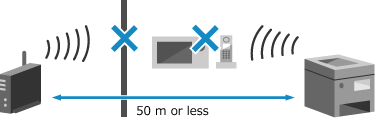
Check the Security Settings of the Wireless LAN Router.
For details, see the manual of the wireless LAN router or contact the manufacturer.
Cannot print. A non-Canon or counterfeit cartridge may be inserted.
Printing cannot be performed due to the use of a toner cartridge whose print quality cannot be guaranteed.
Replace with a New Toner Cartridge.
For optimum print quality, using Canon genuine toner cartridges is recommended. List of Consumables
Cannot print RX data.
Received data cannot be printed for some reason.
Do the Cause and Solution Appear on the Control Panel?
If so, follow the instructions on the screen.
Is the Front Cover, Rear Cover, or Feeder Cover Open on the Machine?
Close the covers if they are open.
Is Paper Loaded?
Load paper if not loaded. Loading Paper
Is Paper Jammed?
If so, remove any jammed paper. Paper Jams
Have the Toner Cartridge Reached the End of Their Lifetime?
Check the remaining amount of toner in the toner cartridge, and replace any toner cartridge, as needed.
Checking the Remaining Amount of Consumables
Replacing the Toner Cartridge
Checking the Remaining Amount of Consumables
Replacing the Toner Cartridge
Cannot recognize the image.
In Memory Media Print, you selected an image for which a preview cannot be displayed.
Does the Machine Have Sufficient Free Memory?
If the machine does not have sufficient free memory, previews of JPEG and TIFF images cannot be displayed.
Change the authentication password.
The password has expired.
Set a new password.
Set a new password.
Check the authentication settings.
The authentication method set on the machine does not match that set on the RADIUS server.
Check the Authentication Method Set on the RADIUS Server, and Set This Correctly.
Could not connect.
An error occurred, preventing the machine from establishing a direct connection.
Wait a Moment, and Try Connecting Again.
If you still cannot establish a connection, restart the machine.
Set the IP Address for Connection to Something Other Than "192.168.22.xx".
The machine must be restarted to apply the settings.
Log in to Remote UI in Administrator Mode  [Settings/Registration] [Network Settings] [Direct Connection Settings] [Edit] in [IP Address for Direct Connection], enter the IP address [OK] restart the machine [Settings/Registration] [Network Settings] [Direct Connection Settings] [Edit] in [IP Address for Direct Connection], enter the IP address [OK] restart the machine |
On the control panel, select [Menu] in the [Home] screen, and then select [Preferences] to configure the settings. [Direct Connection Settings]
Is the Subnet Mask Configured Correctly?
Check the IPv4 subnet mask settings. Change the settings if they have not been configured correctly. For details, contact the network administrator.
Viewing the IP address set to the machine
Setting IPv4 Addresses
Viewing the IP address set to the machine
Setting IPv4 Addresses
Could not connect. Check the encryption key.
The network key (encryption key) of the wireless LAN router (access point) is not configured correctly, preventing connection.
Reset the Network Key.
Check the network key of the wireless LAN router, and configure the settings correctly on the machine. Connecting to a Wireless LAN
Could not connect. The maximum number of devices that can connect to the access point has been reached.
The maximum number of devices that can be connected to the wireless LAN router (access point) has been reached, preventing connection.
Reduce the Number of Devices (Clients) Connected to the Wireless LAN Router.
For the maximum number of connections, see the manual of the wireless LAN router or contact the manufacturer.
Could not connect using Wi-Fi.
An error occurred, preventing the machine from connecting to the wireless LAN.
Restart the Machine, and Configure the Wireless LAN Connection Again.
Are the Machine and Wireless LAN Router (Access Point) Located Appropriately?
The machine and wireless LAN router should be installed in a location without walls or other obstructions between the devices and within range of 50 m.
Do not install near a microwave oven, digital cordless telephone, or other device that generates radio waves.
Check the Security Settings of the Wireless LAN Router.
For details, see the manual of the wireless LAN router or contact the manufacturer.
Could not connect using Wi-Fi. Turn the main power OFF and ON, then configure the settings again.
An error occurred, preventing the machine from connecting to the wireless LAN.
Restart the Machine, and Configure the Wireless LAN Connection Again.
Are the Machine and Wireless LAN Router (Access Point) Located Appropriately?
The machine and wireless LAN router should be installed in a location without walls or other obstructions between the devices and within range of 50 m.
Do not install near a microwave oven, digital cordless telephone, or other device that generates radio waves.
Check the Security Settings of the Wireless LAN Router.
For details, see the manual of the wireless LAN router or contact the manufacturer.
Could not connect using WPS. Wait a moment, then configure the settings again.
An error occurred, preventing the machine from establishing a WPS connection.
Wait a Moment, and Configure the Settings Again.
If you still cannot establish a WPS connection, check whether the wireless LAN router (access point) supports WPS.
If It Supports WPS
Check that the machine and wireless LAN router are located appropriately.
The machine and wireless LAN router should be installed in a location without walls or other obstructions between the devices and within range of 50 m.
Do not install near a microwave oven, digital cordless telephone, or other device that generates radio waves.
If It Does Not Support WPS
Connect using a different connection type. Connecting to a Wireless LAN
Could not detect any connections from wireless devices.
An error occurred, preventing the machine from detecting mobile devices.
Did You Connect Within the Fixed Time?
Connect the mobile device to the machine within five minutes of the SSID and network key being displayed.
Could not perform adjustment.
Correction could not be performed due to jammed paper or another problem.
Is Paper Jammed?
Remove any jammed paper. Paper Jams
Check the Remaining Amount of Toner in the Toner Cartridge.
A sufficient amount of toner in the toner cartridge is required to perform correction. Check the remaining amount of toner in the toner cartridge, and replace any toner cartridge, as needed.
Checking the Remaining Amount of Consumables
Replacing the Toner Cartridge
Checking the Remaining Amount of Consumables
Replacing the Toner Cartridge
Could not perform cleaning.
Cleaning could not be performed due to jammed paper or another problem.
Is Paper Loaded?
Load paper in the paper drawer if not loaded. Loading Paper in the Paper Drawer
Is Paper Jammed?
If so, remove any jammed paper. Paper Jams
Could not perform IEEE 802.1X authentication. Cannot analyze the authentication server certificate.
Check the certificate of the authentication server, and change the setting, as needed.
Check the Certificate of the RADIUS Server, and Change the Setting, as Needed.
Could not perform IEEE 802.1X authentication. Change the authentication password.
The password has expired.
Set a New Password.
Could not perform IEEE 802.1X authentication. Check the authentication settings.
The authentication method set on the machine does not match that set on the RADIUS server.
Check the Authentication Method Set on the RADIUS Server, and Set This Correctly.
Could not perform IEEE 802.1X authentication. Configure the correct authentication information.
The authentication method or authentication information of IEEE 802.1X is not set correctly.
Set the Authentication Method and Authentication Information (Keys and Certificates, Password, CA Certificate) Correctly.
Could not perform IEEE 802.1X authentication. Configure the information required for authentication.
The authentication method or authentication information of IEEE 802.1X is not set correctly.
Set the Authentication Method and Authentication Information (Keys and Certificates, Password, CA Certificate) Correctly.
Could not perform IEEE 802.1X authentication. No reply from the destination.
The network connection may have a problem.
Check the Network Status and Settings.
Check the Ethernet cable and switch status.
Check the network key of the wireless LAN router, and configure the settings correctly on the machine.
Could not perform IEEE 802.1X authentication. The authentication server certificate has expired.
The server certificate sent from the RADIUS server has expired.
Check the Expiry Date of the RADIUS Server.
Could not perform IEEE 802.1X authentication. The authentication server certificate is incorrect.
A CA certificate that supports the certificate of the authentication server is not registered to the machine.
Check the Certificate Information of the Authentication Server, and Register a Supported CA Certificate.
Setting IEEE 802.1X
Registering a Key and Certificate or CA Certificate Obtained from an Issuing Authority
Registering a Key and Certificate or CA Certificate Obtained from an Issuing Authority
Direct Connection terminated.
The connection with a mobile device was terminated.
Directly Connect Again.
End of toner cartridge lifetime.
The toner cartridge have reached the end of their lifetime.
It Is Recommended to Replace with New Toner Cartridge.
Key Lock is enabled.
Usage of the control panel keys is restricted.
Cancel the Key Lock Function with Remote UI.
Load paper.
Correct paper is not loaded.
Is Paper Loaded in the Paper Drawer or Multi-purpose Tray?
Load paper if not loaded. Loading Paper
Are You Using Appropriate Paper When Printing Reports, Lists, and Received Data?
Check that the paper is usable, and replace it with paper to suit your purpose.
Usable Paper
Loading Paper
Usable Paper
Loading Paper
Set the paper size and type correctly according to the loaded paper. Specifying the Paper Size and Type
Memory Full (Skip Error)
The memory is full with data that has not been printed due to an error.
Cancel Printing of the Data with an Error, or Press [Skip Error] on the [Status Monitor] Screen.
Memory Full (Secure Print)
The memory is full with Secure Print data that has not been printed.
Print the Secure Print Data Saved to the Memory.
For details about how to print, see the procedure for when using the Secure Print function. Step 2: Printing Secure Data by Entering a PIN or Password
Memory Full (Secure Print)
The memory is full with Secure Print data that has not been printed.
Print the Secure Print Data Saved to the Memory.
For details about how to print, see the procedure for when using the Secure Print function. Step 2: Printing Secure Data by Entering a PIN or Password
Memory Full (Skip Error)
The memory is full with data that has not been printed due to an error.
Cancel Printing of the Data with an Error, or Press [Skip Error] on the [Status Monitor] Screen.
Memory media is restricted.
The settings are configured to not print data from a USB memory device.
To Cancel Restriction, Change the [Memory Media Settings] Setting.
The machine must be restarted to apply the settings.
Log in to Remote UI in Administrator Mode [Settings/Registration] [Access Files Settings] [Memory Media Settings] [Edit] select the [Memory Media Print] checkbox [OK] restart the machine |
On the control panel, select [Menu] in the [Home] screen, and then select [Function Settings)] to change the setting. [Memory Media Settings]
Memory Media Print is restricted.
The settings are configured to not print data from a USB memory device.
To Cancel Restriction, Change the [Memory Media Settings] Setting.
The machine must be restarted to apply the settings.
Log in to Remote UI in Administrator Mode [Settings/Registration] [Access Files Settings] [Memory Media Settings] [Edit] select the [Memory Media Print] checkbox [OK] restart the machine. |
On the control panel, select [Menu] in the [Home] screen, and then select [Function Settings] to change the setting. [Memory Media Settings]
No Paper
Usage of the control panel keys is restricted.
Load the Paper.
Load the paper for printing reports, lists, or I-Faxes, and set the paper size and type. Loading Paper
No reply from the destination.
The Ethernet cable may not be connected or there may be a problem with the switch.
Check the Ethernet cable and switch status.
Check the Ethernet cable and switch status.
No response from the host.
The machine is not connected correctly to the network.
Check the Settings of the Machine and Network, and Connect Again.
When Connected via Wireless LAN
Configure the settings correctly according to your usage environment. Connecting to a Wireless LAN
When Connected via Wired LAN
Check that the Ethernet cable is properly connected. Connecting to a Wired LAN
Paper jammed.
Paper jammed in the machine during printing.
Remove the Jammed Paper, and If Printing Does Not Resume Automatically, Try Printing Again.
Paper Settings and Loaded Size Mismatch or Size/Settings Mismatch
The size of the paper loaded in the machine does not match that set on the control panel or printer driver.
Match the Size of the Loaded Paper with the Paper Size Setting.
When Using the Loaded Paper
Change the paper size setting on the control panel to match the size of the loaded paper.
Setting the Paper Size and Type for the Paper Drawer
Setting the Paper Size and Type for the Multi-purpose Tray
Setting the Paper Size and Type for the Paper Drawer
Setting the Paper Size and Type for the Multi-purpose Tray
When printing from a computer, change the paper size setting on the printer driver to match the size of the loaded paper. Printing from a Computer
When Reloading Paper
Load paper of the size set on the control panel or printer driver. Loading Paper
Check That the Paper Guides Are Aligned with the Markings and Are Not Too Loose or Too Tight.
Paper Drawer 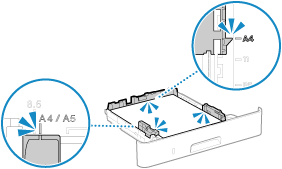 | Multi-purpose Tray 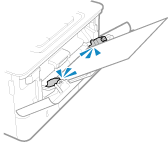 |
Prepare toner cartridge.
It is nearing the time to replace the toner cartridge.
Prepare New Toner Cartridge, and Replace the Old Ones, as Needed.
When printing large jobs, it is recommended to replace the toner cartridge. Replacing the Toner Cartridge
To Continue Printing, Use the Procedure Below.
When I-Faxing
When receiving an I-Fax, the data may be saved to the memory of the machine without being printed to prevent printing text that is difficult to read or images that are difficult to see.
To continue printing, enable [Continue Printing When Amount in Cartridge Is Low].
Log in to Remote UI [Settings/Registration] [RX/Forwarding Settings] or [RX Settings] [Common Settings] [Edit] in [Common Settings] select the [Continue Printing When Amount in Cartridge Is Low] checkbox [OK] |
On the control panel, select [Menu] in the [Home] screen, and then select [Function Settings] to configure the settings. [Continue Print. When Cart. Low] or [Continue Print. When Amount in Cart. Low]
* When this setting is enabled, the printing results may be light or faded.
Printing is restricted.
Printing is restricted due to Department ID Management.
Log In with a Department ID That Does Not Restrict Printing.
For the Department ID and PIN, contact the system administrator.
To Cancel Restriction, Change the [Restrict Functions] Setting of Your Department ID.
Log in to Remote UI in Administrator Mode [Settings/Registration] [User Management] [Department ID Management] select the Department ID to edit clear the [Restrict Color Print] and [Restrict Black & White Print] checkboxes [OK] |
On the control panel, select [Menu] in the [Home] screen, and then select [Management Settings] to change the setting. [Department ID Management]
Problems resulting from the use of non-Canon toner cartridges are not covered under the warranty. The level of toner remaining in the toner cartridge cannot be displayed correctly.
The remaining amount of toner is not correctly displayed due to the use of a toner cartridge whose print quality cannot be guaranteed.
Replace with a New Toner Cartridge.
For optimum print quality, using Canon genuine toner cartridges is recommended. List of Consumables
Set the correct authentication information.
The authentication method or authentication information of IEEE 802.1X is not set correctly.
Set the Authentication Method and Authentication Information (Keys and Certificates, Password, CA Certificate) Correctly.
Set the information necessary for authentication.
The authentication method or authentication information of IEEE 802.1X is not set correctly.
Set the Authentication Method and Authentication Information (Keys and Certificates, Password, CA Certificate) Correctly.
Size/Settings Mismatch
The size of the paper loaded in the machine does not match that set on the control panel or printer driver.
Match the Size of the Loaded Paper with the Paper Size Setting.
When Using the Loaded Paper
Change the paper size setting on the control panel to match the size of the loaded paper.
Setting the Paper Size and Type for the Paper Drawer
Setting the Paper Size and Type for the Multi-purpose Tray
Setting the Paper Size and Type for the Paper Drawer
Setting the Paper Size and Type for the Multi-purpose Tray
When printing from a computer, change the paper size setting on the printer driver to match the size of the loaded paper. Printing from a Computer
When Reloading Paper
Load paper of the size set on the control panel or printer driver. Loading Paper
Check That the Paper Guides Are Aligned with the Markings and Are Not Too Loose or Too Tight.
Paper Drawer | Multi-purpose Tray |
The authentication server certificate has expired.
The server certificate sent from the RADIUS server has expired.
Check the Expiry Date of the RADIUS Server.
The authentication server certificate is incorrect.
A CA certificate that supports the certificate of the authentication server is not registered to the machine.
Check the certificate information of the authentication server, and register a supported CA certificate.
Setting IEEE 802.1X
Registering a Key and Certificate or CA Certificate Obtained from an Issuing Authority
Registering a Key and Certificate or CA Certificate Obtained from an Issuing Authority
The memory is full. [The memory is full.] Is Displayed on the Control Panel, and the Operation Cannot Be Performed.
Printing cannot be performed due to insufficient available memory. If there is data waiting to be printed, wait until the processing is completed.
Reduce the File Size or Divide the File.
Optimize the file to make it smaller, or divide the file and then print it.
The number of entered characters is incorrect or invalid characters are used.
The network key of the wireless LAN router (access point) is not configured correctly on the machine.
Reset the Network Key.
Check the network key of the wireless LAN router, and configure the settings correctly on the machine. Connecting to a Wireless LAN
Tnr. cart. life end. Printing still OK.
It is nearing the time to replace the toner cartridge.
Prepare New Toner Cartridge, and Replace the Old Ones, as Needed.
When printing large jobs, it is recommended to replace the toner cartridge. Replacing the Toner Cartridge
To Continue Printing, Use the Procedure Below.
When I-Faxing
When receiving an I-Fax, the data may be saved to the memory of the machine without being printed to prevent printing text that is difficult to read or images that are difficult to see.
To continue printing, enable [Continue Printing When Amount in Cartridge Is Low].
Log in to Remote UI [Settings/Registration] [RX/Forwarding Settings] or [RX Settings] [Common Settings] [Edit] in [Common Settings] select the [Continue Printing When Amount in Cartridge Is Low] checkbox [OK] |
On the control panel, select [Menu] in the [Home] screen, and then select [Function Settings] to configure the settings. [Continue Print. When Cart. Low] or [Continue Print. When Amount in Cart. Low]
* When this setting is enabled, the printing results may be light or faded.
Toner Cart. Comm. Err. A non-Canon or counterfeit toner cart. may be in use. Close: Press OK
Printing cannot be performed due to incorrect installation of the toner cartridge, a damaged toner cartridge, or the use of a toner cartridge whose print quality cannot be guaranteed.
Reinstall the Toner Cartridge or Replace with New Toner Cartridge.
For optimum print quality, using Canon genuine toner cartridges is recommended. List of Consumables
If the message still appears after repeatedly reinstalling the toner cartridge, contact your dealer or service representative. If the Problem Persists
Toner Cart. Comm. Err. Use of non-Canon toner cart. is not covered by warranty. Close: Press OK
Printing cannot be performed due to incorrect installation of the toner cartridge, a damaged toner cartridge, or the use of a non-Canon toner cartridge, resulting in a communication error.
Reinstall the Toner Cartridge.
For optimum print quality, using Canon genuine toner cartridges is recommended. List of Consumables
If the message still appears after repeatedly reinstalling the toner cartridge, contact your dealer or service representative. If the Problem Persists
Use Remote UI to set the information necessary for authentication.
The authentication method or authentication information of IEEE 802.1X is not set correctly.
Check the IEEE 802.1X Setting, and Set This Correctly.
Check the following, and change the setting, as needed. Setting IEEE 802.1X
The login name is specified correctly.
At least one of the following checkboxes is selected: [Use TLS], [Use TTLS], and [Use PEAP].
When using TLS, a key and certificate are registered.
When using TTLS or PEAP, the user name and password are set correctly.