
Paper Jams in a Paper Source
Remove the jammed paper from the location where it occurred. If the paper tears, be sure to remove the parts so that no pieces remain.
Paper Jams in the Multi-purpose tray
Remove the jammed paper from the multi-purpose tray or inside the machine.
If you cannot remove the paper, do not try to remove it forcibly. Check the control panel, and remove the jammed paper from another location.
If you cannot remove the paper, do not try to remove it forcibly. Check the control panel, and remove the jammed paper from another location.
1
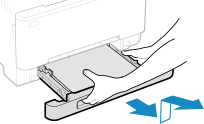
Pull out the paper drawer until it stops, and remove it while lifting the front side.
2
Remove the transport guide.
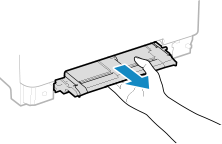
Hold the bottom of the multi-purpose tray, and pull out the transport guide.
3
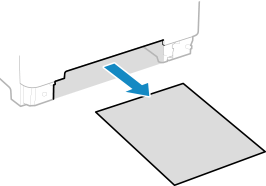
Gently pull out the paper.
4
Carefully insert the transport guide straight in.
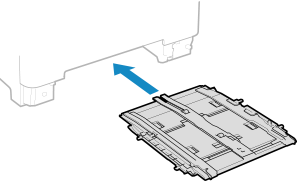
Push it in firmly until you hear a click.
5
Load the paper drawer into the machine.
6
Press [Next] on the control panel. When [Is all of the jammed paper removed?] appears, press [Yes].
The message [Paper jammed.] disappears, and printing resumes automatically.
If printing does not resume automatically, try printing again.
If printing does not resume automatically, try printing again.
 If the Troubleshooting Method for the Output Tray Appears on the Screen
Remove the jammed paper from the output tray or rear side. Paper Jams in the Output Tray and Rear Side
|
If Paper Jams Occur RepeatedlyCheck the status of the machine and paper. Paper Jams That Occur Repeatedly |
Paper Jams in the Paper Drawer
Remove the paper loaded in the paper drawer.
If you cannot remove the paper, do not try to remove it forcibly. Check the control panel, and remove the jammed paper from another location.
If you cannot remove the paper, do not try to remove it forcibly. Check the control panel, and remove the jammed paper from another location.
1
Pull out the paper drawer, and remove it while lifting the front side.
2
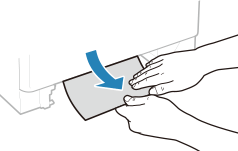
Gently pull out the paper.
3
Load the paper drawer into the machine.
4
Press [Next] on the control panel. When [Is all of the jammed paper removed?] appears, press [Yes].
The message [Paper jammed.] disappears, and printing resumes automatically.
If printing does not resume automatically, try printing again.
If printing does not resume automatically, try printing again.
|
If Paper Jams Occur RepeatedlyCheck the status of the machine and paper. Paper Jams That Occur Repeatedly |