Use the control panel to configure the settings. You cannot configure the settings using Remote UI from a computer.
Administrator or DeviceAdmin privileges are required.
Preventing Fixing Errors in the Low-Temperature Environment (For 8100 Series Only)
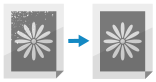
If you print high-density images on heavy paper continuously in the low-temperature environment, toner may not be properly applied to the images. You can solve this problem by slowing down the print speed.
1
On the control panel, press [ Settings/Registration] in the [Home] screen or other screen. [Home] Screen
Settings/Registration] in the [Home] screen or other screen. [Home] ScreenThe [Settings/Registration] screen is displayed.
2
Press [Adjustment/Maintenance]  [Adjust Image Quality] [Low Temperature Environment Mode].
[Adjust Image Quality] [Low Temperature Environment Mode].The [Low Temperature Environment Mode] screen is displayed.
3
Set the level of low temperature environment mode, and press [OK].
4
Press [Close].