Paper Jams in Paper Folding Unit-K (Option)
Remove the paper jammed in Paper Folding Unit-K. Follow the instructions on the control panel to check the location of the paper jam and remove the jammed paper.
If the paper tears, be sure to remove all parts so that no pieces remain.
If you cannot remove the paper, do not try to remove it forcibly. Check the control panel and remove the jammed paper at another location.
If the paper tears, be sure to remove all parts so that no pieces remain.
If you cannot remove the paper, do not try to remove it forcibly. Check the control panel and remove the jammed paper at another location.
Required Preparations
Remove any paper loaded in the tray.
Close the cover and paper drawer if they are open.
1
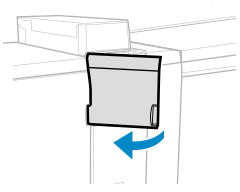
Open the front cover.
2
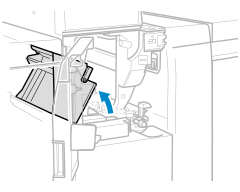
Open the A2 guide.
3
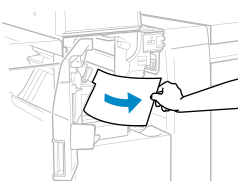
If paper is jammed, gently pull it out in the direction of the arrow.
4
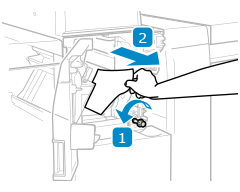
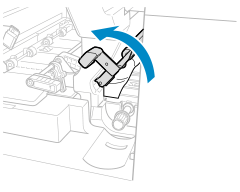
Turn the A3 knob and gently pull out any jammed paper in the direction of the arrow.
5
Check whether paper is jammed in the left guide (B2 guide).
1
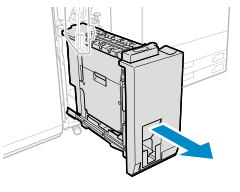
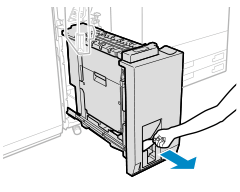
Pull out the paper folding unit (B1 guide).
2
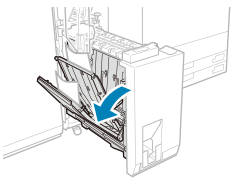
Open the B2 guide.
3
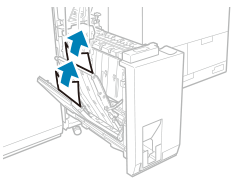
If paper is jammed, gently pull it out in the direction of the arrow.
4
Close the B2 guide.
6
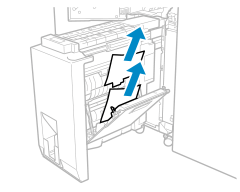
Check whether paper is jammed in the right guide (B3 guide).
1
Open the B3 guide.
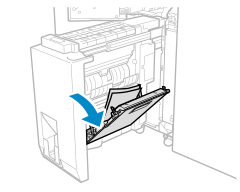
Open the guide as far as it will go.
2
If paper is jammed, gently pull it out in the direction of the arrow.
3
Close the B3 guide.
7
If paper is jammed in the output slot, gently pull it out in the direction of the arrow.
8
Gently push the paper folding unit (B1 guide) to its original position.
9
Close the A2 guide and the front cover.
When the paper jam is cleared, the screen indicating a paper jam disappears, and printing resumes automatically.
If a screen indicating a paper jam at a different location appears, continue following the instructions on the screen to remove the jammed paper.
If a screen indicating a paper jam at a different location appears, continue following the instructions on the screen to remove the jammed paper.
NOTE
If the Paper Jam Message Is Repeatedly Displayed
Open the entrance guide located above the A3 knob on the inside of the front cover, and check whether paper remains.
If Paper Jams Occur Repeatedly
Check the status of the machine and paper. Paper Jams That Occur Repeatedly