Paper and Staple Jams
If a paper or staple jam occurs, a message, the location of the jam, and the procedure for clearing it are displayed on the control panel. Press [ ], and follow the displayed instructions on how to clear the jam.
], and follow the displayed instructions on how to clear the jam.* The screen is repeatedly displayed until the paper or staple jam has been removed. When you press [Close], the screen may close temporarily, and you may be able to perform another operation or setting.
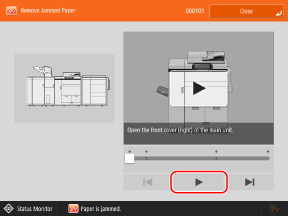
See below for details about clearing paper and staple jams from various parts of the machine.
Follow the instructions on the screen to check the location of the paper or staple jam and remove the jammed paper or staple. In some cases, there may not be a paper or staple jam, but be sure to check all locations.
Follow the instructions on the screen to check the location of the paper or staple jam and remove the jammed paper or staple. In some cases, there may not be a paper or staple jam, but be sure to check all locations.
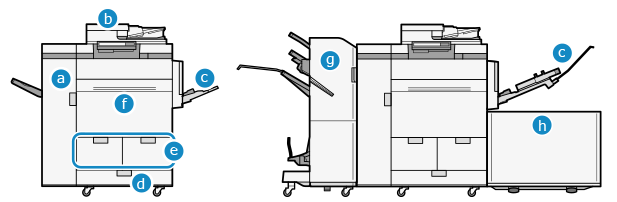
 Inside of the front-left cover of the main unit
 Feeder
 Multi-purpose tray and Long Sheet Tray-B
 Paper drawer
 Paper deck
 Inside of the front cover of the main unit
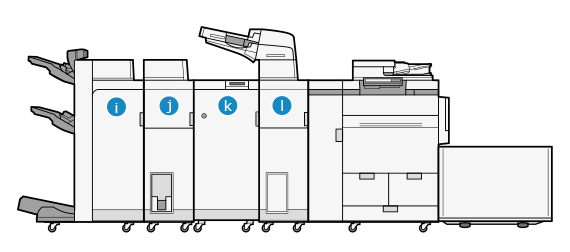
 Staple Finisher-AC and Booklet Finisher-AC
 POD Deck Lite-C, Paper Deck Unit-E, and Multi-drawer Paper Deck-E
 Staple Finisher-AG and Booklet Finisher-AG
 Paper Folding Unit-K
 Multi Function Professional Puncher-C

* For information on how to clear paper jams in Multi Function Professional Puncher-C, see the instruction manual of Multi Function Professional Puncher-C.
 Document Insertion Unit-R
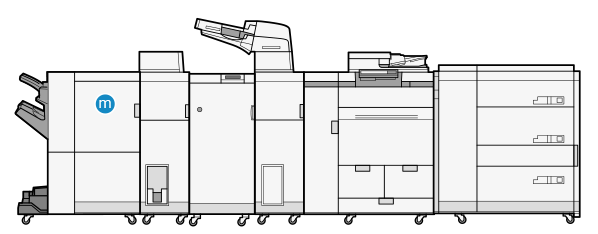
 Staple Finisher-AQ and Booklet Finisher-AQ
Do Not Forcibly Remove Jammed Paper.
Forcibly removing jammed paper may result in injury or damage to parts. If you cannot remove the jammed paper using the procedure for clearing it, contact your dealer or service representative. If the Problem Persists
After Removing Jammed Paper
Immediately remove your hands from the machine and optional equipment unit. Clothing and hands may become caught in the rollers of the machine.
IMPORTANT
Precautions When Removing Jammed Paper and Staples
Do not turn OFF the machine when removing jammed paper and staples. Turning OFF the machine may delete the data being printed or the fax being received.
Removing paper at a location different from the paper jam location indicated on the screen may result in a paper jam or missing printed paper.
If the paper tears, be sure to remove all parts in the machine and optional equipment unit so that no pieces remain.
The optional equipment unit may perform printing while you are clearing the paper or staple jam. Be careful when handling the installed optional equipment unit.