
Printer EDR
EDR (Endpoint Detection and Response) is a type of security measure.
This measure monitors the operations and behavior of network-connected devices such as computers, smartphones, and printers (endpoint devices) to detect and respond to suspicious activities and attacks, including internal data manipulation and exploitation.
When this function is enabled, suspicious behavior and external attacks are detected, and notifications are displayed on the control panel or the Remote UI. By following the instructions provided in the notification, you can restore the machine to normal operation. It is recommended to use this function to enhance security.
This measure monitors the operations and behavior of network-connected devices such as computers, smartphones, and printers (endpoint devices) to detect and respond to suspicious activities and attacks, including internal data manipulation and exploitation.
When this function is enabled, suspicious behavior and external attacks are detected, and notifications are displayed on the control panel or the Remote UI. By following the instructions provided in the notification, you can restore the machine to normal operation. It is recommended to use this function to enhance security.
|
This function does not fully guarantee the security of your printer. Depending on the model, some functions may not be available. Printer EDR is not supported on some models. |
Configuring Printer EDR
This section describes how to configure the settings using the control panel.
In the Remote UI, configure the settings from the Portal page by selecting [Settings/Registration] [Security Settings].
Administrator privileges are required to configure the Printer EDR settings. To apply the settings, you need to restart your printer.
In the Remote UI, configure the settings from the Portal page by selecting [Settings/Registration]
[Security Settings].Administrator privileges are required to configure the Printer EDR settings. To apply the settings, you need to restart your printer.
1
On the control panel, press [Menu] in the [Home] screen.
2
Press [Management Settings] [Security Settings].
[Security Settings].The [Security Settings] screen is displayed.
If the login screen appears, enter the currently set Administrator ID and PIN, and then press [Log In].
3
Press [Printer EDR].
4
Press [On].
5
When [Settings configured. Changes will be effective after the main power is turned OFF and ON.] appears on the control panel, press [OK].
6
Restart your printer.
The settings are applied.
 |
When a printer is turned on or when it is recovered from the sleep mode, [Currently protected by Printer EDR (security feature)...] may be displayed. This message disappears after a certain period of time. *The message may differ depending on the model. When the setting of [Printer EDR] is set to [On], [Verify System at Startup] is also set to [On]. |
Printer EDR Notifications and Countermeasures
When your printer detects suspicious behavior or external attacks, a message notifying you of the detection and a security threat are displayed on the control panel or the Remote UI. This section describes the notifications and their countermeasures.
Message example
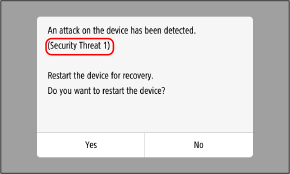
*Screens and messages may differ depending on the model.
Select the security threat number shown in the message from the list below to check the notification details and the corresponding countermeasures.
Security Threat 1
There may have been unauthorized access to or an external attack on your printer.
 Countermeasures
To restore your printer to normal operation, it is recommended to restart your printer by following the on-screen instructions.
After the printer restarts, a message is displayed indicating that the printer has returned to normal operation. Close the screen by following the on-screen instructions.
If you close the screen without restarting the printer, messages indicating that an attack has been detected or recommending that you restart the printer may continue to be displayed.
Security Threat 2
Your printer may have been subject to an external attack, and the [Printer EDR] settings may have been changed to [Off].
Security Threat 2 is triggered not only by an external attack, but also when an administrator intentionally changes the settings.
Security Threat 2 is triggered not only by an external attack, but also when an administrator intentionally changes the settings.
Countermeasures
If the change was not intended, configure Printer EDR again by following the on-screen instructions.
Even if the setting was changed to [Off] intentionally, it is recommended to reconfigure Printer EDR to enhance security. Configuring Printer EDR
Even if the setting was changed to [Off] intentionally, it is recommended to reconfigure Printer EDR to enhance security. Configuring Printer EDR
If you close the screen without reconfiguring Printer EDR, a message prompting you to check the Printer EDR settings may continue to be displayed.
Security Threat 3
Your printer may have been subject to an external attack, and the [Verify System at Startup] setting may have been changed to [Off].
Security Threat 3 is triggered not only by an external attack, but also when an administrator intentionally changes the settings.
Security Threat 3 is triggered not only by an external attack, but also when an administrator intentionally changes the settings.
Countermeasures
To restore your printer to normal operation, it is recommended to restart your printer by following the on-screen instructions.
After the printer restarts, a message is displayed indicating that the printer has returned to normal operation. Close the screen by following the on-screen instructions.
If you close the screen without restarting the printer, messages indicating that an attack has been detected or recommending that you restart the printer may continue to be displayed.
|
If the setting of [Printer EDR] is set to [On], [Verify System at Startup] cannot be set to [Off]. To set [Verify System at Startup] to [Off], set the setting of [Printer EDR] to [Off]. |