This section describes how to configure the settings using the control panel.
You can also configure the settings using Remote UI from a computer. Managing the Machine from a Computer (Remote UI)
Correcting Color Mismatch and Adjusting the Color Tone Automatically
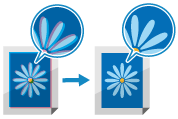
You can perform calibration automatically to correct color mismatch and reproduce the color tone of the originals. Set the timing for the calibration at startup.
Administrator or DeviceAdmin privileges are required.
1
On the control panel, press [ Settings/Registration] in the [Home] screen or other screen. [Home] Screen
Settings/Registration] in the [Home] screen or other screen. [Home] ScreenThe [Settings/Registration] screen is displayed.
2
Press [Adjustment/Maintenance]  [Adjust Image Quality] [Settings for Auto Full Calibration].
[Adjust Image Quality] [Settings for Auto Full Calibration].The [Settings for Auto Full Calibration] screen is displayed.
3
Select the timing for the calibration at startup and press [OK].
The settings are applied.
IMPORTANT
Toner is used during calibration.
Performing frequent correction may affect the lifetime of the toner.
If the symptoms do not improve even after performing calibration, the remaining amount of toner may be low. It is recommended to check the remaining amount of toner, and replace any toner containers, as needed.