

Overview of Scan Screens
When you press <Easy Scan> or <Scan and Send> (<Home> Screen), one of two scan screens is displayed.
Easy Scan Screen
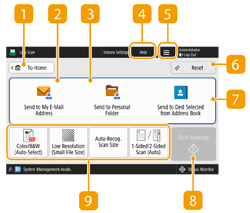
 <To Home>
Returns to the <Home> screen.
 <Send to My E-Mail Address>
Enables you to directly specify your own e-mail address. This button is available only when you are logged in to the machine with personal authentication management. Managing Users
 <Send to Personal Folder>
Enables you to specify your personal folder registered as a save location. This button is available only when you are logged in to the machine with personal authentication management.
 <Help>
Press to display the QR code to access the <Scan and Send> page in the User's Guide.
Press this icon to enter the user name and password to use when sending e-mail or use the OCR result for the file name.
 <Reset>
Cancels the destination and other settings and restores the default settings.
 <Send to Dest Selected from Address Book>
Enables you to specify a sending destination and a save location registered in the Address Book.
 Current setting status and setting buttons
This area displays the status of settings such as the color mode and scan size. To correctly scan the original, make sure to confirm the settings. To change the settings, press the desired button. Basic Operations for Scanning Originals
|
If you press the button for a function that is limited, a message indicating that the settings cannot be changed is displayed. The total number of specified destinations is displayed on the left of the destination display área. |
Scan Basic Features screen
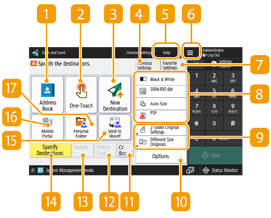
<Address Book>
Enables you to specify a sending destination and a save location registered in the Address Book.
<One-Touch>
Enables you to specify a sending destination and a save location registered in one-touch buttons.
<New Destination>
Enables you to specify destinations manually that are not registered in the Address Book or one-touch buttons.
<Previous Settings>
Press to recall the previously specified settings. Basic Operations for Scanning Originals
 <Help>
Press to display the QR code to access the <Scan and Send> page in the User's Guide.
Press this icon to register the current settings in <Favorite Settings> of and change the button displayed in  .
.
and change the button displayed in .<Favorite Settings>
Register frequently used scan settings here in advance to easily recall them when necessary. Managing the Machine
Current setting status and setting buttons
Displays setting status such as the resolution and file formats. Make sure to confirm the settings in order to scan properly. To change the settings, press the desired button. Basic Operations for Scanning Originals
Function setting buttons
Displays the most frequently used buttons from <Options>. You can also press to change which buttons are displayed.
to change which buttons are displayed.If the button for the function that you want to use is not displayed, press <Options> and select the desired button. Basic Operations for Scanning Originals
 <Options>
Displays all of the function setting buttons. For convenience, you can display frequently used function setting buttons in .
. <Cc Bcc>
Enables you to specify e-mail destinations as Cc or Bcc. Basic Operations for Scanning Originals
 <Delete Dest.>
Enables you to delete the specified destination.
 <Details>
Enables you to check the detailed information about the specified destination.
 <Specify Destinations>
Displays the methods for specifying destinations or a list of specified destinations.
 <Send to Myself>
Enables you to directly specify your own e-mail address. This button is available only when you are logged in to the machine with personal authentication management. Managing Users
 <Mobile Portal>
Enables you to specify a destination from the address book of a mobile device.
 <Personal Folder>
Enables you to specify your personal folder registered as a save location. This button is available only when you are logged in to the machine with personal authentication management.
|
You can select whether to hide the Address Book and one-touch buttons to restrict use of the Address Book. <Restrict Address Book Use> Some functions cannot be used in combination with each other. Buttons that cannot be selected are displayed in light gray. The total number of specified destinations is displayed on the top right of the screen. |