Displaying a Device Map
By placing the devices registered in this software on a floor map, you can visually check the installation location of the devices.
Creating/Editing a Floor Map
Register the floor map to this software.
Place the devices on the registered floor map.
Registering a Floor Map
1.
Prepare the image file for the floor map.
Images in the following formats can be registered to this software.
JPEG format (jpg or jpeg), GIF format (gif), PNG format (png)
2.
Select the [Devices] menu > [Device Maps] > [Map Data].
3.
Register the image file for the floor map.
Select [Choose File] for [Map File], then select the image file to register to this software as the floor map.
In [Map Name], enter a name for the floor map to register.
When displaying the device map, the map name set here is used.
In the [Region] drop-down list, select the region to associate with the floor map.
This item is displayed when a region is set.
Click [Add].
Editing the Information for a Floor Map
1.
Select the [Devices] menu > [Device Maps] > [Map Data].
2.
In the list, click the name of the floor map to edit.
3.
On the [Map Data Details] screen, edit the information for the floor map.
Changing the Name of the Floor Map
In [Map Name], enter the name of the floor map.
In the [Region] drop-down list, select the region to associate with the floor map.
This item is displayed when a region is set.
Click [Update Map Name and Region] or [Update Map Name].
Changing the Image for the Floor Map
Select [Choose File] for [Map File], then select the image file for the floor map.
In [Reposition Devices], select whether to relocate the device position information.
[Do not change device positions] | The device coordinates on the floor map will not change. However, if the new image is smaller than the previous image, the following changes will be made. If the X coordinate of a device is larger than the width of the new image, the X coordinate is set to the width of the new image. If the Y coordinate of a device is larger than the height of the new image, the Y coordinate is set to the height of the new image. |
[Change device positions relative to map size change] | The device coordinates on the floor map will change as follows. New X coordinate = (new image width / old image width) * old X coordinate New Y coordinate = (new image height / old image height) * old Y coordinate |
Click [Update Map File].
NOTE |
If the edited floor map is not displayed when you display the device map, refresh (reload) the display of the Web browser. |
Placing Devices on a Floor Map
1.
Select the [Devices] menu > [Device List].
2.
On the [Device List] page, select the device name of the target device from the list.
3.
On the [Device Details] page, select the [Map] tab.
For details on operating the [Device Details] page, see the following.
4.
Place the devices on the floor map.
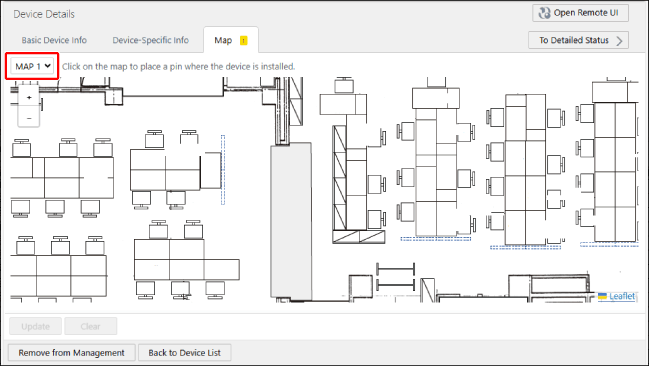
In the drop-down list on the top of the screen, select the map name.
Click the position to place the device on the floor map.
A pin is displayed in the position you clicked.
To change the pin position, drag and drop the pin or click the location to place it.
5.
Click [Update].
Deleting a Floor Map
1.
Select the [Devices] menu > [Device Maps] > [Map Data].
2.
From the list, click [ ] for the floor map to delete.
] for the floor map to delete.If you delete a floor map, the device position information that was placed on the map is also deleted.
Displaying a Device Map
1.
Select the [Devices] menu > [Device Maps] > [Device Maps].
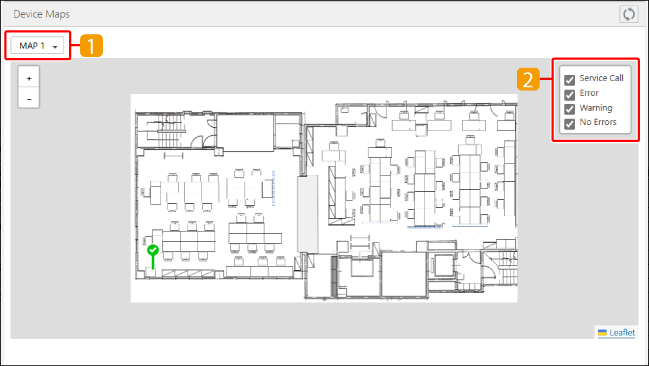
 | In the drop-down list, select the device map to display. |
 | Select or deselect the check boxes to change the displayed devices. |
Pin | Indicates the position of a device placed on the floor map. The color of the pin indicates the status of the device. Green: No error Yellow: Warning Red: Error Dark red: Service call Place the mouse over a pin to display the device name. Click a pin to display the error details in a pop-up. Detailed information on the device is also displayed on the left of the screen. Click the   on the top right of the detailed information to open or close the detailed device information. on the top right of the detailed information to open or close the detailed device information. |
Click +/- on the top left or turn the mouse wheel to enlarge or reduce the device map view.
If the whole map is not displayed on the screen, you can drag the floor map to change the display position.