Loading Preprinted Paper
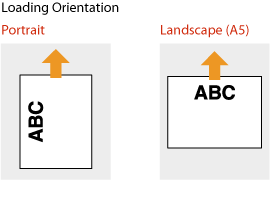
When you load paper that has been preprinted with a logo, pay attention to the orientation of the paper regardless of whether you use the paper drawer or the multi-purpose tray. Load the paper properly so that printing is performed on the same side as the logo.

|
This section describes how to load preprinted paper with the proper orientation. For a description of the general procedure for loading paper in the paper drawer or multi-purpose tray, see Basic Paper Loading Method. Proper manner of loading preprinted paper when <Switch Paper Feed Method> is set to <Print Side Priority> Paper drawer: the logo side face up Paper source other than the paper drawer: the logo side face down |
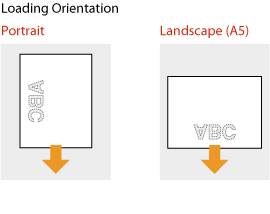
Loading Paper with Logos in the Paper Drawer
The loading method varies depending on whether the orientation of the logo printed paper is portrait or landscape.
Printing on Paper with Logos in Portrait Orientation
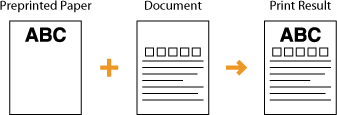
Load the paper with the logo side (the side to print the document) face down.
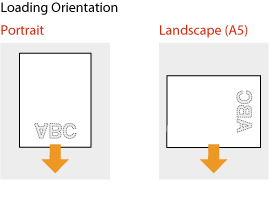
Printing on Paper with Logos in Landscape Orientation
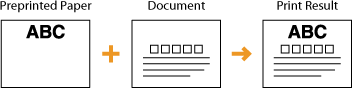
Load the paper with the logo side (the side to print the document) face down.
Loading Paper with Logos in the Multi-Purpose Tray
The loading method varies depending on whether the orientation of the logo printed paper is portrait or landscape. Load the paper with the logo printed side (the side to print) face down, as shown in the following illustrations.
Printing on Paper with Logos in Portrait Orientation
Load the paper with the logo side (the side to print the document) face up.
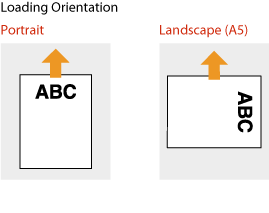
Printing on Paper with Logos in Landscape Orientation
Load the paper with the logo side (the side to print the document) face up.