Entering Characters
Enter alphanumeric characters using the keys and numeric keys on the control panel or the keys displayed on the screen.
Entering Characters Using the Control Panel
You can enter letters, numbers, and symbols using the control panel.
The type of characters that you can enter may be limited depending on the item.
If the value input range is limited, the value that you can enter is displayed in parentheses ( ) on the screen.
The type of characters that you can enter may be limited depending on the item.
If the value input range is limited, the value that you can enter is displayed in parentheses ( ) on the screen.
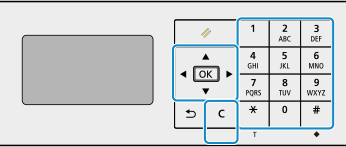
Changing the Character Type
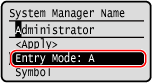
Press  to change the character type in the order of uppercase letters (A), lowercase letters (a), and numbers (12).
You can also press [Entry Mode]
 to select the character type.
You cannot change the character type for items whose character type is limited.
to change the character type in the order of uppercase letters (A), lowercase letters (a), and numbers (12).You can also press [Entry Mode]
to select the character type.You cannot change the character type for items whose character type is limited.
Entering Characters, Spaces, and Symbols
Enter characters and symbols using the numeric keys. The following are the usable keys and characters that can be entered:
You can enter a space by moving the cursor to the end of the characters and pressing .
.
When [Entry Mode] is set to [aA] and you press , symbols are displayed.
You can enter a space by moving the cursor to the end of the characters and pressing
.When [Entry Mode] is set to [aA] and you press
, symbols are displayed.Key | A | a | 12 |
 | @ . - _ / | 1 | |
 | ABC | abc | 2 |
 | DEF | def | 3 |
 | GHI | ghi | 4 |
 | JKL | jkl | 5 |
 | MNO | mno | 6 |
 | PQRS | pqrs | 7 |
 | TUV | tuv | 8 |
 | WXYZ | wxyz | 9 |
 | (Not available) | 0 | |
 | (space) -.*#!",;:^`_=/|'?$@%&+\~()[]{}<> | (Not available) | |
Deleting Characters
Press  to delete one character.
to delete one character.Press and hold to continuously delete characters.
to continuously delete characters.Moving the Cursor
Press  or .
or .
or .Entering Numbers
Press  or
or  . You can also use the numeric keys to enter numbers when
  is displayed on the screen.
or . You can also use the numeric keys to enter numbers when is displayed on the screen.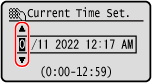
 |
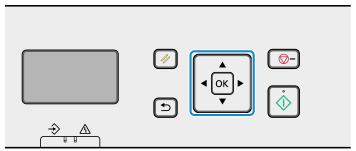
Entering Characters Using Keys Displayed on the Control Panel
Use the on-screen keys to select the letters and numbers you want to enter and then press to enter the characters.
You can enter letters, numbers, and symbols.
to enter the characters.You can enter letters, numbers, and symbols.
Changing the Character Type
Press [Switch Entry Mode] , select the character type and then press .
, select the character type and then press .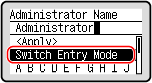
Moving the Cursor
Select [] or [] on the screen and then press .
] or [] on the screen and then press .Deleting Characters
Press [ ] on the screen to delete one character.
] on the screen to delete one character.If [] or [] is not displayed, pressing [] deletes all the characters.
] or [] is not displayed, pressing [] deletes all the characters.Entering Spaces
Press [Space] .
You can also enter a space by moving the cursor to the end of the characters and pressing [] .
.You can also enter a space by moving the cursor to the end of the characters and pressing [
] .