Setting the Paper Size and Type for the Paper Drawer
By default, the paper size and type of the paper drawer are set to A4 and Plain 2. When paper of a different size or type is loaded, change the paper settings.
This section describes how to configure the settings using the control panel.
You can also configure the settings using Remote UI from a computer. Managing the Machine from a Computer (Remote UI)
You can also configure the settings using Remote UI from a computer. Managing the Machine from a Computer (Remote UI)
1
On the control panel, select [Paper Settings] in the [Home] screen, and press  . [Home] Screen
. [Home] Screen2
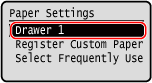
Press [Drawer 1], and press .
.
3
Select the size of the paper loaded in the paper drawer, and press .
.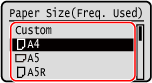
You can scroll the screen to view paper sizes not displayed on the screen.
 When A5 Size Paper Is Loaded
When paper is loaded in the landscape orientation, select [A5]. When paper is loaded in the portrait orientation, select [A5R].
Landscape orientation (A5) | Portrait orientation (A5R) | ||
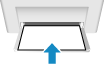 | 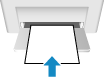 |
When Non-standard Size (Custom Size) Paper Is Loaded
1 | Select [Custom], and press . |
2 | Press [X]  enter the values in [X] . enter the values in [X] .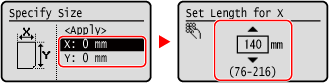 |
3 | Enter the values in [Y] in the same way as [X]. |
4 | Select [<Apply>], and press . |
If a Set Paper Size Is Not Displayed
Press [<Other Sizes>], press , and select the paper size from the displayed list.
, and select the paper size from the displayed list.4
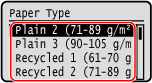
Select the type of the paper loaded in the paper drawer, and press .
.
The paper size and type are set.
 |
You can change the paper size displayed on the screen in Step 3. Hiding Unused Paper Sizes |