Gradation can be calibrated in two ways: Quick Adjust or Full Adjust.
First, try Quick Adjust for simple calibration. If you do not see an improvement, perform Full Adjust to calibrate more accurately.
Calibrating the Gradation

Gradation is the gradual changing of the color depth and brightness. If the gradation is not reproduced correctly and the printed data greatly differs from the source data or original, calibrate the gradation (calibration).
You cannot perform calibration while printing or scanning or when there is insufficient toner.
You cannot perform calibration while printing or scanning or when there is insufficient toner.
IMPORTANT
Toner is used during calibration.
Performing frequent calibration may affect the lifetime of the toner.
If the symptoms do not improve even after performing calibration, the remaining amount of toner may be low. It is recommended to check the remaining amount of toner, and replace any toner containers, as needed.
NOTE
If you have never adjusted the gradation on the machine, it may take some time to print the first sheet after the power is turned ON.
Simple Calibration (Quick Adjust)
This section describes how to perform calibration (Quick Adjust) using the control panel.
You can also perform calibration (Quick Adjust) using Remote UI from a computer. Managing the Machine from a Computer (Remote UI)
You can also perform calibration (Quick Adjust) using Remote UI from a computer. Managing the Machine from a Computer (Remote UI)
Calibration will be applied to all paper types.
1
On the control panel, press [ Settings/Register] in the [Home] screen or other screen. [Home] Screen
Settings/Register] in the [Home] screen or other screen. [Home] Screen2
Press [Adjustment/Maintenance]  [Adjust Image Quality] [Auto Adjust Gradation].
[Adjust Image Quality] [Auto Adjust Gradation].The [Auto Adjust Gradation] screen is displayed.
3
Press [Thin/Plain/Recycled] [Quick Adjust].
[Quick Adjust].The [Quick Adjust] screen is displayed.
4
Press [Start].
Calibration is performed.
When calibration is complete, [Adjustment is complete.] is displayed.
If the result after performing Quick Adjust is not satisfactory, perform Full Adjust. Calibrating More Accurately (Full Adjust)
When calibration is complete, [Adjustment is complete.] is displayed.
If the result after performing Quick Adjust is not satisfactory, perform Full Adjust. Calibrating More Accurately (Full Adjust)
NOTE
You can configure the settings to perform Quick Adjust automatically at regular periods. [Time Settings for Auto Adjust Gradation]
Calibrating More Accurately (Full Adjust)
Scan the test page printed with the machine on the feeder or platen glass to calibrate the gradation more accurately.
The result calibrated here is used until Full Adjust is performed next time.
The result calibrated here is used until Full Adjust is performed next time.
Paper Sizes and Types Usable for Calibration
Size: A3, A4, 11" x 17", LTR, 320 x 450 mm (12 5/8" x 17 11/16") (SRA3), 305 x 457 mm (12" x 18"), 8K, 16K
Type: Thin 1 and Thin 2, Plain 1 to Plain 3, Recycled 1 to Recycled 3, Heavy 1 to Heavy 7
Use the control panel to perform calibration (Full Adjust). You cannot perform calibration (Full Adjust) using Remote UI from a computer.
1
On the control panel, press [ Settings/Register] in the [Home] screen or other screen. [Home] Screen
Settings/Register] in the [Home] screen or other screen. [Home] ScreenThe [Settings/Registration] screen is displayed.
Press [Adjustment/Maintenance] [Adjust Image Quality] [Auto Adjust Gradation].
[Adjust Image Quality] [Auto Adjust Gradation].The [Auto Adjust Gradation] screen is displayed.
3
Configure the calibration settings.
If you select [On] for [Initialize When Using Full Adjust], the previous Full Adjust data is initialized and calibrated.
Select the paper type to calibrate.
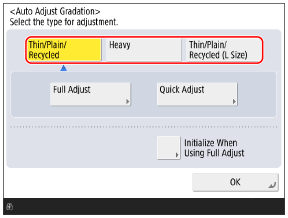
When using a 320 x 450 mm (12 5/8" x 17 11/16") (SRA3) or 305 x 457 mm (12" x 18") paper size, select [Thin/Plain/Recycled (L Size)].
Press [Full Adjust].
The [Select Paper] screen is displayed. You can check the usable paper sizes and currently selected paper type.
6
Select the paper source with the loaded usable paper, and press [OK].
7
Press [Start Printing].
A test page is printed.
8
Scan the test page to perform calibration.
Using the Platen Glass to Scan
1
Open the feeder.
2
Follow the instructions on the screen to place the test page on the platen glass.
3
Gently close the feeder.
4
Press [Start Scanning].
Test page 1 is scanned.
5
Press [Start Printing].
Test page 2 is printed.
6
Remove test page 1 from the platen glass.
7
Repeat Steps 2 to 6 to finish scanning all the test pages.
Calibration is performed after all the test pages are scanned.
Scan the test page three times.
When calibration is complete, [Adjustment is complete.] is displayed.
8
Remove the test page from the platen glass.