Printing Registered Documents (Print Template)
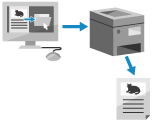
You can print images and documents registered in advance. By registering templates of frequently used documents, you can easily print them when required.
Administrator privileges are required.
Registering/Editing Documents
1
Log in to Remote UI as an administrator.Starting Remote UI
2
On the Portal page of Remote UI, click [Settings/Registration]. Remote UI Portal Page
3
Click [Printer]  [Print Template].
[Print Template].The [Print Template] screen is displayed.
4
Click [Add Button].
The [Add Button] screen is displayed.
To change the settings in a button, click the button name.
To delete a button, click [Delete].
5
Enter the button information, and configure the required settings.
*If settings are not configured, printing is performed according to [Custom Settings] in [Printer].
[Button Name:]
Enter the name of the button to display on the [Home] screen.
[Comment:]
Enter a description or note, as required.
[File to Print (PDF/JPEG):]
Specify whether to print PDF or JPEG files.
[Print Immediately After Button Is Pressed]
Select this to immediately execute jobs after the button is pressed. The  mark is displayed for buttons with this set.
mark is displayed for buttons with this set.[Settings for Button]
Configure the settings related to printing, such as the number of copies and two-sided printing.
6
Click [Add].
The button is added.
NOTE Files for Printing A maximum of five documents can be registered. Documents with a maximum size of 48 MB can be registered. The minimum guaranteed storage space for registering documents is 4 GB (193 GB when the Optional Data Storage Kit is installed), including the space for hold print and secure print jobs. |
Printing Documents
1
Press the button for a registered document onthe [Home] screen. [Home] Screen
The standard document print screen is displayed.
* If [Print Immediately After Button Is Pressed] is set, printing starts immediately.
2
Press [Start Printing].
Printing starts.
PDF files with a password set or that require password entry to print cannot be printed.
To cancel a job that is printing, press [Cancel Printing].