Paper Jams in the Finisher (Option)
Remove the paper jammed inside the finisher. Follow the instructions on the control panel to check the location of the paper jam and remove the jammed paper.
If the paper tears, be sure to remove all parts so that no pieces remain.
If you cannot remove the paper, do not try to remove it forcibly. Check the control panel and remove the jammed paper at another location.
If the paper tears, be sure to remove all parts so that no pieces remain.
If you cannot remove the paper, do not try to remove it forcibly. Check the control panel and remove the jammed paper at another location.
Paper Jams in the Inner Finisher
This section describes how to clear paper jams in the inner finisher. Follow the instructions on the control panel to check the location of the paper jam and remove the jammed paper.
Required Preparations
Remove any paper loaded in the tray.
Close the cover and paper drawer if they are open.
1
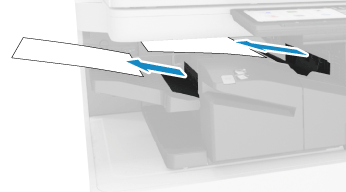
If paper is jammed in the output tray of the inner finisher, gently pull it out in the direction of the arrow.
2
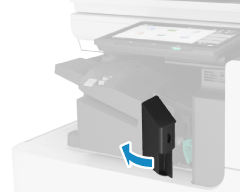
Open the left cover of the inner finisher.
3
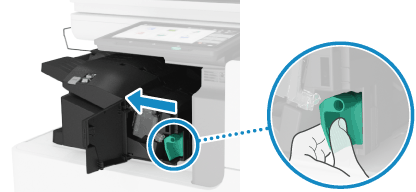
Hold the green lever and slide the inner finisher to the left.
4
Check whether paper is jammed inside the inner finisher.
1
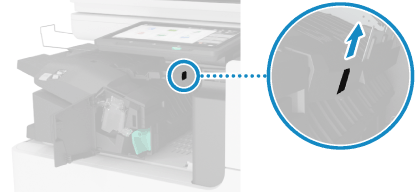
Lift up the green guide.
2
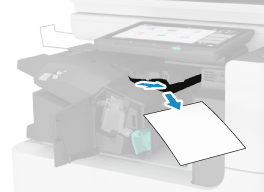
If paper is jammed, gently pull it out in the direction of the arrow.
3
Lower the green guide.
When the Puncher Unit Is Installed
Check for paper jammed inside the puncher unit.
1
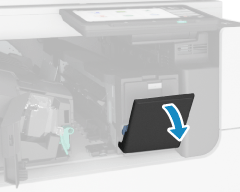
Open the front cover of the puncher unit.
2
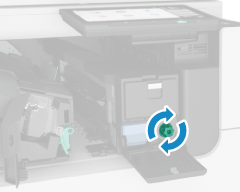
Turn the green knob.
3
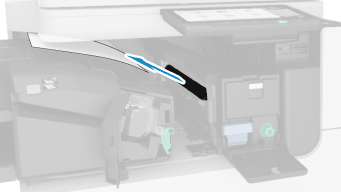
If the paper was ejected, gently pull it out in the direction of the arrow.
4
Close the front cover of the puncher unit.
5
Slide the inner finisher to the right and push it in.
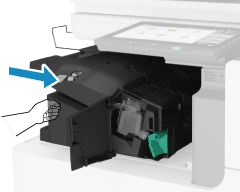
Be careful not to get your fingers caught in the gaps when pushing in the inner finisher.
6
Close the left cover of the inner finisher.
When the paper jam is cleared, the screen indicating a paper jam disappears, and printing resumes automatically.
If a screen indicating a paper jam at a different location appears, continue following the instructions on the screen to remove the jammed paper.
If a screen indicating a paper jam at a different location appears, continue following the instructions on the screen to remove the jammed paper.
NOTE
If Paper Jams Occur Repeatedly
Check the status of the machine and paper. Paper Jams That Occur Repeatedly