
Configuring the Firewall of the Sub Line
When the machine is connected to a dual network configuration, IP address-based and MAC address-based firewalls can be used on the sub line in the same way as the main line.
|
For information on the exception addresses and exception port numbers that can be used for communication and are registered by default, see Management Functions. |
Specifying IP Addresses in Firewall Settings of the Sub Line
1
Press  (Settings/Register).
(Settings/Register).2
Press <Preferences>  <Network> <Sub Line Settings> <Firewall Settings>.
<Network> <Sub Line Settings> <Firewall Settings>.3
Press <IPv4 Address Filter>.
4
Select <Outbound Filter> or <Inbound Filter>.
To restrict data sent from the machine to a computer, select <Outbound Filter>.
To restrict data received from a computer, select <Inbound Filter>.
5
Set <Use Filter> to <On>, select <Default Policy>, then press <Register>.
For <Default Policy>, select <Reject> to only allow communication with devices that have an IP address specified in <Exception Addresses> in the next step, or select <Allow> to reject communication with them.

If <Reject> is selected for <Default Policy>, the restrictions do not apply to sending to multicast or broadcast addresses.
6
Set the exception addresses.
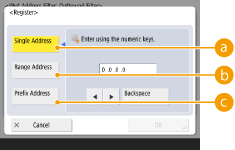
Specify the IP addresses to designate as exceptions of the <Default Policy> option selected in the previous step. Select one of the input methods described below.
 <Single Address>
Enter an individual IP address to designate as an exception.
 <Range Address>
Specify a range of IP addresses. Enter a separate address for <First Address> and <Last Address>.
 <Prefix Address>
Specify a range of IP addresses using a prefix (network address). Enter a network address for <Address>, and specify the network address length in <Prefix Length>.
 Setting exception addresses for the transmission filter/reception filter
1 | Select the IP address input method, and enter the exception addresses. |
2 | Press <Next>. |
3 | Set the port number if necessary, and press <OK>. Select whether to specify a port number. You can configure detailed communication restrictions by specifying a port number for the exception address. 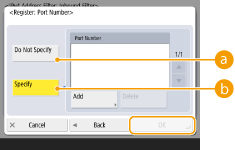 <Do Not Specify> <Do Not Specify>The exception address setting applies to all communication received from the specified IP address. <Specify>The exception address setting only applies to communication received from the specified IP address using the designated port number. Press <Add>, enter the port number, and press <OK>. You can register up to 50 ports per one exception address. |
To edit an exception address
On the screen displayed in step 5, select the exception address that you want to edit, and press <Edit> to display the edit screen.
7
Press <OK>.
8
Press (Settings/Register) (Settings/Register) <Apply Set. Chng.> <Yes>.
(Settings/Register) (Settings/Register) <Apply Set. Chng.> <Yes>. |
Checking the blocked communication requests in the logThe latest 100 communications blocked by the firewall can be displayed from (Settings/Register) <Preferences> <Network> <Firewall Settings> <IP Address Block Log>. The history of blocked communications can be exported from the Remote UI in the CSV format. Exporting a Log as a FileIf <Default Policy> is set to <Reject>, the history of communication blocked by the firewall is not displayed in <IP Address Block Log>. |
Specifying MAC Addresses in Firewall Settings of the Sub Line
1
Press (Settings/Register).
(Settings/Register).2
Press <Preferences> <Network> <Sub Line Settings> <Firewall Settingss> <MAC Address Filter>.
<Network> <Sub Line Settings> <Firewall Settingss> <MAC Address Filter>.3
Select <Outbound Filter> or <Inbound Filter>.
To restrict data sent from the machine to a computer, select <Outbound Filter>.
To restrict data received from a computer, select <Inbound Filter>.
4
Set <Use Filter> to <On>, select <Default Policy>, then press <Register>.
For <Default Policy>, select <Reject> to only allow communication with devices that have a MAC address specified in <Exception Addresses> in the next step, or select <Allow> to reject communication with them.
If <Reject> is selected for <Default Policy>, the restrictions do not apply to sending to multicast or broadcast addresses.
5
Enter the exception addresses, and press <OK>.
Specify the MAC addresses to designate as exceptions of the <Default Policy> option selected in the previous step.
You can register 100 exception addresses for <Outbound Filter> and<Inbound Filter>.
To edit an exception address
On the screen displayed in step 4, select the exception address that you want to edit, and press <Edit> to display the edit screen.
6
Press <OK>.