
Remote Operation of the Control Panel
You can display the control panel on a computer screen via the Remote UI and operate it remotely. You can operate not only the touch panel display but also hard keys on the control panel. You can manage the machine or run jobs from a remote location.
Preparing Remote Operation
Use Remote Operation to operate the control panel remotely from a computer. You can set the password for remote operation and specify which users are allowed to operate remotely.
|
When remote operation is enabled, the following settings are also enabled. When any of these settings are disabled, remote operation is also disabled. <Remote UI Settings> <Remote UI Settings>  <Use TLS> <Use TLS><Use HTTP> |
1
Start the Remote UI.Starting the Remote UI
2
Click [Settings/Registration] on the portal page. Remote UI Screen
3
Click [License/Other][Remote Operation Settings].
[Remote Operation Settings].4
Select the check box for [Use Remote Operation], and configure the necessary settings.
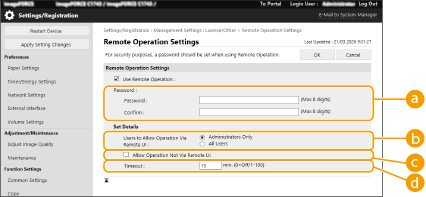
 [Password]
Set the password to access the remote operation screen.
 [Users to Allow Operation Via Remote UI]
Specify the users for whom [Remote Operation] is displayed on the Remote UI portal page.
 [Allow Operation Not Via Remote UI]
Select the check box if the conventional remote operation tool is used. Deselect this if you perform remote operation from the Remote UI.
 [Timeout]
Specify the duration of time before communication with the machine is disconnected when no remote operation is performed.

You can register up to five destinations.
5
Click [OK].
Operating Remotely
Operate the control panel remotely from the Remote UI portal page.
1
Start the Remote UI. Starting the Remote UI
2
Click [Remote Operation] on the portal page. Remote UI Screen
3
Perform necessary operations.
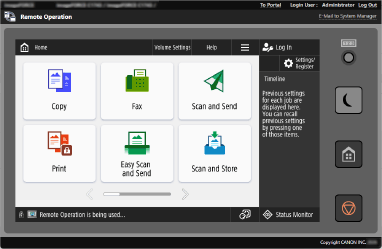
You can operate the control panel remotely in the same way as the actual control panel.
The display shown on the remote operation screen is synchronized with the control panel.
"Remote Operation is being used..." is displayed on the status display.
4
When remote operation is complete, close the browser window.
If the timeout period elapses without any remote operation, communication with the machine is disconnected.
 |
Remote Screen AccessIf a problem occurs with the machine, call center staff can resolve the issue through remote operation. Press <Remote Screen Access> on the <Home> screen. On the displayed screen or on the screen displayed after pressing [Counter/Device Information] key <Device Info./Other>, press <Display Access Code>, and provide the displayed six-digit code to the call center staff. |