Connecting Directly
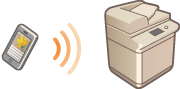
Even in an environment without a wireless LAN router, you can still directly connect your mobile device to the machine via "Access Point Mode," which enable connections between the device and the machine without the need to configure complicated settings.
Preparing to Connect Directly
Establish a connection by using Access Point Mode in the following order.
 |  | Check the network settings of the machine. Press  (Settings/Register) (Settings/Register)  <Preferences> <Network> <TCP/IP Settings> <IPv4 Settings> set <Use IPv4> to <On>. <Preferences> <Network> <TCP/IP Settings> <IPv4 Settings> set <Use IPv4> to <On>. | ||
 | ||||
 |  | Prepare the mobile device. Configure the mobile device to enable Wi-Fi connection. | ||
| ||||
 |  | Prepare the machine for connection. Press (Settings/Register) <Preferences> <Network> <Direct Connection Settings> set <Use Direct Connection> to <On>.If <Automatically Enable/Disable Direct Connection at Login/Logout> is set to <On> in <Personal SSID and Network Key Settings>, direct connections are possible when logging in without pressing <Mobile Portal> <Direct Connection> <Enable>. <Personal SSID and Network Key Settings> |
 |
For details on using Canon PRINT, see the related manuals. (https://global.canon/cpis/) If the message <Cannot be used with the current settings. Contact the system manager.> is displayed on the top of the touch panel display and <Enable> cannot be pressed, confirm that <Use Direct Connection> is set to <On>. If <Use Direct Connection> is set to <On> but <Enable> cannot be pressed, change the IP address in <IP Address Settings for Direct Connection>. <Use Direct Connection> <IP Address Settings for Direct Connection> When using the Access Point Mode, if the machine is started with <Always Keep Enabled If SSID/Network Key Specified> set to <On>, direct connections are possible without pressing <Mobile Portal> <Enable>. <Always Keep Enabled If SSID/Network Key Specified> |
Connecting Directly (Access Point Mode)
 |
It may take some time for connection between the machine and the mobile device to be established. |
Connecting Manually
1
With the machine as the connection destination, configure the wireless LAN settings on your mobile device, using the SSID and network key information shown on the touch panel display of the machine.
2
After completing the desired operations, press <Disconnect>.
Connecting with a QR Code
For Canon PRINT
1
Start Canon PRINT on the mobile device.
2
Read the QR code shown on the touch panel display of the machine.
3
After completing the desired operations, press <Disconnect>.
|
If you cannot read the QR code, update Canon PRINT to the latest version. |
For devices using iOS (iOS11 or later)
1
Start the standard camera app on the iOS device.
2
Read the QR code shown on the touch panel display of the machine.
3
After completing the desired operations, press <Disconnect>.
 |
To check the connected mobile devices, press <Mobile Dev. Info> on the <Direct Connection> screen. You can enable connection associated with login users by setting <Use Personal SSID and Network Key> to <On> in the <Access Point Mode Settings>. <SSID/Network Key Settings> |
|
While connecting via direct connection, you may not be able to connect to the Internet depending on the mobile device you are using. If a wireless connection from a mobile device is not performed within 5 minutes while the SSID and network key are displayed, the status waiting for connection ends. If the status without data transmission between a mobile device and the machine continues during communication by direct connection, the communication may end. Power saving performance of sleep mode degrades while connecting via direct connection. When you finish the desired operation, be sure to terminate the connection between the machine and the mobile device. If they remain connected, power saving performance of sleep mode degrades. If you use the direct connection, do not set the IP address manually on the mobile device. Doing so may prevent proper communication after using the direct connection. |